Introduction to the Automated Back Office
Thredd's Automated Back Office Suite of services simplifies and automates complex operational tasks to save time and money and meet compliance requirements.
Services
The following services exist in Automated Back Office.
-
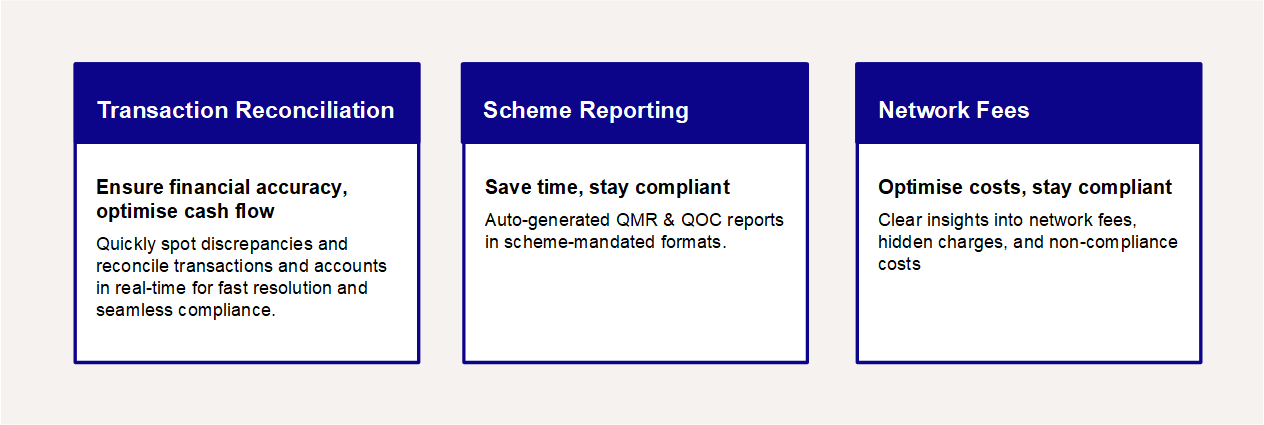
Reconciliation: Reconciles transactions and identifies discrepancies to ensure the accuracy of financial data and fast resolution. This includes Transaction Matching and Activity Reconciliation (see Reconciliation).
-
Regulatory Reports. Speeds up the reporting process by generating automated and accurate Mastercard Quarterly Member Reports (QMR) and Visa Quarterly Operating Certificates (QOC) reports, enabling you to maintain compliance with the Card Schemes. When the reports are generated, some of the fields are auto populated, which allows you to review and add data as it comes in during the quarter. When you have finalised your changes, you can download the report in CSV format, and upload to the Card Scheme.
-
Network Fees: Breaks down the complicated Card Scheme invoice into line items that are easy to understand, highlighting non-compliance and optional fees. A dashboard provides high-level summaries to help you understand your card program’s activity (see Network Fees).
For adding a particular service that is not available, contact your Thredd account manager.
For more information, see:
Managing User Access
Access to Automated Back Office is performed by a designated admin through the Control Center. As an admin, you can create People (or user) entries and assign users access to modules. See Using the Control Center.
Data Upload Responsibilities
The data used in all the services of Automated Back Office are part of a Standard Collection. Standard Collection files are automatically uploaded by Thredd according to SFTP schedules that you set. This includes the files for Regulatory Reports and Reconciliation.
You are responsible for uploading network invoices that provide the data for Scheme Fees.
Logging in to the Online Portal via SSO
Once Thredd have the Client, Programs, and Users have been set up in Automated Back Office, you can log in using SSO. Using this type of login, you can access Automated Back Office by entering your credentials once. All authentication is performed through an Identity Provider (IDP).
The following prerequisite steps would need to have been performed:
-
Thredd would need to have set up the Client and the Programs.
-
A designated admin would have added you as an Automated Back Office user with a role for one or more modules.
You would have also used SSO if you logged in to Thredd Portal: Cards and Transaction Management.
To log in through SSO:
-
Enter your organisation's email address.
-
Click Continue With Email.
-
Follow the steps for authenticating with your SSO.
Automated Back Office Dashboard
The Automated Back Office dashboard appears as follows.

Selecting your Program
At the top left of the screen, select the relevant program from the Programs drop-down list. The program would be either a Visa or a Mastercard program.
Using the Quick Actions buttons
You can use the Quick Actions buttons to navigate to different areas on the portal. These include:
-
Activity Reconciliation — opens the Activity Reconciliation page, where you can view the reconciliation status of your transactions.
-
Network Fees — opens the Dashboard page, where you can manage network fees.
-
Transaction Matching — opens the Transaction Matching page, where you can view the matching status of your transactions. See Viewing Matched and Unmatched Transactions.
-
Regulatory Reports — opens the Regulatory Reports dashboard page, which provides details of regulatory reports.
Quick Action Buttons and Role Access
The Quick Action buttons that appear on the Dashboard depend on whether or not you have been assigned a Role for the functional area (or module). For example, you could have been provided a Role of Admin for Activity Recon, Analyst for Regulatory Reporting, and a Supervisor for Network Fees. For a Quick Action button to appear, your organisation must be enrolled for the module.
The options that appear on each screen of a module depend on the permissions that are allocated for the Role in the Control Center. For more information on Roles and the permissions, refer to How Roles and Permissions Work in Using the Control Center.
Using the Left-Hand Menus
Clicking  displays the left-hand menu. The relevant submenu items appear under the Finance option. These can include Activity Reconciliation, Transaction Matching, and Network Fees,

If you are using Regulatory Reports, the relevant submenu items are under the Risk and Compliance option.
In the same way as the Quick Action buttons, the options that show on the left-hand menu depend on whether or not you have a Role allocated to the module.
Return to the Portal Home Page
Click the Thredd Logo on the top-left corner to return to the portal home page.
Sign Out
- To sign out of your account, click the where the username is located in the top-right corner.
- Select Sign Out.