Using the Control Center
The Control Center in Automated Back Office allows you to create and update People (or user) entries to enable access to the system. You can also choose the Automated Back Office modules which the user has access to. For example, you can add a new user, John Doe as a People entry, and then set access to the Activity Recon (Activity Reconciliation) module with the Role of Admin.
For configuring People and Role entries in Control Center, you would have been assigned an admin role.
Granting User Access
To grant user access, you need to:
-
Create an entry in the People page for the user.
-
Assign that user access to a module in Automated Back Office with a specific Role.
A Role determines what the user can do in Automated Back Office using a set of permissions.
How Roles and Permissions Work
By default, you can assign one of three Roles to a user of Analyst, Supervisor, and Administrator. The following table summarises each Role and the associated permissions.
|
Role |
Description |
Permissions |
|---|---|---|
|
Supervisor |
This user is able to edit or manage existing data. The Supervisor has more permissions in Automated Back Office than an Analyst. |
General Upload invoices
Reconciliation View daily reconciliation Export files
Transaction Matching View matched/unmatched transactions Export files
Network Fees Investigate fees Escalate fees Reopen a fee Flag as Optional Flag as Suspicious
Regulatory Reports Submit Regulatory Reports |
|
Admin |
This user is able to see, edit, manage, and delete existing data entries. An Admin has less restrictions than a user with the Supervisor Role. |
General Create / Update New Users Adjust User Roles Upload Invoices
Reconciliation View daily reconciliation Export files
Transaction Matching View matched/unmatched transactions Export files
Network Fees Accept Investigate fees Escalate fees Reopen Portion Flag as Optional Flag as Suspicious Flag as Penalty
Regulatory Reports Edit Regulatory Reports Submit Regulatory Reports |
|
Analyst |
This user has read-only or very limited write permissions. They can view and export data, and can create new data entries. They are not able to edit existing entries, |
Reconciliation View daily reconciliation Export files
Transaction Matching View matched/unmatched transactions Export files
Network Fees View Fees Export Fees
Regulatory Reports View Regulatory Reports |
Management Tasks
You can update the data on the users that you have added to the Control Center. This includes adding more users, changing their Roles and/or access to different modules (see Updating a People Entry and Updating Role and Module Access). You can also delete users that no longer require access to Automated Back Office from the People page (see Deleting a People entry).
To make your People data available outside of Automated Back Office, you can also export the list of entries (see Exporting People Entries).
Opening the Control Center
The Control Center option is under the following sub menu in Automated Back Office.
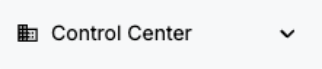
-
Click the
 button to display the left-hand menu.
 -
To show a list of users, select Control Center > People.
-
To show a list of users and their assigned Roles for Automated Back Office modules, select Control Center > Roles.