Using Transaction Matching
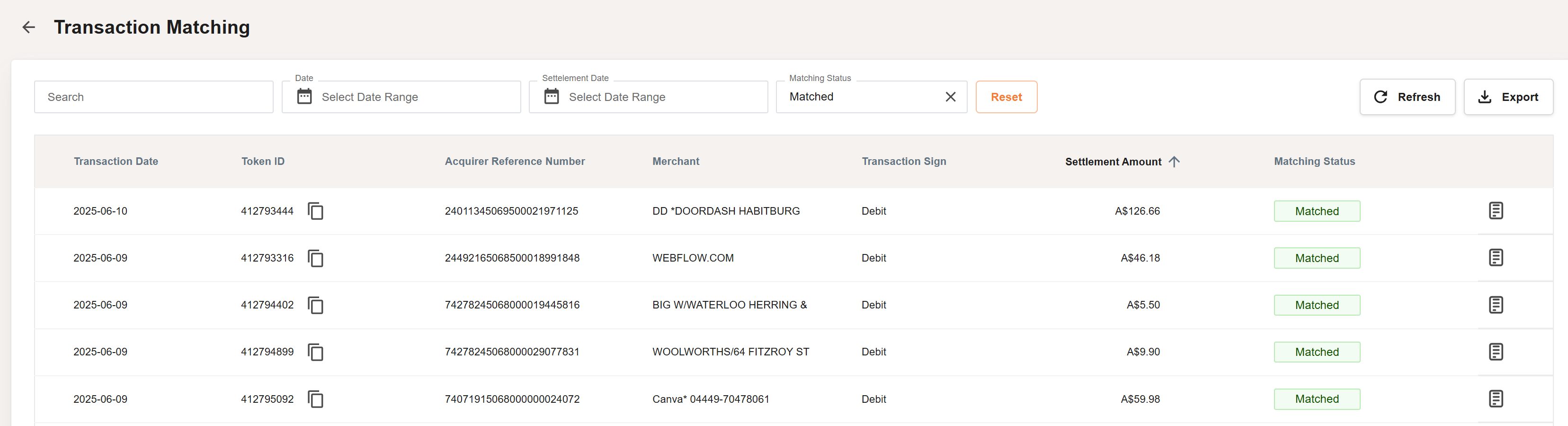
Transaction Matching compares authorization file (non-clearing) and clearing transactions to find matches. Using a set of variables between the authorization and clearing, the matching process confirms transactions where there is a Match, or those that are Unmatched. These transactions are then listed on the Transaction Matching screen. The set of Matched and Unmatched transactions are also available under each day of Activity Reconciliation to provide easy access to the list and to deliver a summary. A day can be Reconciled but still have Unmatched transactions.
To assist in searches for matched and unmatched transactions, the Transaction Matching screen allows you to scan all records and set up a variety of filters. You can also export the records in to various formats.
Transaction matching activities that you can perform depend on your role. For more details, see Roles in Automated Back Office.
How Does Transaction Matching Work?
Transaction matching uses the unique transaction ID to locate and compare authorization messages with financial presentment messages. The following fields are compared:
-
STAN (System Trace Audit Number)
-
Token ID
-
authorization ID
-
authorization Date
-
Transaction Date
-
Settlement amount
-
Visa Tran ID
If these details match, the transaction is marked as Matched. If a matching authorization record cannot be located for a financial message, the transaction is shown as Unmatched. For more details on the matched fields, see Transaction Matching Fields.
Transaction matching uses Thredd's Non-Clearing and Clearing Files. These use the following notations: THRD-PPPP-CLR-YYYYMMDDHHMM-YYYYMMDDHHMM.PX.xml and THRD-PPPP-CLR-YYYYMMDDHHMM-YYYYMMDDHHMM.PX.xml.
Viewing Transaction Matching Status
-
Click the Transaction Matching Quick Actions button from the Automated Back Office dashboard. Alternatively, click the
 icon on the left-hand side to bring up the menu, followed by Finance > Transaction Matching. The Transaction Matching screen appears.
-
You can search for a particular transaction using Authorization ID, Presentment ID, Settlement Date, Scheme Reconciliation Date, Card Token, Txn Amount, Token ID or Matching Status.
-
Use the filter options to search on the above categories, or browse page features to view details on the data. See the following sections on viewing record details, browsing between pages, and filtering records.
Viewing Record Details
You can click a row to view a further breakdown of details for that record. For more information, see Viewing Transaction Lifecycle Information.
Browse between Pages
You can use the arrows at the bottom of the page (next to the page numbers) for browsing between pages.

Filtering Records
You can use the default filter options on the screen or add further filter options as described below.
Filtering by Authorization ID
In the Authorization ID: All drop-down, select one or more IDs from the OPTIONS list, or use the search.
Filtering by Presentment ID
To filter by Presentment ID: In the Presentment ID: All drop-down, select one or more tokens from the OPTIONS list, or use the search.
Filtering by Settlement Date Range
To filter by settlement date range:
-
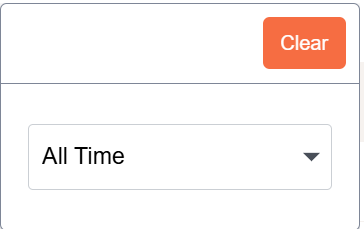
Click the Settlement Date: All drop-down list. A pop-up menu appears.
-
Select a filter option from the list. This includes either:
-
Equal
-
After
-
Before
-
Between
-
-
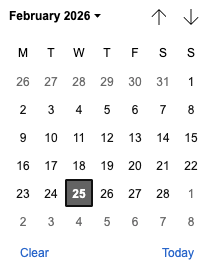
Click on the date option to show the date picker.
-
In the Date Range Picker pop-up window, use the up and down browse arrows in the calendar to find the required start date, and click the date.
-
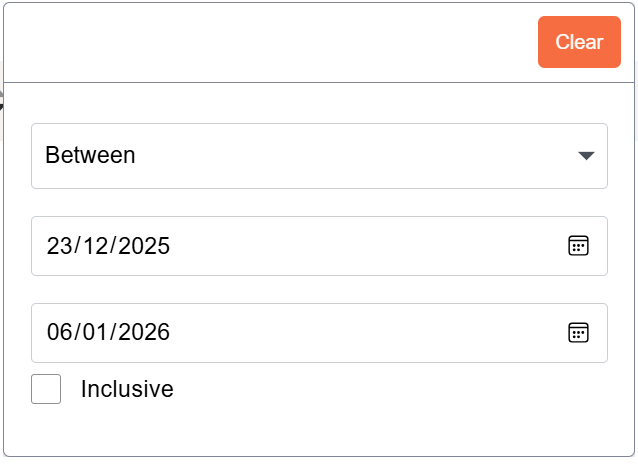
If you have selected the Between option, you need to select From and To dates from the individual date pickers.
Filtering by Scheme Reconciliation Date Range
To filter by the scheme reconciliation date range:
-
Click the Settlement Reconciliation Date drop-down list. A pop-up menu appears.
-
Select a filter option from the list. This includes either:
-
Equal
-
After
-
Before
-
Between
-
-
Click on the date option to show the date picker.
-
In the Date Range Picker pop-up window, use the up and down browse arrows in the calendar to find the required start date, and click the date.
-
If you have selected the Between option, you need to select From and To dates from the individual date pickers.
Filtering by Card Token
In the Card Token: All drop-down, select one or more tokens from the OPTIONS list, or use the search.
Filtering by Transaction Amount
To filter by Transaction Amount:
-
Click the Txn Amount: All drop-down list. A pop-up menu appears.
-
Select a Boolean filter from the list (see Boolean options).
Filtering by Token ID
In the Token ID: All drop-down, select one or more tokens from the OPTIONS list, or use the search.
Filtering by Matching Status
In the Matching Status: All drop-down, select a reconciliation status from the OPTIONS list of either Matched or Unmatched.
Choosing Further Filter Options
To select further filter options:
-
Click Filter. The gears icon appears with the other filter options.
-
Click the gears icon.
-
Select any of the filter option categories. These include:
-
Program Id
-
Match Id
-
Arn (Acquirer Reference Number)
-
Account Type
-
Appr Code
-
Bill Currency
-
Bill Rate
-
Bill Amount
-
Masked PAN
-
Product
-
Cycle
-
Fee Currency
-
Fee Direction
-
Fee Amount
-
Local Date
-
Local Date UTC
-
MCC (Merchant Category Code)
-
MID (Merchant ID)
-
Record Type
-
Scheme Settlement Date
-
Settlement Currency
-
Settlement Amount
-
TID (Transaction ID)
-
Trace Audit Number
-
Txn Currency
-
Txn Direction
-
Txn Type
-
Matched At
-
Match Criteria
-
Created At
-
Updated At
-
- Click on any of these displayed drop-downs.
- In the pop-up windows, select a filter option.
Boolean Options
If the filter has Boolean options, the following entries exist:
-
Equal
-
Not Equal
-
Greater than
-
Less than
-
Greater than or equal
-
Less than or equal
-
Between (exclusive)
-
Between (inclusive)
Exporting Transaction Matching Records
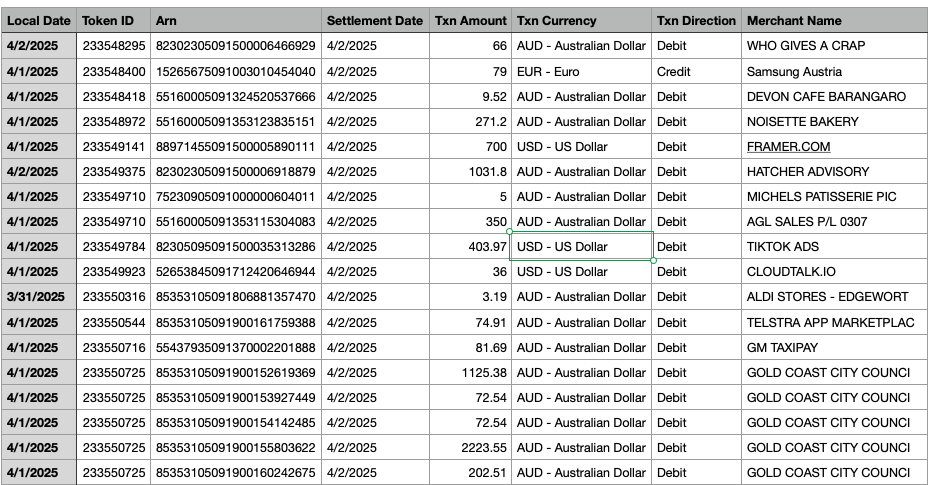
You can export your transaction matching records. The following shows an example.
-
From the Transaction Matching page, click Export.
-
From the Select Type list, choose a format for the export as:
-
CSV
-
JSON
-
XML
-
Save your data to a suitable location.
See below for the descriptions of export options for each format.
Export to CSV
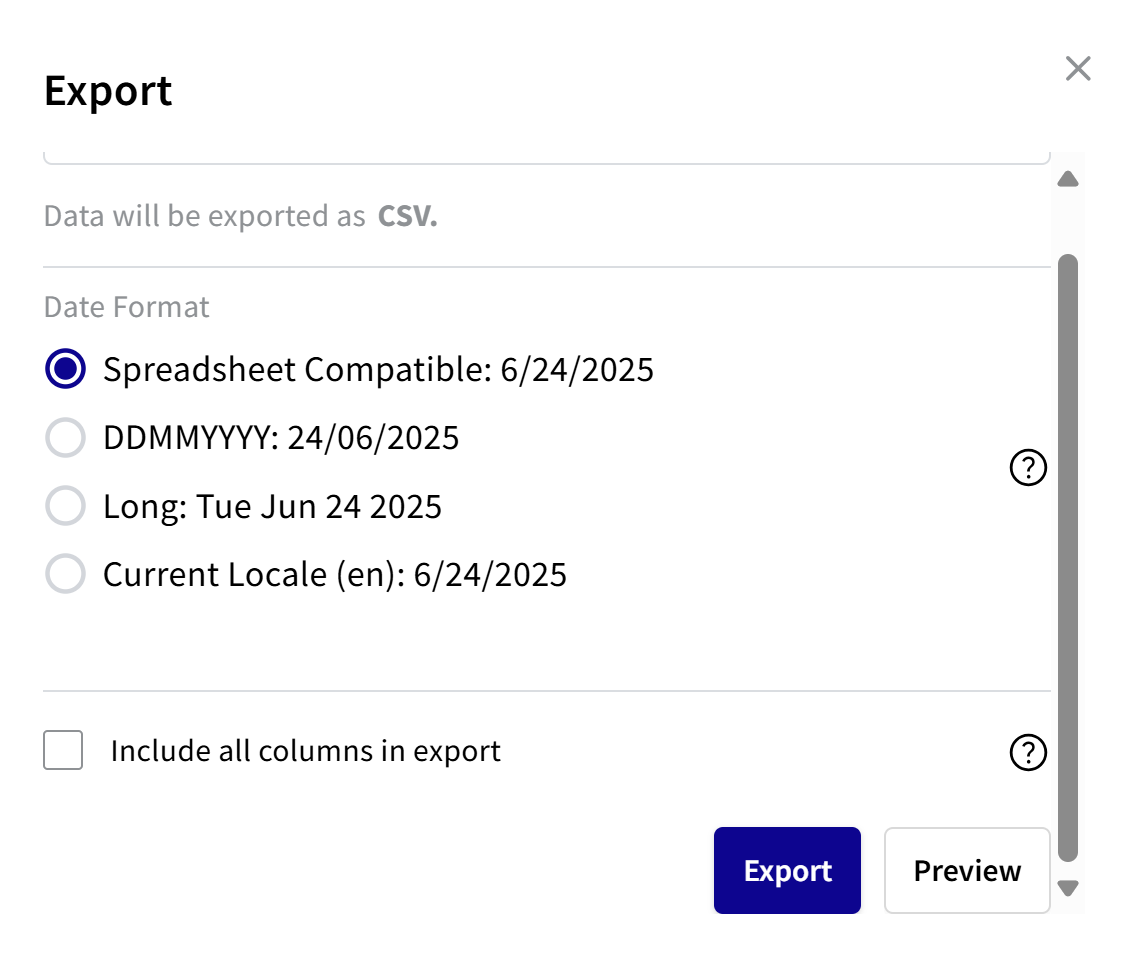
If you selected the CSV option, you can include the date format. You can also select the option for exporting all the columns that exist for a file, and not just those that appear in the Transaction Matching view.
To export to CSV:
- Choose a date format:
- For spreadsheet compatible, select Spreadsheet Compatible. See second note.
- For DDMMYYYY, select DDMMYYYY.
- For a long date format, select Long.
- For current locale, select Current Locale.
- To export all the columns in the file, select the Include all columns in export check box.
If you do not select the check box, you only export those columns that appear in the Transaction Matching view.
- To preview, click Preview. The Response box shows the report in CSV format with the selected date format.
- To export, click Export.
Spreadsheet Compatible is where the date format is recognised by spreadsheets such as Excel and Google sheets for calculations, sorting, and formatting.
Export to JSON
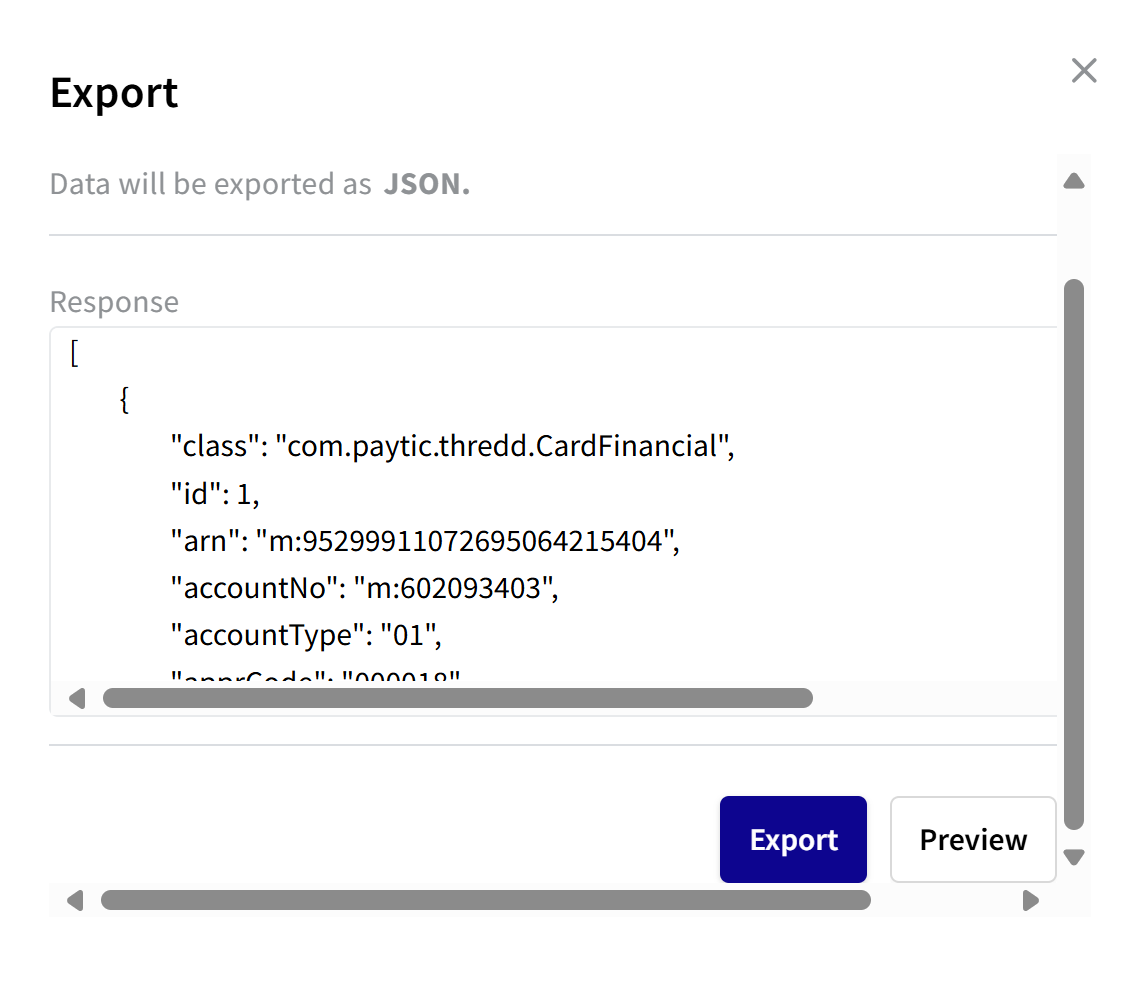
If you selected the JSON export option, you can preview the export data.
- To preview the data, click Preview. The JSON response appears.
- To export, click Export.
Export to XML
If you selected the XML export option, you can preview the export data. Or, you can just export the data.
- To preview the data, click Preview. The Response box shows the report in XML format.
- To export, click Export.
Column Headings in the Export File
The following table shows details of the column headings.
|
Field |
Description |
|---|---|
|
Local Date |
The local date of the transaction (in YYYYMMDDHHSS format). Clicking the relevant cell with the date shows it in YYYYMMDDHHSS. By default, the date appears in scientific notation. |
|
Token ID |
The 16-digit card token number. |
|
Arn |
The 23-digit Acquirer Reference Number (ARN), which uniquely identifies the Acquiring bank. |
|
Settlement Date |
The date on which the transaction was settled. |
|
Txn Amount |
The amount of the transaction. |
|
Txn Currency |
The currency of the transaction. |
|
Txn Direction |
Specifies if the transaction is a debit or a credit. |
|
Merchant Name |
The name of the merchant associated with the transaction |
|
Matching Status |
The matching status: matched or unmatched. |