About Network Fees
Network Fees in Automated Back Office allow you to analyse and manage your fee data through the Dashboard and Fee Explorer interfaces. The module provides detailed insights in to fee information. You can:
-
View fee information in the Dashboard interface.
-
Use fee filters to display specific fee information.
-
Drill down on the fee data to perform detailed analysis.
-
View information on fee records.
-
Update the fee status on records as part of your review.
-
Export fee data.
Network Fees is available for Program Managers, as well as for BIN Sponsors and BAAS Providers who invoice their affiliates.
Network fee activities that you can perform depend on your role. For more details, see Roles in Automated Back Office.
If you want to add this service but it is not available, contact your Thredd account manager
Network Fees Workflow
You can organise tasks according to the following workflow. This ensures that you can manage your fees accurately, and identify potential problems that may exist.
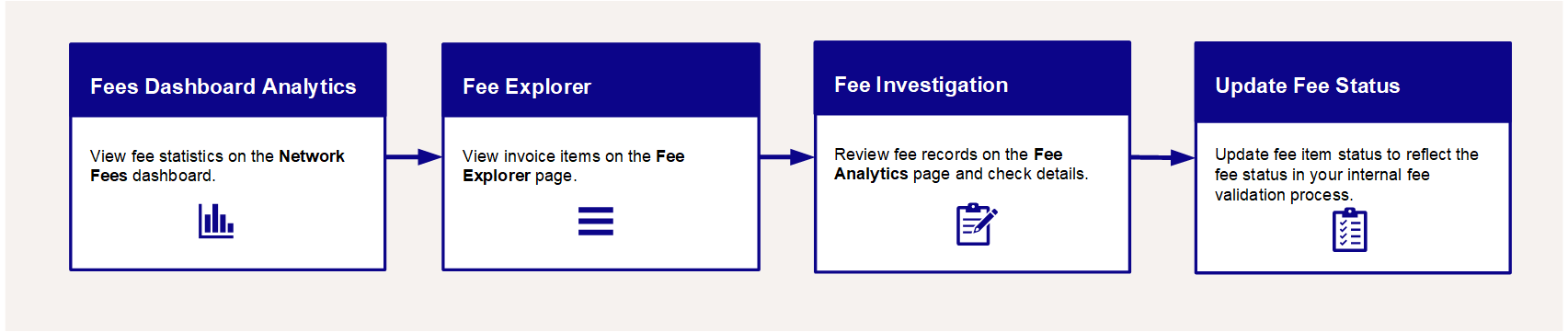
Before starting the workflow, you need to upload network fee invoices to Automated Back Office (see the following section on Uploading your Data). For further analysis of fee data from the workflow, you can export the data in a specific format, for example CSV (see Exporting Fee Records).
Uploading your Data
You upload monthly network fee invoices to Automated Back Office from the Card Scheme. These include invoices in the following formats:
-
XLS
-
CSV
-
XML
-
TXT (delimited by full-stops, colons, quotes, and pipes).
For more details on the file formats, see Appendix 3: Supported File Types and Formats.
-
Click the
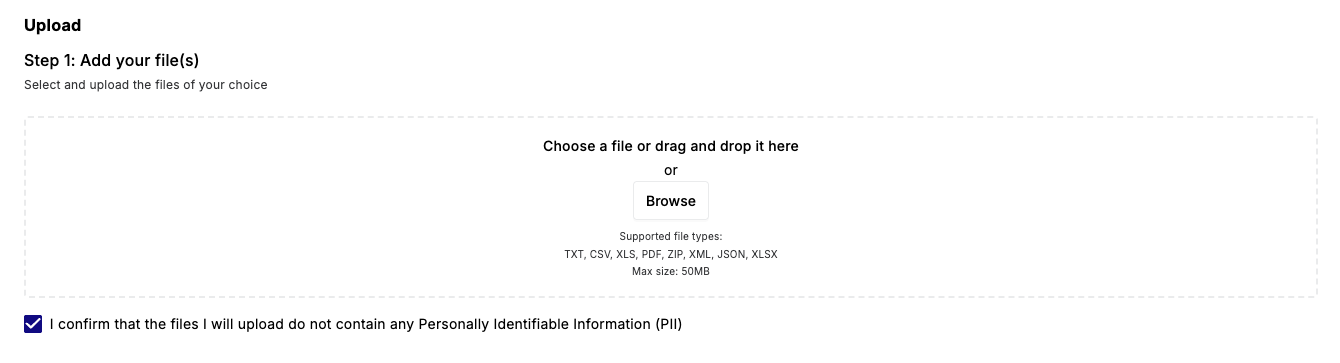
 icon on the left-hand side to bring up the menu, followed by Upload. A disclaimer appears confirming that the files do not contain PII (Personally Identifiable Information).
 -
Select the check box next to the disclaimer.
-
Add invoice files.
-
Choose a file drag and drop the file in to the box.
-
Click Browse and locate the file(s) from the folders on your system.
-