Using Activity Reconciliation
This section explains how to view reconciliation records and use the options for reconciliation. Automated Back Office enables you to drill down from a daily summary to more granular transaction information.
-
View a summary of the daily reconciliation status — for comparing daily settlement records. The net amount settled from the Card Scheme is matched to the net amount processed by Thredd. See Viewing Activity Reconciliation Status.
-
Filter the list of records — use a set of default filter or your own options for viewing the daily reconciliation status. See Filtering Records.
-
Drill down to view details of a daily settlement record — amounts are broken down for transactions and scheme charges. You can view the list of transactions for that day, and their matching status. You can also view the daily T140 or VSS files from the Card Schemes, which contain the settlement information. See Viewing Activity Reconciliation Records.
-
Drill down to view further transaction details — view the transaction matching status for the day or date range. See Transaction Matching.
-
Drill down to view data of the underlying transaction lifecycle — view details of the fields that have been matched. See Viewing the Transaction Lifecycle.
Activity Reconciliation are activities that you can perform depending on your role. For more details, see Roles in Automated Back Office.
Viewing Activity Reconciliation Status
Click the Activity Reconciliation Quick Actions button from the Automated Back Office dashboard. Alternatively, click the  icon on the left-hand side to bring up the menu, followed by Finance > Activity Reconciliation. The Activity Reconciliation screen appears.
The page displays reconciliation status based on the net transaction amounts processed and settled for each day.

Activity Reconciliation compares the net settlement amount for each day with the settlement data obtained from the Card Scheme. The Net Settlement column (scheme transaction data) is matched with the Net Processed column (Thredd settlement data).
-
If the totals match, the day's record is listed as Reconciled. The amount in the Gap column is listed as zero.
-
If the totals do not match, the status is reported as Unreconciled. The amount in the Gap column lists the difference in amounts between the Net Settlement and Net Processed columns.
Handling Unreconciled Transactions
A Client will need to adopt processes to manage the unreconciled transactions once identified. The Activity Reconciliation screen enables you to view entries of Unreconciled transactions, which show for various reasons, such as multi-currency settlement fluctuations or time lags in reporting.
Viewing Record Details
You can click a row to view a further breakdown of details for that record. For more information, see Viewing Activity Reconciliation Records.
Browsing between Pages
You can use the arrows at the bottom of the page (next to the page numbers) for browsing between pages.

Filtering Records
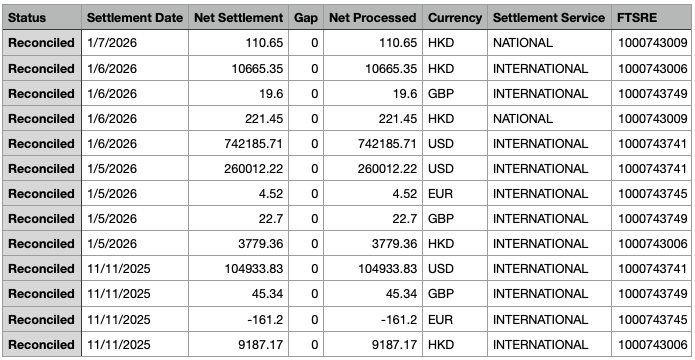
You can use the Settlement Date, Status, and Currency filter options to refine the list of records. If your program is using Visa, the following filter options also appear: Funds Transfer Settlement Reporting Entity (FTSRE) and Settlement Service.
You can also filter by other options including Id, Net Settlement, Gap, Net Processed, and Program Id.
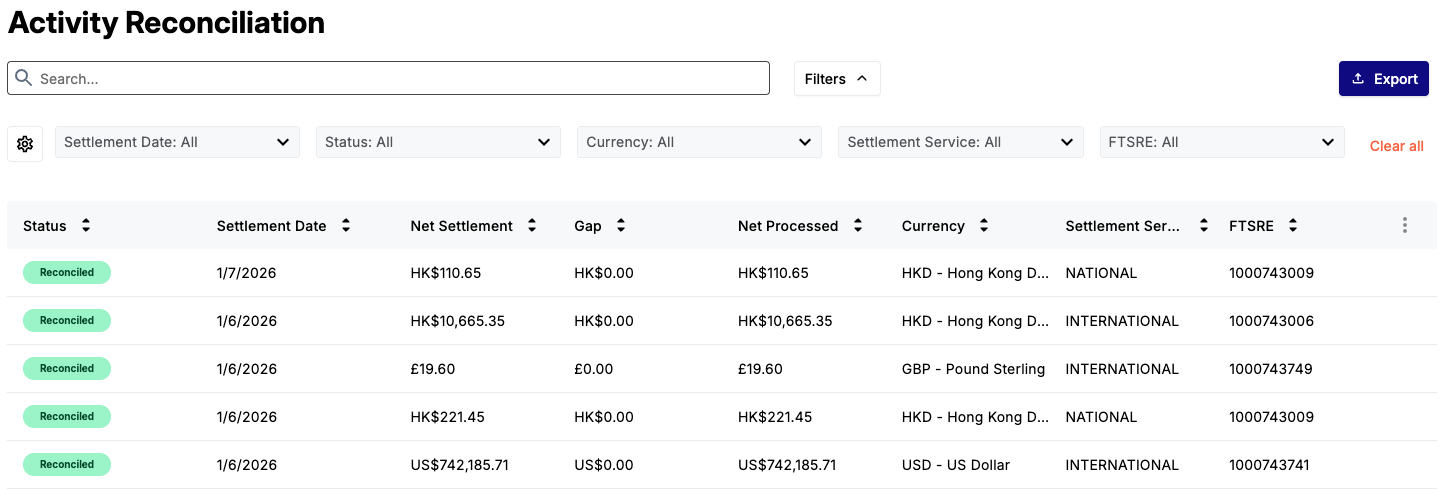
The following example shows a list of records filtered by Settlement Date that includes a combination of currencies, Settlement Service, and FTSRE. Note that all records are reconciled where Net Settlement and Net Processed do not show any gaps.
Choosing the Default Filter Options
To choose the default filter options:
-
Click Filter. Drop-down lists appear for all the filters.
-
Select individual filter options from the following drop-down lists:
-
Settlement Date: All
-
Status: All
-
Currency: All
-
Settlement Service: All (for programs that use the Visa scheme only).
-
FTSRE: All (for programs that use the Visa scheme only).
-
To clear any of the filters, click Clear All.
Filtering by Settlement Date Range
To filter by settlement date range:
-
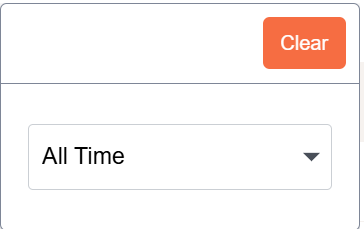
Click the Settlement Date: All drop-down list. A pop-up menu appears.
-
If required, select a different filter option from the list other than All Time. This includes either:
-
Equal
-
After
-
Before
-
Between
-
-
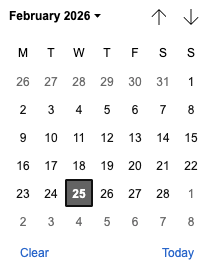
Click on a date entry to show the date picker.
-
In the Date Range Picker pop-up window, use the up and down browse arrows in the calendar to find the required start date. Then click the date. See the example below.
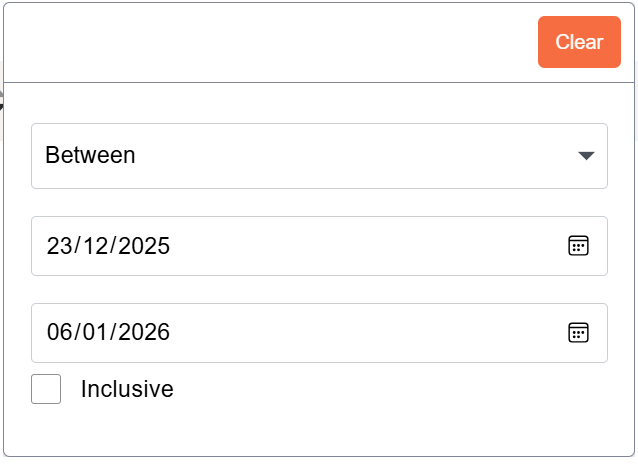
- If you have selected the Between option, select the From and To dates from the individual date pickers.
Filtering by Reconciliation Status
To filter by reconciliation status:
In the Status: All drop-down, select a reconciliation status from the OPTIONS list of either Reconciled or Unreconciled.
Filtering by Currency
To filter by currency:
-
Click the Currency: All drop-down.
-
Enter a three-digit currency code into the Search field.
Filtering by Settlement Service
To filter by Settlement Service:
-
Click the Settlement Service: All drop-down.
-
Enter text into the Search field or select an item in the OPTIONS list.
Filtering by FTSRE
To filter by FTSRE:
-
Click the FTSRE: All drop-down.
-
Enter text into the Search field or select an FTSRE item in the OPTIONS list.
Choosing Further Filter Options
To select further filter options:
-
Click
 .
. -
Select any of the filter option categories. These include:
-
Id
-
Net Settlement
-
Gap
-
Net Processed
-
Program Id
-
- Click on any of the displayed drop-downs.
- In the pop-up windows, select a filter option for the drop-down you selected. These are summarised in the following tables:
|
Example Filter Category |
Boolean Filter |
|---|---|
|
Id |
Equal Not Equal Greater than Less than Greater than or equal Less than or equal Between (exclusive) Between (inclusive) |
|
Net Settlement |
Equal Not Equal Greater than Less than Greater than or equal Less than or equal Between (exclusive) Between (inclusive) |
|
Gap |
Equal Not Equal Greater than Less than Greater than or equal Less than or equal Between (exclusive) Between (inclusive) |
|
Net Processed |
Equal Not Equal Greater than Less than Greater than or equal Less than or equal Between (exclusive) Between (inclusive) |
|
Program Id |
Equal Not Equal Greater than Less than Greater than or equal Less than or equal Between (exclusive) Between (inclusive) |
Viewing Activity Reconciliation Records
You can view a breakdown of details for an activity reconciliation record, such as interchange details.
-
From the Activity Recon page, click on the row you want to view.
-
On the displayed page, click Details.
The following record details are available:
The details in the tabs are based on the data in the daily Card Scheme invoices.
Scheme Charges
The Scheme Charges tab shows the Card Scheme charges credited to or debited from your account for that record. The tab also includes net amount figures.
|
Field |
Description |
|---|---|
|
Currency |
The currency of the Card Scheme charges. |
|
Total Debit |
The total Scheme fees debited from your Issuer account. |
|
Total Credit |
The total Scheme fees credited to your Issuer account. |
|
Net Amount |
The net amount paid to the Scheme/Issuer account. A negative amount indicates fees paid to the Card Scheme. A positive amount indicates fees paid to your Issuer account. |
|
EDP |
The daily interchange adjustment done by Mastercard. This field is not relevant for Visa. |
Interchange
The Interchange tab shows interchange amounts credited to or debited from your Issuer account for that record. The tab also includes interchange figures.
|
Field |
Description |
|---|---|
|
Currency |
The currency of the interchange. |
|
Total Debit |
The total interchange fees debited from your Issuer account. |
|
Total Credit |
The total interchange fees credited to your Issuer account. |
|
Net Amount |
The net amount paid for interchange. A negative amount indicates fees paid to the Card Scheme for interchange. A positive amount indicates interchange paid to your Issuer account. |
Chargeback
The Chargeback tab shows chargeback amounts credited to or debited from your Issuer account for that record.
|
Field |
Description |
|---|---|
|
Currency |
The currency of the interchange. |
|
Total Debit |
The total chargeback amount debited from your Issuer account. |
|
Total Credit |
The total chargeback amount credited to your Issuer account. |
|
Net Amount |
The net amount paid for the chargeback. A negative amount indicates that chargeback is paid to the Card Scheme. A positive amount indicates that the chargeback is paid to your Issuer account. |
Transactions
The Transactions tab shows details of the transactions for the specific settlement date. These include the number of transactions, spend volume and the transaction status. The transaction figures may explain any gaps that appear between the Net Processed and Net Settled figures.
|
Field |
Description |
|---|---|
|
Transaction Date |
Transactions that are associated with a specific transaction date. For the same transaction date, there can be multiple rows if there are matched and unmatched transactions. |
|
Settlement Date |
The specific settlement date. |
|
Status |
The status of the transaction. This is either Matched or Unmatched. Matched indicates that the transactions have been reconciled between Thredd and the Card Scheme settlement files. Unmatched indicates that the transactions have not been reconciled between Thredd and the Card Scheme settlement files. |
|
Total Transactions |
The total number of transactions on that day with a matched or unmatched status. |
|
Spend Volume |
The sum of transaction amounts on that day with a matched or unmatched status. |
|
Currency |
The currency associated with the transaction. |

The matching status is based on the details in the Thredd transaction records, together with the Scheme settlement file data.
|
Status |
Description |
|---|---|
|
Matched |
The total number of transaction records for the processing date that have been matched between the clearing and non-clearing files. |
|
Unmatched |
The total number of transaction records for the processing date have not been matched between the clearing and non-clearing files. |
T140 or VSS
The T140 tab (Mastercard) or VSS tab (Visa) displays details of Mastercard T140 or Visa VSS files received from the Card Scheme. You can select the relevant file VSS or Mastercard T140 from the drop-down list.
Exporting Activity Reconciliation Records
You can export your activity reconciliation records from Automated Back Office that you can use in other systems. Various columns show the data that is exported. For Visa, the records show data for the Settlement Service and FTSRE columns. However with Mastercard, the Settlement Service and FTSRE columns do not exist.
To export activity reconciliation records:
-
From the Activity Conciliation page, click Export.
-
From the Select Type list, choose a format for the export as:
-
CSV
-
JSON
-
XML
See below for the descriptions of export options for each format.
-
Save your data to a suitable location.
Export to CSV
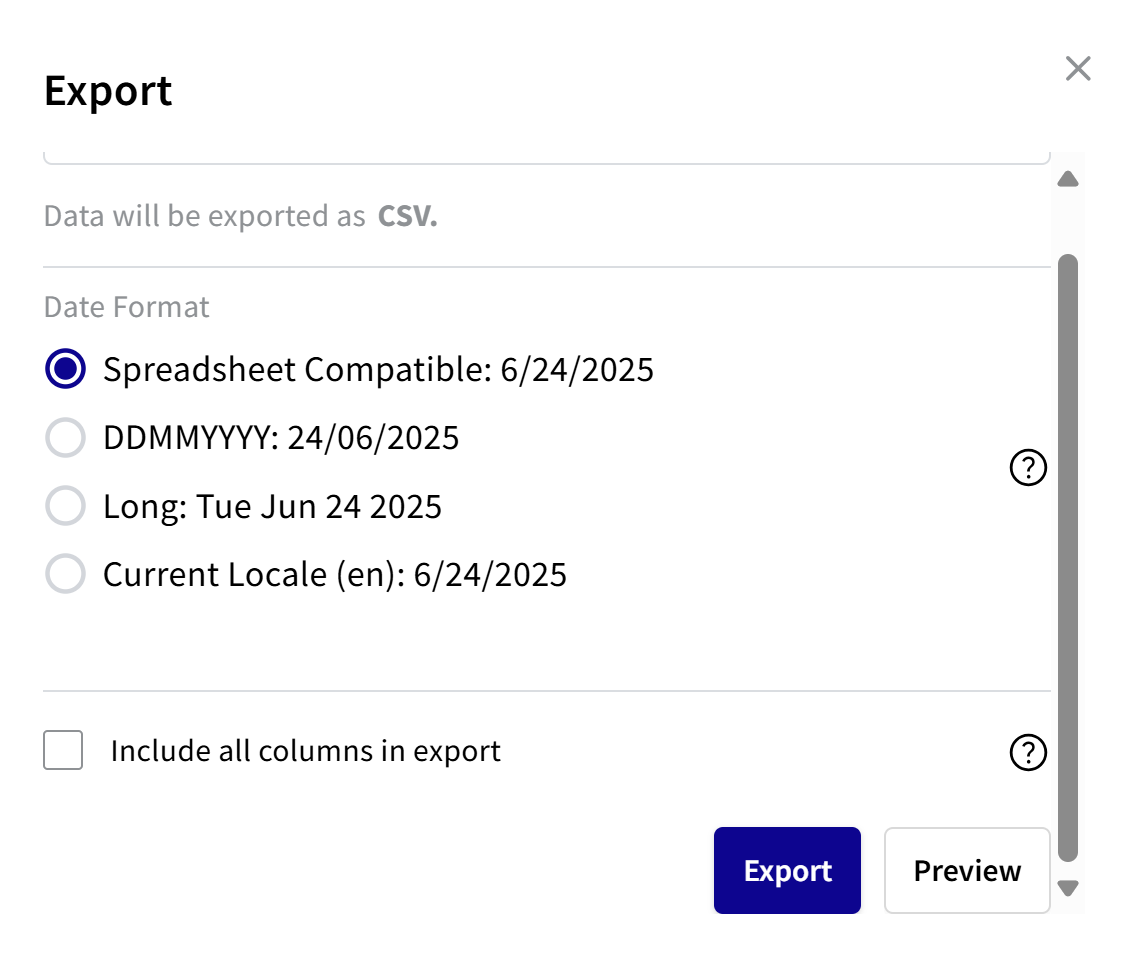
If you selected the CSV option, you can include the date format. You can also select the option for exporting all the columns that exist for a file, and not just those that appear in the Activity Reconciliation view.
To export to CSV:
- Choose a date format:
- For spreadsheet compatibility, select Spreadsheet Compatible. See second note.
- For DDMMYYYY, select DDMMYYYY.
- For a long date format, select Long.
- For current locale, select Current Locale.
- To export all the columns in the file, select the Include all columns in export check box.
If you do not select the check box, you only export those columns that appear in the Activity Reconciliation view.
- To preview, click Preview. The Response box shows the report in CSV format with the selected date format.
- To export, click Export.
Spreadsheet Compatible is where the date format is recognised by spreadsheets such as Excel and Google sheets for calculations, sorting, and formatting.
Export to JSON
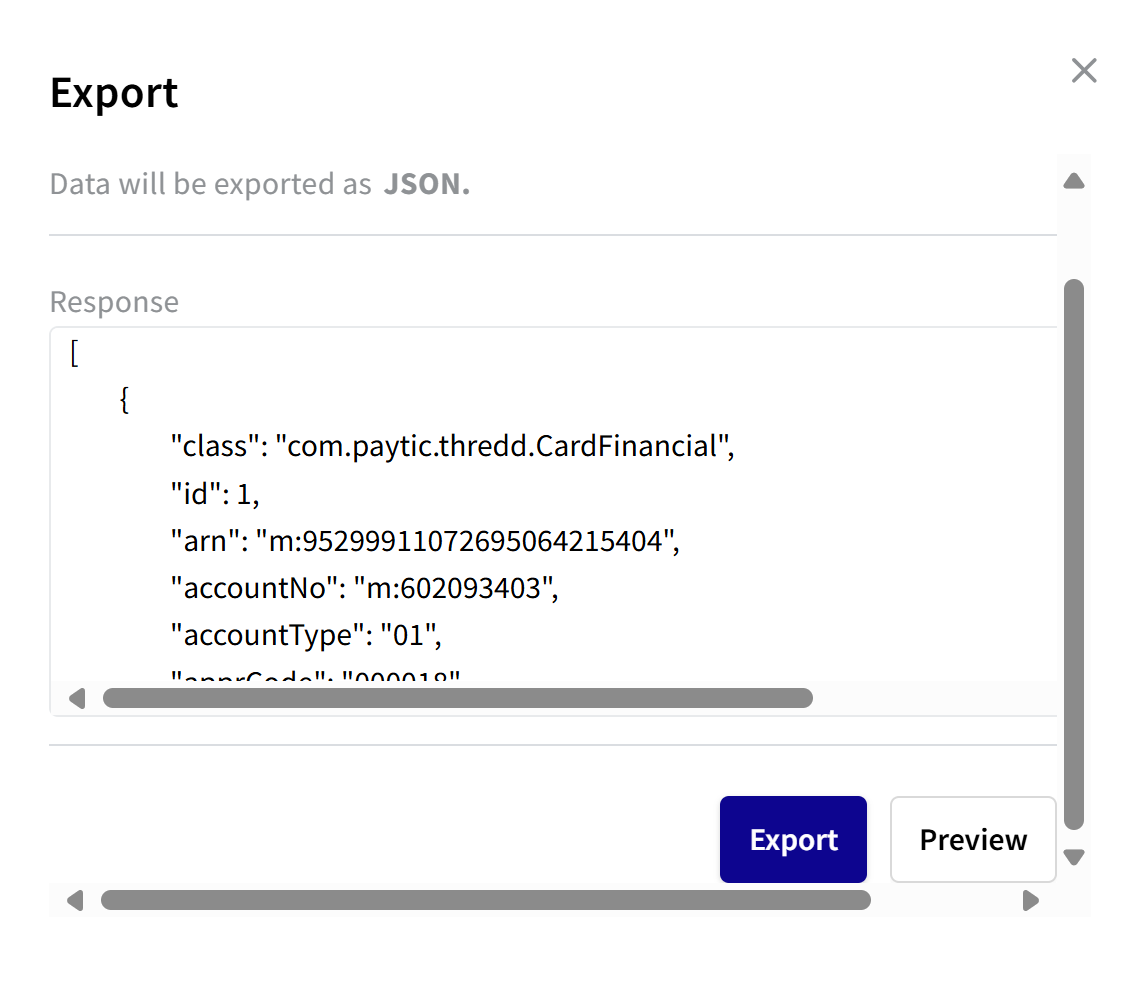
If you selected the JSON export option, you can preview the export data. Or, you can just export the data.
- To preview the data, click Preview. The Response box shows the report in JSON format.
- To export, click Export.
Export to XML
If you selected the XML export option, you can preview the export data. Or, you can just export the data.
- To preview the data, click Preview. The Response box shows the report in XML format.
- To export, click Export.
Spreadsheet Compatible is where the date format is recognised by spreadsheets such as Excel and Google sheets for calculations, sorting, and formatting.
Exporting File Column Settings
The following tables shows details of the export file column headings.
|
Field |
Description |
|---|---|
|
Status |
The status of the settlement as Reconciled or Unreconciled. |
|
Settlement Date |
The settlement date for the transactions (DD/MM/YYYY format). |
|
Net Settlement |
The net amount settled and paid to the Scheme/Issuer Account for the transactions. A negative amount indicates fees paid to the Card Scheme. A positive amount indicates fees paid to your Issuer account. Details are as per the Mastercard T140 or Visa VSS records. |
|
Gap |
Discrepancy between the Net Processed and Net Settlement amounts for the transactions. |
|
Net Processed |
The net amount processed by Thredd for the transactions. |
|
Currency |
Currency of the settlement transactions. |
|
Settlement Service (Visa-Only) |
The Settlement Service as national or international. |
|
FTSRE (Visa Only) |
Number that indicates settlements for one or more currencies. There is a unique SRE for each Settlement Service and settlement currency. |