23 Viewing Card Details
You can view the card details from the list of matching cards. From the Card Details page, you can view all transactions for the card, the details for a specific transaction, information on the card and cardholder, and manage the card using the Card Actions drop-down menu.
For more information on the different actions available when managing cards, see Performing Card Actions.
Each page consists of multiple tabs:
The summary of card information includes basic card details and current, available and unavailable (or blocked) balances.
To view the summary of card information for a specific card:
-
Search for the required card by either searching for a specific Card Token or using additional criteria to complete the search.
-
From the list of matching cards, click the required card to display the summary of card information.
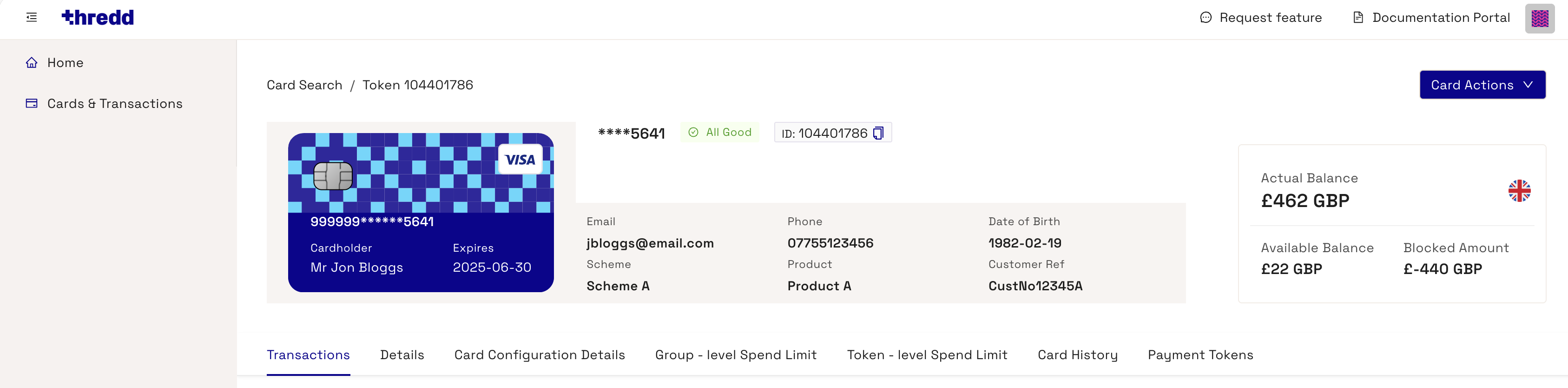
Figure 63: Card Details page displaying the summary of card information
From the Card Details page, you can complete specific card actions, for example, adjusting the balance or changing the card status. For more information, see Managing Cards.
Regardless of the tab selected, high level information on the cardholder is available at the top of the page.
The following table describes each of the fields available at the top of the page.
|
Field |
Description |
|---|---|
|
Cardholder |
The name of the cardholder. |
|
Expires |
The card expiry date. |
|
Status |
The current status of the card. For more information on the different card statuses, see Appendix B: Card Status Codes. |
|
ID |
The public token of the card. |
|
|
The email address of the cardholder. |
|
Phone |
The primary phone number of the cardholder. |
|
Date of Birth |
The date of birth of the cardholder. |
|
Scheme |
The scheme the card is associated with. For example, Mastercard or Visa. |
|
Product |
The name of the product. |
|
Customer Ref |
Cardholder account number or reference number. You can use this reference to find the cards linked to a cardholder. |
|
Actual Balance |
The actual balance of the card. This is a combination of the available balance and blocked amount. |
|
Available Balance |
The currently available balance of the card. |
|
Blocked Amount |
Blocked amount (pending payments) of the available balance. |
23.1 Transaction Tab
When you first open the Card Details page, Thredd Portal: Cards and Transaction Management displays a summary of card information at the top of the page. All related transactions for the card are displayed in the Transaction tab. Click on the Transaction tab to view transactions associated with the card.
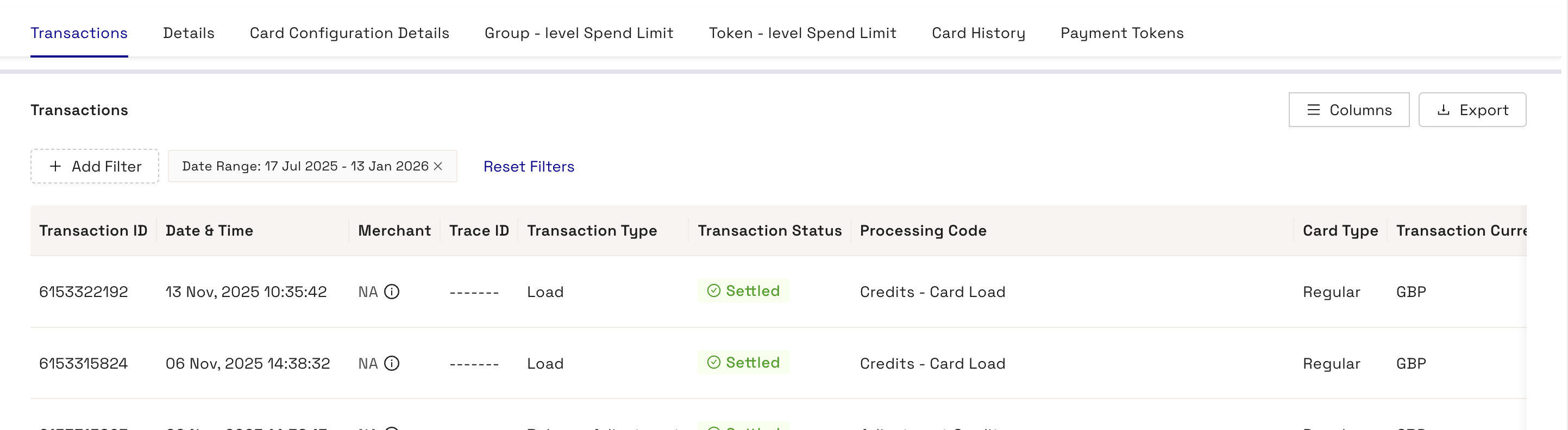
Figure 64: Transactions tab displaying a list of transactions for the cardholder.
The following table describes each of the fields available in the Transaction tab.
|
Field |
Description |
|---|---|
|
Transaction ID |
The unique transaction identifier. |
|
Date & Time |
Date and time the transaction occurred. The time relates to Thredd time. For example, if the servers for processing Thredd transactions are in the GMT time zone, the Thredd time is GMT. |
|
Merchant |
The name of the merchant. |
|
Trace ID |
Enables you to filter transactions by the unique trace identifier. |
|
Transaction Type |
Type of transaction, such as authorisation, balance adjustment, presentment, and auth reversal. |
|
Transaction Status |
Transaction status, such as Settled, Accepted or Declined. See Appendix K: Transaction Status Codes for more information. |
|
Processing Code |
Transaction processing code, for example, recurring fees, balance inquiry. |
|
Card Type |
The type of card associated with the transaction. Select from All, Regular, or Multi FX (MFX). |
|
Transaction Currency |
Currency in which the transaction took place. This might differ from the billing currency if the transaction happened when the cardholder was using the card in another country. |
|
Transaction Amount |
Transaction amount (in the transaction currency). |
|
Network Type |
The network associated with the transaction. For example, Visa or Mastercard. |
|
Billing Currency |
The currency of the billing amount. |
|
Billing Amount |
Billing amount for the transaction. |
|
Available Balance |
Available balance after the transaction, which the cardholder can spend. |
|
Fixed Fee |
Fixed fees levied against the transaction, consisting of a specific figure. |
|
Rate Fee |
Rate-based fee. Fees levied against the transaction based on a percentage charge. |
|
FX Padding |
Financial padding (to allow for currency fluctuations). |
|
MCC Padding |
Financial padding applied to transactions in specific MCCs (typically used for hotels and rental cars where cardholders might be charged a little more than authorised for). |
|
MCC |
The name of the associated MCC, if applicable. |
|
Note |
Note for the transaction. Notes are taken from transaction details appended during each type of transaction. For example, for declined transactions, there could be text explaining why the transaction was declined. |
|
Payment Method |
The method of payment for the transaction. |
|
Product Name |
The name of the product. |
|
Customer Reference Number |
The unique external customer reference for the card associated with the transaction. |
|
Token |
The public token associated with the transaction. |
|
Description |
The description of the transaction. |
23.1.1 Transaction Filter
The Transaction Filter enables you to filter the transaction associated with a card. Click Add Filter to expand the filter options.
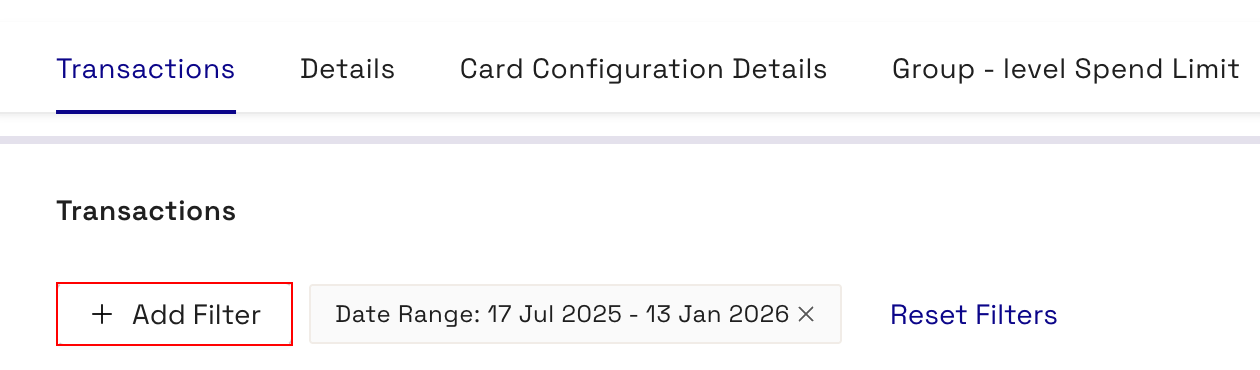
You can filter from the following options.
|
Filter |
Description |
|---|---|
|
Status |
Enables you to filter by the status of the transaction. |
|
Type |
Enables you to filter by the type of the transaction. |
|
Date Range |
Enables you to filter transactions between specified dates. |
|
Merchant Location |
Enables you to filter transactions by the location of the merchant. |
|
Trace ID |
Enables you to filter transactions by the unique trace identifier. |
|
Billing Amount |
Enables you to filter transactions by the billing amount of the transaction. |
|
Transaction Amount |
Enables you to filter transactions by the transaction amount. |
|
Processing Code |
Enables you to filter by the processing code of the transaction. |
|
Card Network |
Enables you to filter by the card network of the transaction. |
|
Note |
Enables you to filter by the note associated with the transaction. |
23.1.2 Customising Transactions Columns
You can customise the transaction columns displayed in the Card Details page by re-ordering them, adding new columns or removing unwanted columns.
To customise the transactions tab:
-
Click Columns.
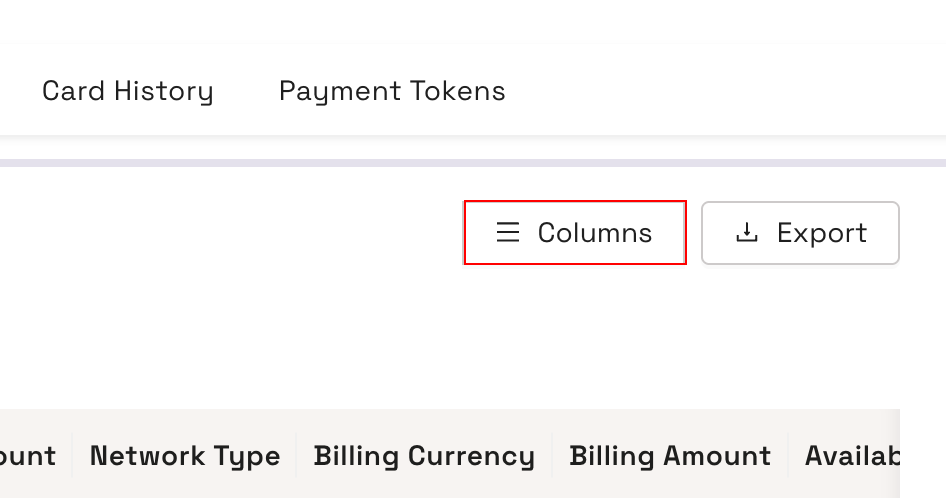
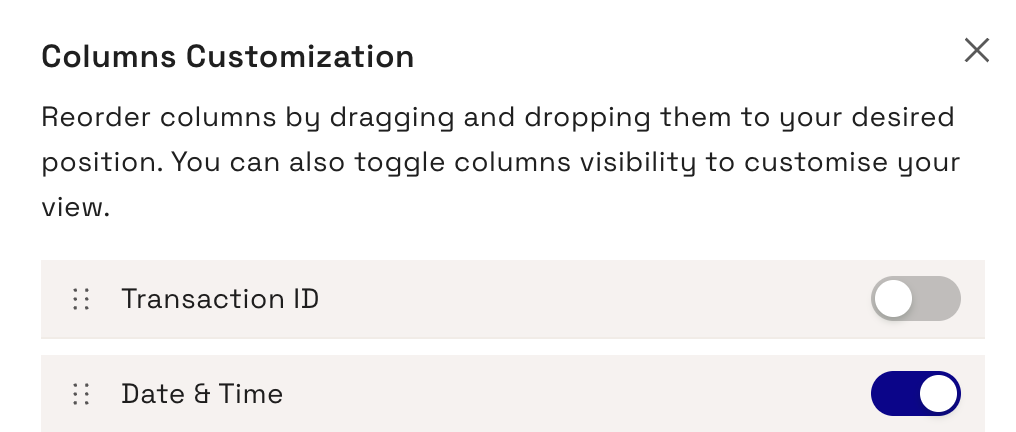
This displays the Columns Customization window.
-
You can hide a column by unchecking the toggle for the column you want to remove. To add it back, enable the toggle button for the column.
-
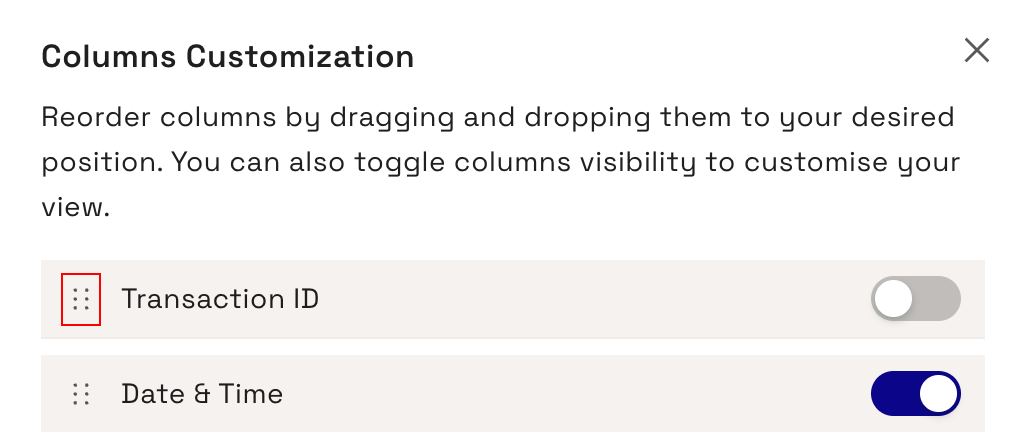
To move a column, drag the left side of the column name to where you want it to display.
-
Click X in the top-right to close the Columns Customisation when you are happy with the changes.
23.1.3 Export Transactions
You can export the currently filtered transactions from Thredd Portal to a csv file. Click Export to start the process of exporting.
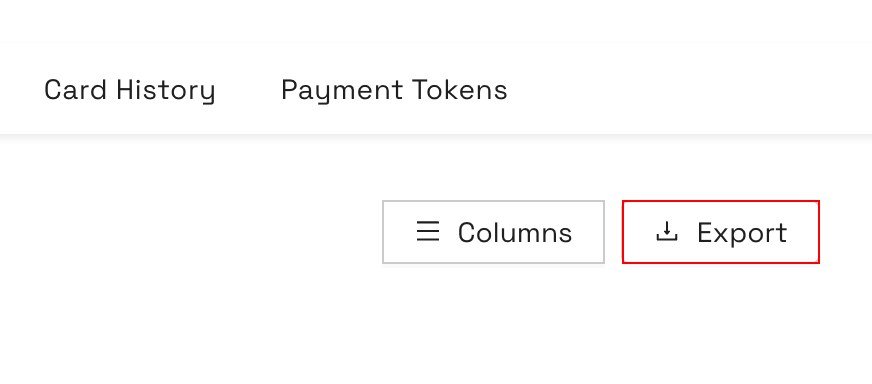
Figure 65: Export Transactions button.
Your browser will notify you of a download of a csv file. Either save or download the file to your local machine.
Exporting transactions to a CSV file is available for all Thredd Portal roles except Read-Only.
23.2 Details Tab
The Details Tab contains information related to the cardholder. This includes information such as the card status, the expiry date of the card and 3DS details associated with the card.
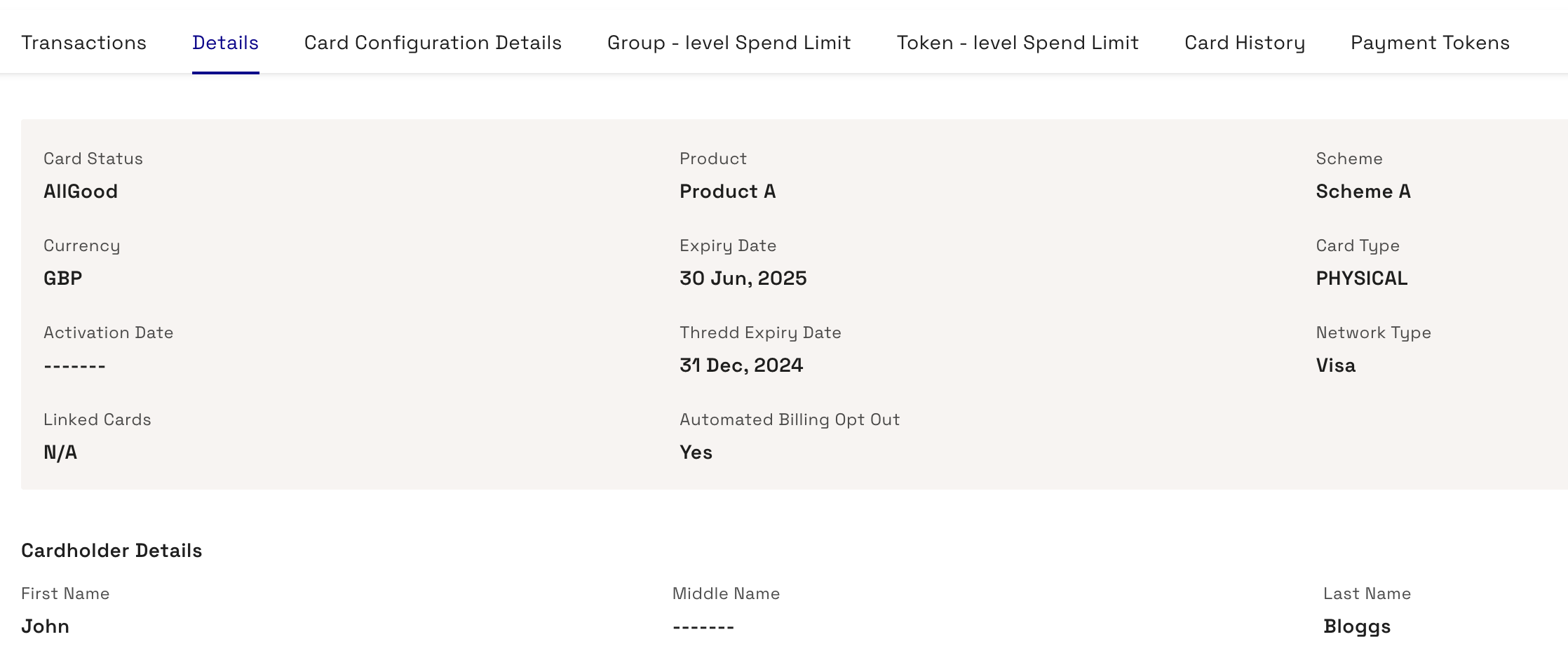
Figure 66: Details tab
The page is split into the following sections:
-
Card Details
-
Cardholder Details
-
Other Details
-
3DS Details
For more information, see Appendix D: Details Tab.
23.3 Card Configuration Details Tab
The Card Configuration tab enables you to view and manage the configuration of the card.
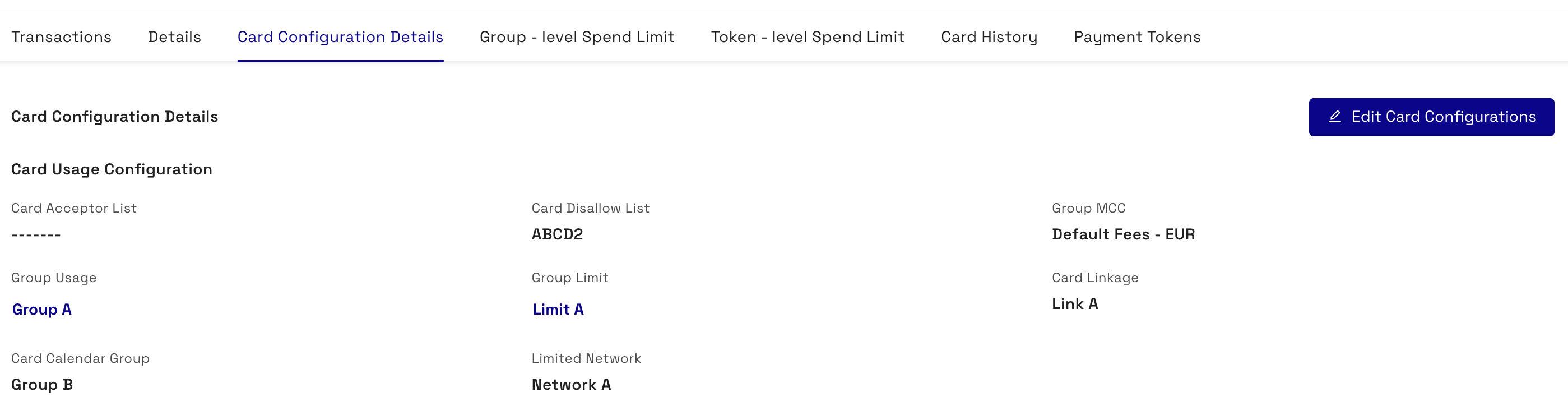
Figure 67: Card Configuration Details tab
You can edit the card configuration details using the APIs:
- For the REST APIs, this is the List Card Control Groups and Update Card Control Groups endpoints.
- For the SOAP APIs, this is the Ws_Card_Change_Cardacceptor_List and Ws_Card_Change_Groups endpoints.
For more information, read Managing Card Usage Groups in the Cards API website and Card Change Acceptor List and Card Change Groups in the Web Services Guide.
The following table describes the fields in the Card Configuration Details tab.
|
Field |
Description |
|---|---|
|
Card Acceptor List |
The Card Acceptor List associated with the card. You can specify at the merchant ID level where authorisations will be accepted (based on DE42). For example, you can allow a card to be used only in specific shops or locations. This can be applied via the Thredd API. |
|
Card Disallow List |
The Card Disallow List associated with the card. You can specify at the merchant ID level where authorisations will be declined (based on DE42). For example, you can prevent a card from being used in specific shops or locations. This can be applied via the Thredd API. |
|
Group MCC |
Group code for the MCC Group. The MCC group allows the card to be linked to a list of Merchant Category Codes (MCCs) that the card is allowed to or conversely is not allowed to transact at. You can allow or disallow card acceptance (auths) based on one or more merchant category codes (MCC). For example, you can disallow gambling sites. The MCC Group is set up and configured in Smart Client. |
|
Group Usage |
Group code for Group Usage. You can apply the specific “Card Usage Rules” which dictate card behaviour such as PAN entry method rules, cardholder verification, regional based rules and transaction types. For more information, see Appendix I: Card Usage Rules. Check the usage rules if a card has been declined. For example, to show if transactions are prevented from going through on an unknown acceptance method. |
|
Group Limit |
Group code for the Group Limit. Displays specific limits assigned to that token. For example, the maximum balance permitted to be held on the card. Click the icon next to the group limit to view the settings associated with the group limit. For more information, see Appendix H: Group Limit Settings. |
|
Card Linkage |
Group code for Card Linkage. Used to link primary and secondary cards. You can apply card linkage on a shared balance or a separate balance. |
|
Card Calendar Group |
Group code for the Calendar. You can restrict card acceptance based on specific time and date parameters. For example, a trucking company may restrict card use to weekdays from 9 until 5 to allow employees to pay for fuel. Some usage cases include religious observances or working hours. |
|
Limited Network |
The Limited Network the card is associated with. A limited network refers to a payment network that restricts the use of a card to a specific group of merchants or locations. This type of network is often used for specialised purposes, such as gift or store cards, where the card can only be used within a particular store or chain of stores. This rule is based on three different data elements:
|
|
Fees & Amount Configuration |
The fees configuration associated with the card, covering Group Auth, Group Web and Recurring Fee details. See Appendix L: Fee Configuration for more information. |
|
Group Auth |
The authorisation fee group the card is associated with. The Group Auth field enables you to apply a fee to Authorisations based on the processing code, for example, an authorisation to check a balance. |
|
Group Web |
The Group Web the card is associated with. The Group Web field enables you to charge a fee for specific web services such as a PIN change request. |
|
Recurring Fee |
The Recurring Fee Group the card is associated with. Recurring fee determines whether you can apply fees based on rules or actions you set on the card. For example: inactivity fees, and/or dormancy fees. These are configured by Thredd. |
|
Card FX Group |
Group code for FX Fees. You can upload and manage your own Foreign Exchange rates which can be applied to authorisations and presentments. The FX Fee Group is set up and configured in Smart Client. |
|
Payment Token Usage Group |
Group code for the Payment Token Usage Group. Defines configuration options specific to the provisioning of a digital payment token. For more information, read the Tokenisation Guide. |
23.3.1 Edit Card Configuration
The Edit Card Configuration button enables you to update the groups associated with the card.
The different types of Card Acceptance Methods available in the form of Usage Groups are set up using Edit Card Configuration. For more information, see Appendix C - Usage Groups.
You can also edit the card configurations with the Cards REST API endpoint, List Card Control Groups and Update Card Control Groups, and the Web Services SOAP APIs, Ws_Card_Change_Cardacceptor_List and Ws_Card_Change_Groups. For more information, read Managing Card Usage Groups in the Cards API website and Card Change Acceptor List and Card Change Groups in the Web Services Guide.
To edit a card configuration:
-
Click Edit Card Configurations to display the Edit Card Configuration window.
-
Use the drop down menus to select the required card configuration. For information on the card configurations, see Appendix C - Usage Groups.
-
Click Next.
-
After reviewing your changes, click Save.
23.3.2 View Configuration
The View Configuration button enables you to display more details on the card's configuration. This includes information on the Auth Fee Group Configuration, Recurring Fee Group Configuration, and Group Web (Web Service Fee Group) Configuration. Click the View Configuration button to display the Fees & Amount Configuration screen.
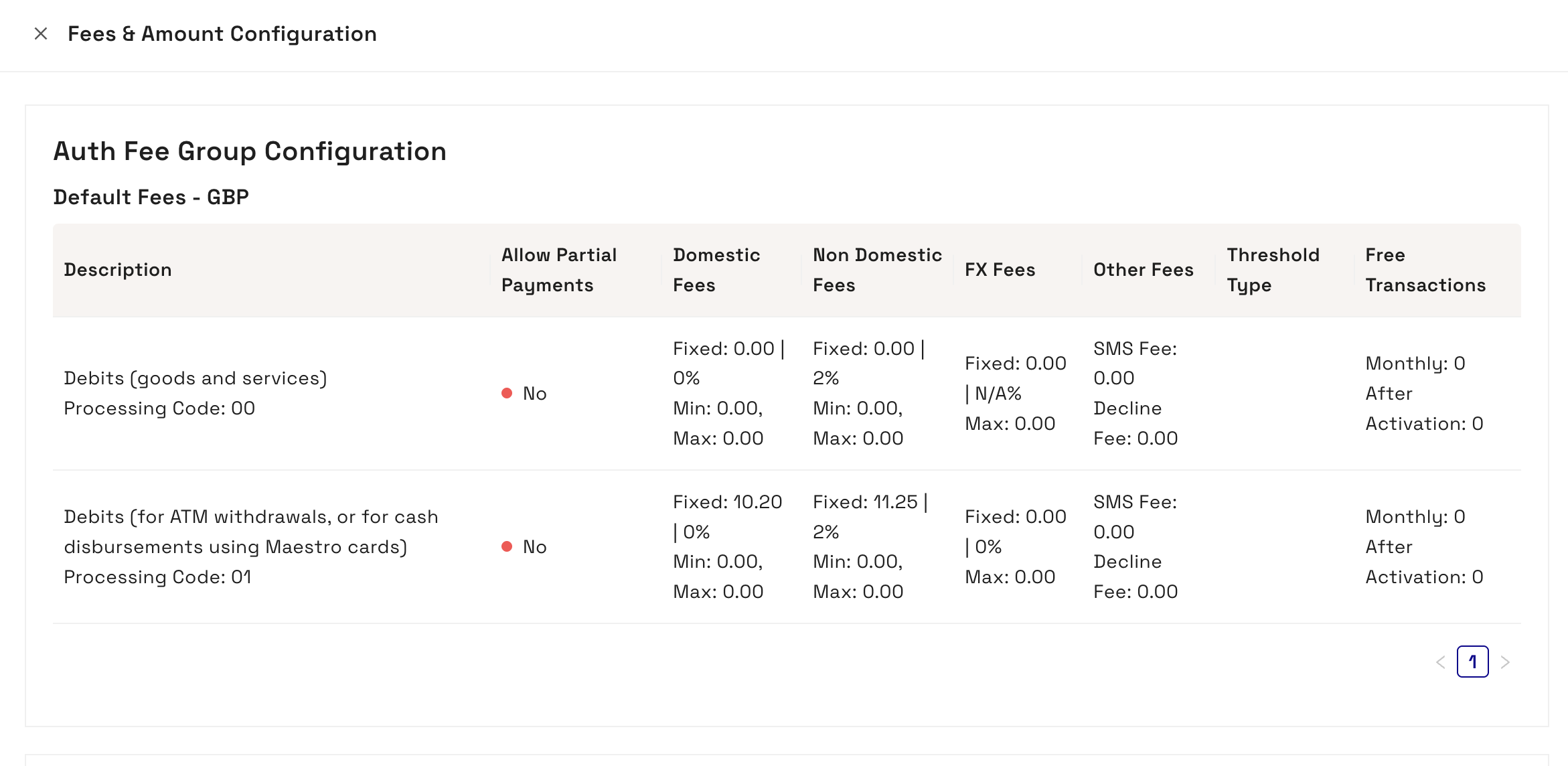
Figure 68: Fees & Amount Configuration screen
For more information on the fields in the Fees & Amount Configuration screen, see Appendix L: Fees Configuration.
23.4 Group Level Spend Limit Tab
The Group Level Spend Limit tab displays the group level spend limits for different card activities on the card you're viewing. The limits are based on the Group Limit settings. From this page you can view the limits for a card's cash, load, pay in, pay out, and point of sale (POS) daily limits.
Click Group Level Spend Limit to display the daily limits for the card.
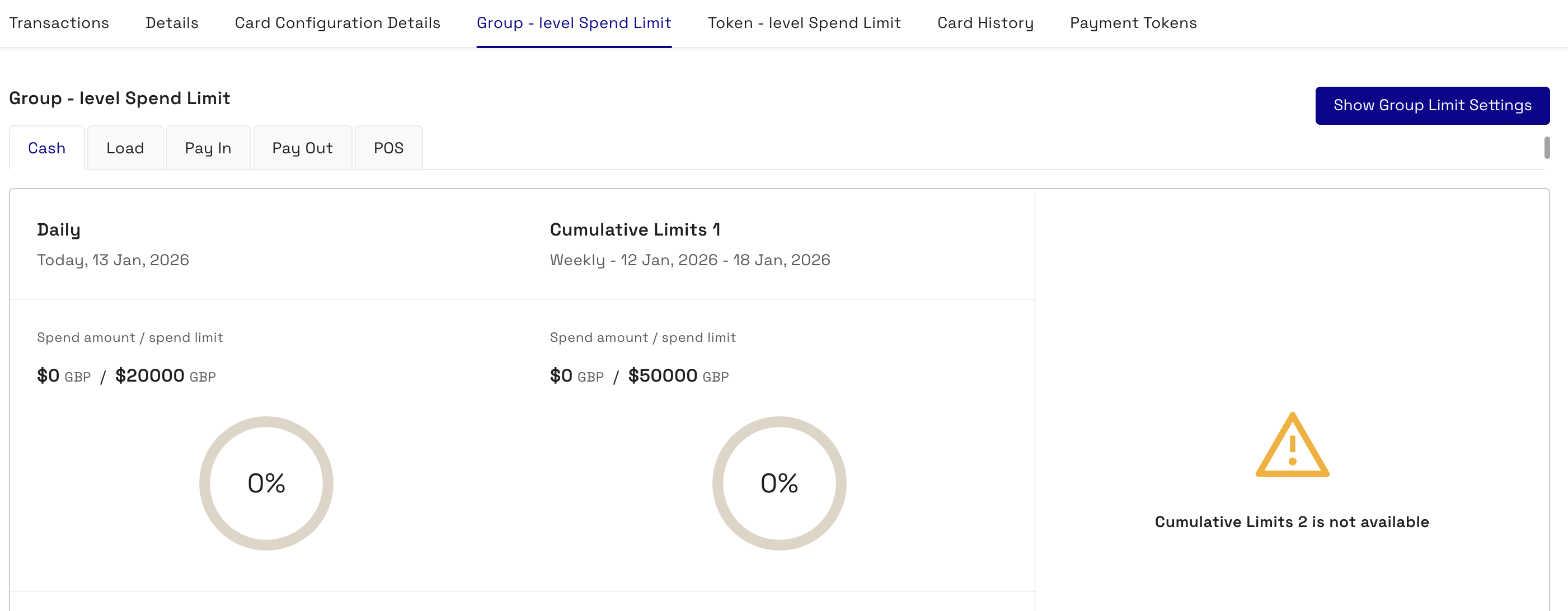
Figure 69: Live Card Spend Limits tab
Each limit type is split into three sections:
-
The live daily limits for the card
-
The cumulative limits in the last 7 days for the card
-
The cumulative limits for the last 31 days for the card
Each type shows the spend amount and spend limit, A graphic displays how much of the limit has been used, and the spend frequency (the maximum amount of uses for the process in the time period) of the limit.
Click Show Group Limit Settings to open the Group Limit Setting tab. For more information, see Appendix H: Group Limit Settings.
23.5 Token Level Spend Limit Tab
The Token Level Spend Limit tab displays the live spend limits for different card activities on the card you're viewing. The limits are based on the Spend Limit settings. From this page you can view the limits for a card's cash, pay in, pay out, and point of sale (POS) daily limits.
Click Token Level Spend Limit to display the daily limits for the card.
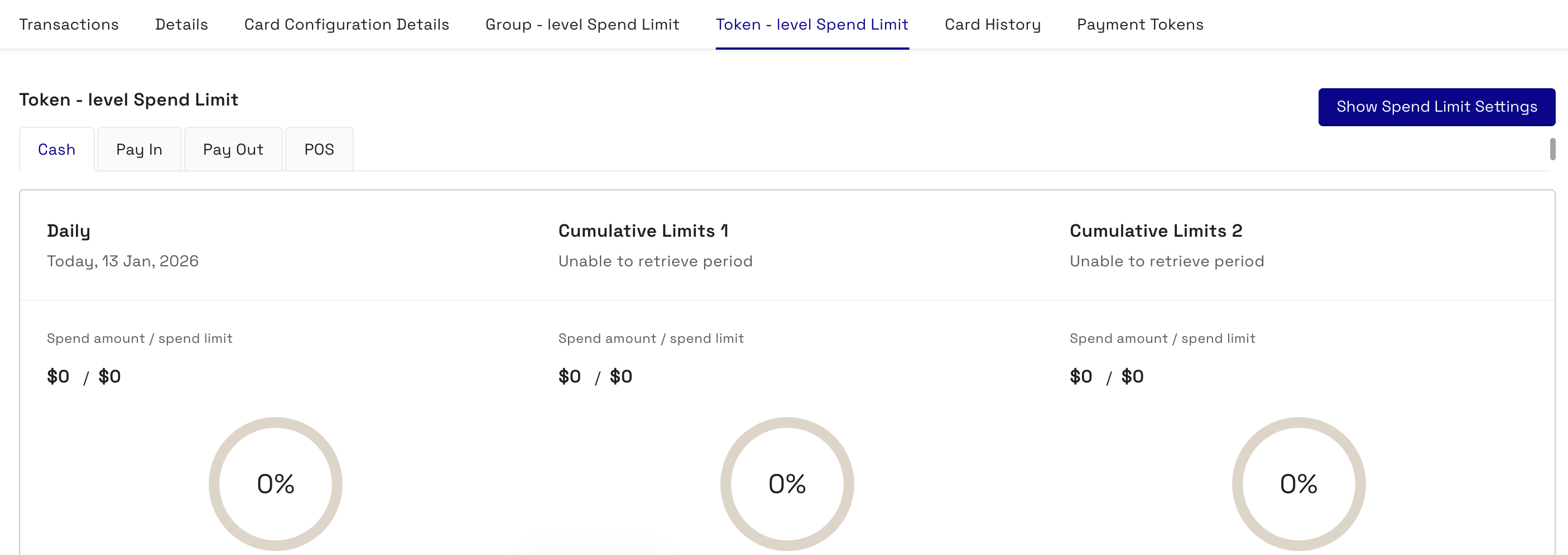
Each limit type is split into three sections:
-
The live daily limits for the card
-
The cumulative limits in the last 7 days for the card
-
The cumulative limits for the last 31 days for the card
Each type shows the spend amount and spend limit, A graphic displays how much of the limit has been used, and the spend frequency (the maximum amount of uses for the process in the time period) of the limit.
Click Show Spend Limit Settings to open the Token Level Limit Settings tab. For more information, see Appendix M: Token Limit Settings.
23.6 Card History Tab
From the Card History tab, you can:
-
View activities on the card between set dates, such as authorisations and presentments
-
View the status history of the card between a set of dates, such as when a card was made active, or when a change was made to the card's Card Config Group
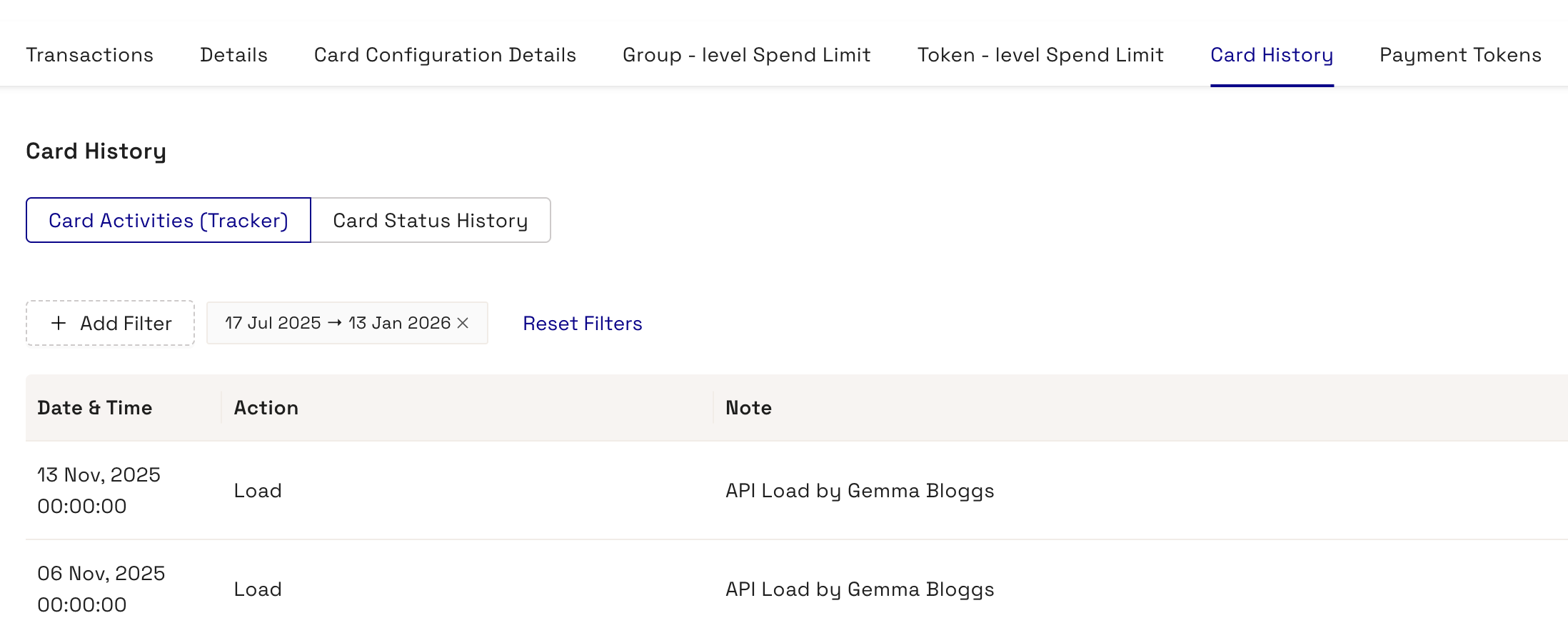
Figure 70: Cash Limits in Live Card Spend Limits
To view the activities of the card between certain dates:
-
Click Add Filter.
-
Click Date Range.
-
Select the dates you want to view the card history between using the calendar window.
The screen will update with the card activities between the dates selected.
The Card Activities (Tracker) tab contains the following information.
|
Field |
Description |
|---|---|
|
Date and Time |
The date and time the activity took place. |
|
Action |
The action of the activity. For example, an Authorisation or Presentment. |
|
Note |
The note attached to the activity. These can be either manually entered for some activities (such as loading funds onto a card), or generated by the system automatically (such as for activities generated by Thredd API). If the activity is done manually, the note displays the name of the use that performed the action. If a change is made to the card in Thredd Portal, a suffix of -TP is added to the user that performed the action. For example, John Bloggs-TP. |
To view the status history of the card between certain dates:
-
Click the Card Status History tab.
-
Click Add Filter.
-
Click Date Range.
-
Select the dates you want to view the card history between using the calendar window.
The screen will update with the card history between the dates selected.
The Card Status History tab contains the following information.
|
Field |
Description |
|---|---|
|
Date and Time |
The date and time the status was changed. |
|
Action |
The details of the status change. This displays the status the card changed from, and the status the card changed to. For example, Card Status changed from CARD_PIN_BLOCKED to ACTIVE. |
|
Note |
The note attached to the status change. |
23.7 Payment Tokens Tab
The Payment Tokens tab enables you to view tokens associated with a card. A payment token is a Thredd term for a Mastercard Digital Enablement Service (MDES) or Visa Digital Enablement Program (VDEP) token. This token differs from a public token, which Thredd uses as a unique identifier for a card. Thredd uses the payment token in the EHI and web service calls to identify a particular Device PAN (DPAN).
For more information, see the Tokenisation Service Guide.
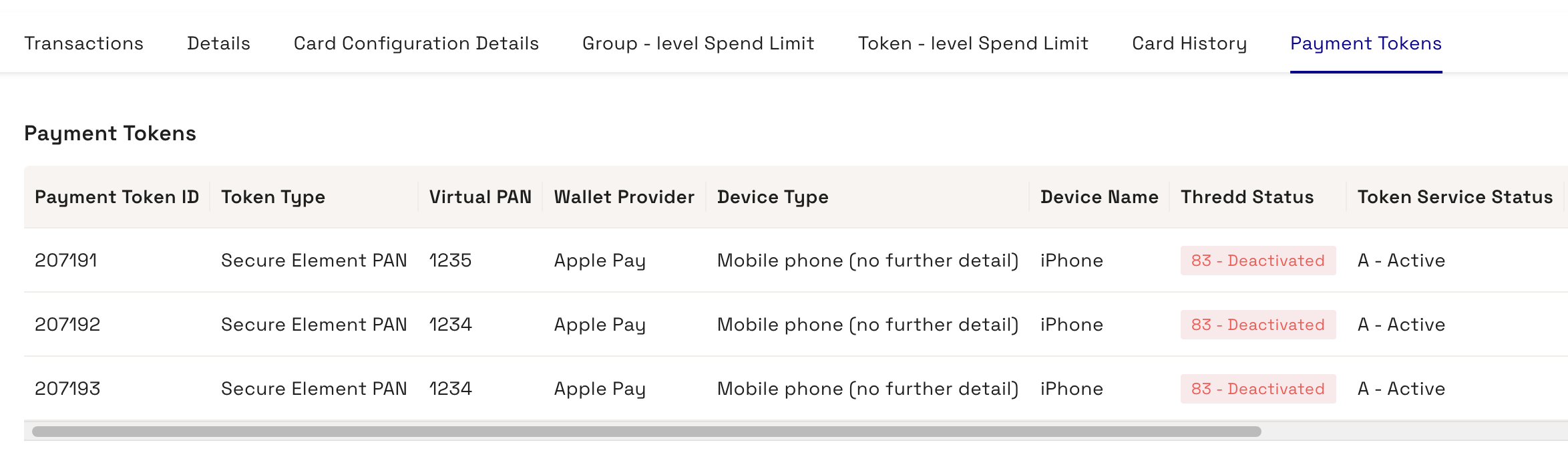
Figure 71: Payment Tokens tab
The following table describes the fields in the Payment Tokens tab.
|
Field |
Description |
|---|---|
|
Payment Token ID |
Unique identifier used to update the payment token using Thredd's web services. |
|
Token Type |
Describes the type of payment token. This is one of the following types:
|
|
Virtual PAN |
The PAN of the virtual card. This includes the last 4 digits only. |
|
Wallet Provider |
The wallet the payment token was requested by (only applicable for device tokens). |
|
Device Type |
The type of device associated with the payment token, e.g., mobile device. |
|
Device Name |
The name of the device that requested a payment token (only applicable for device tokens). |
|
Thredd Status |
The internal status for the payment token, which determines how Thredd authorises transactions. |
|
Token Service Status |
The status of the token according to the Card Scheme. |
|
Tokenisation Status |
The status of the token to indicate whether or not the token has been tokenised. |
|
Date Linked |
Date and time when tokenised. |
|
Expiry Date |
The expiry date of the token. |
|
One Time Passcode |
The One Time Passcode (OTP) to authenticate the cardholder and activate the payment token. |
|
Thredd Decision |
This is the decision that Thredd makes to approve or decline a transaction. |
|
Thredd Decision At |
The data and time for Thredd's decision. |
23.7.1 Payment Token Details
The Payment Token Details tab enables you to see more details on a payment token, as well as change the Thredd payment token status.
Click on a payment token to display the Payment Token Details tab.
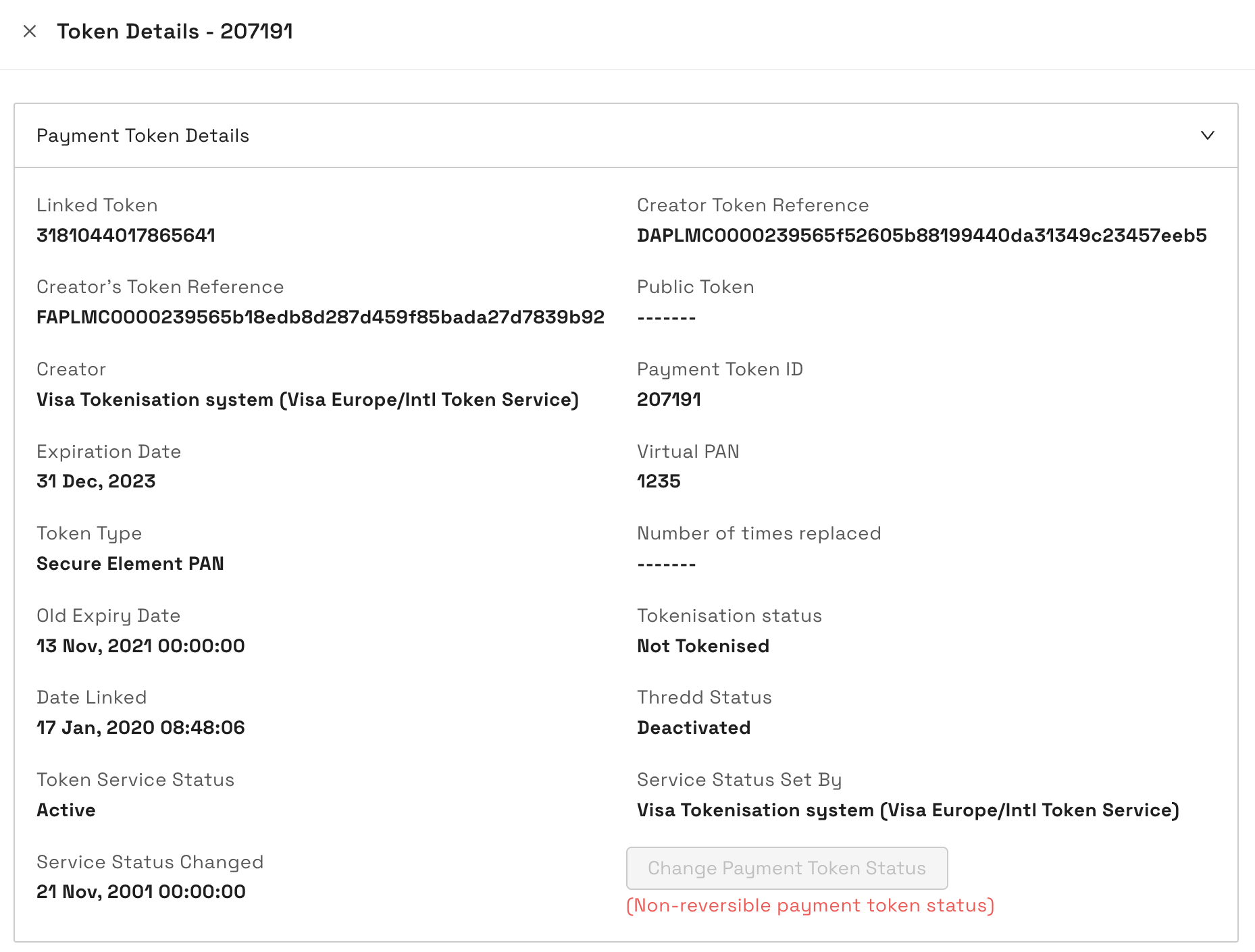
Figure 72: Payment Tokens Details page
For more information on the fields in the Payment Token Details screen, see Appendix J: Payment Token Details.
To change the status of a payment token:
-
Click Change Payment Token Status.
A window displays. -
Review the details of the payment token and click Next.
-
Select a new status from the Change Payment Token Status To field and click Next.
-
Review the changes, enter any notes about the change in the Notes field, and click Save to save the changes.
23.8 Next Steps
For information about managing cards and transactions, such adjusting a balance or activating a card, read Performing Card Actions. For more information about the setting up of fees, see the Thredd Fees Guide.