Using the Reflow Interface
This section describes the main components of the Reflow interface, and how to create a Flow document. When creating a Flow document, you can set generic properties, as well as Flow Properties for the various functions that you can perform in the Reflow interface. For more details of the individual properties, see the Flow Properties List.
Reflow Menu Components
The following shows the menu components for the Reflow interface in Edit mode. This example shows how the Reflow interface appears when you set Flow Properties.
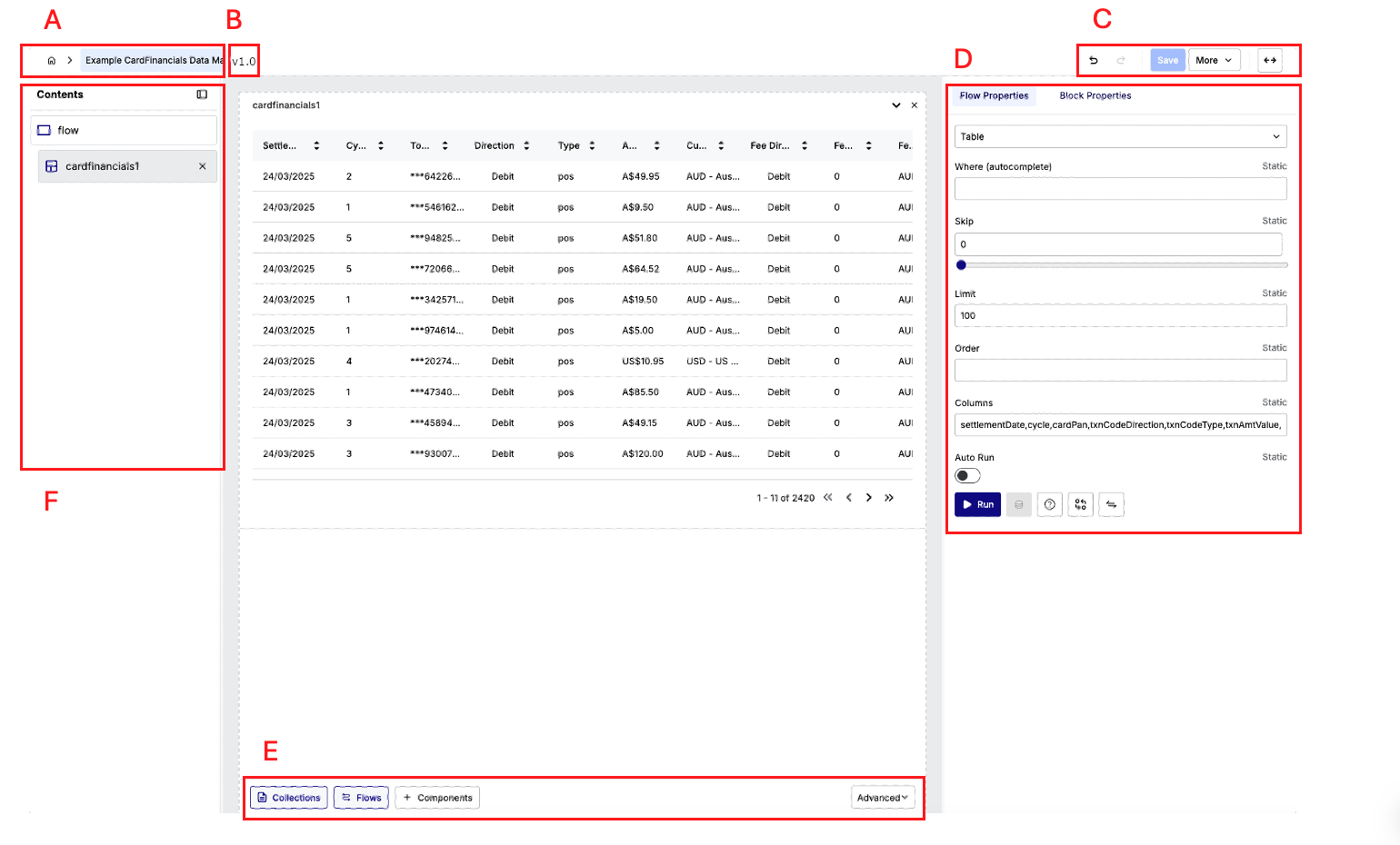
The components in the Reflow interface are the same for when you set Flow properties, and when you set generic properties. However, the options that appear within the components can differ depending on the options that you select in the Reflow interface.
A: Breadcrumb Trail
This section shows the Reflow interface within the Automated Back Office navigation. Clicking the Home button takes you to the Automated Back Office homepage.
B: Version Indicator
This section shows the current version number of the Flow document.
C: Control Buttons
This section shows buttons for controlling Reflow. This includes:
-
Undo: For rolling back an operation.
-
Redo:For doing an operation again.
-
Save:For saving the Flow document.
-
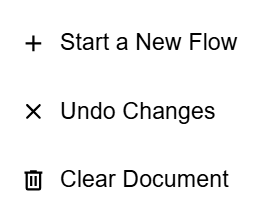
More: For displaying the following pop-up menu for starting a new Flow document, undoing changes and clearing the document.
-
Toggle: For toggling between view and edit mode.
D: Properties Menu
The properties menu on the right-hand side lets you view and add specific properties. The options that appear depend on the object that you have selected in the object tree. For example, selecting the parent object named flow, lets you add details to the Flow document such as its name and description. If you select a child object such as Collections, you can add properties such as GridBy for the table output.
You can also set various conditions or drill down in to the data from the Properties menu. There are also the following control buttons that appear at the bottom of the menu.
-
Run: Executes the change manually.
-
Export: Exports the data.
-
Help: Shows information on using Reflow interface.
-
Match: Performs a Match operation.
-
Transform: Performs a Transform operation.
E: Bottom Menu
The bottom menu is where you add various objects for building your Flow document and starting your activities. There are three buttons that you can click to display popup menus.
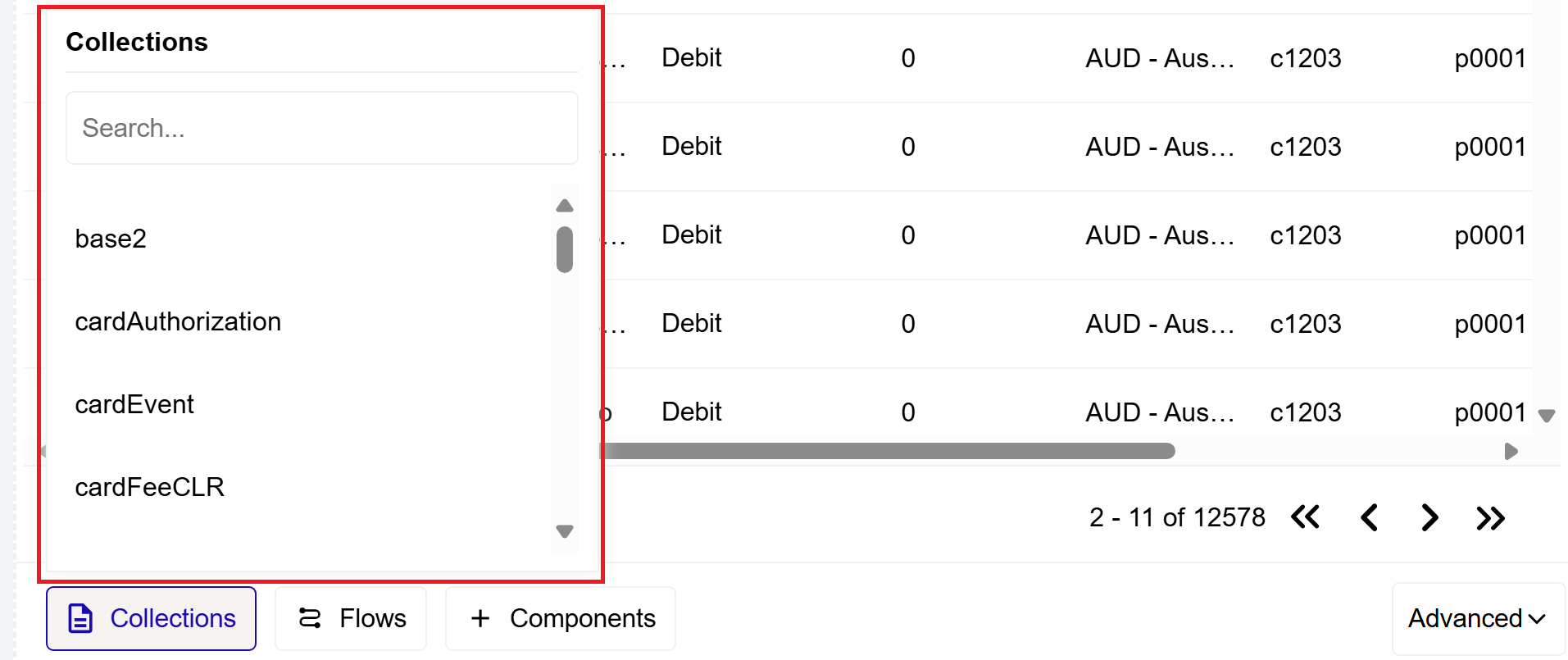
When you click Collections you see the following pop-up menu for adding Collections.
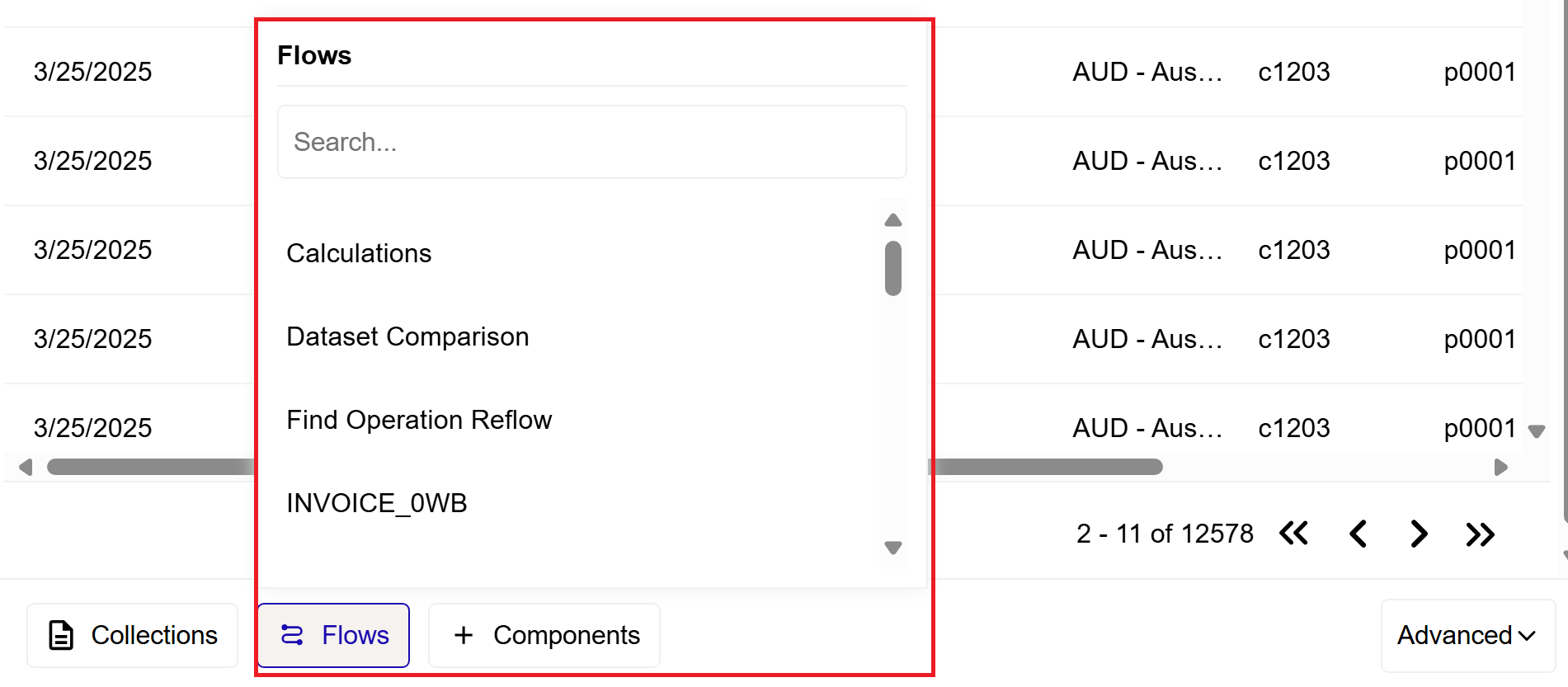
When you click Flows, you see the following pop-up menu for adding Flows.
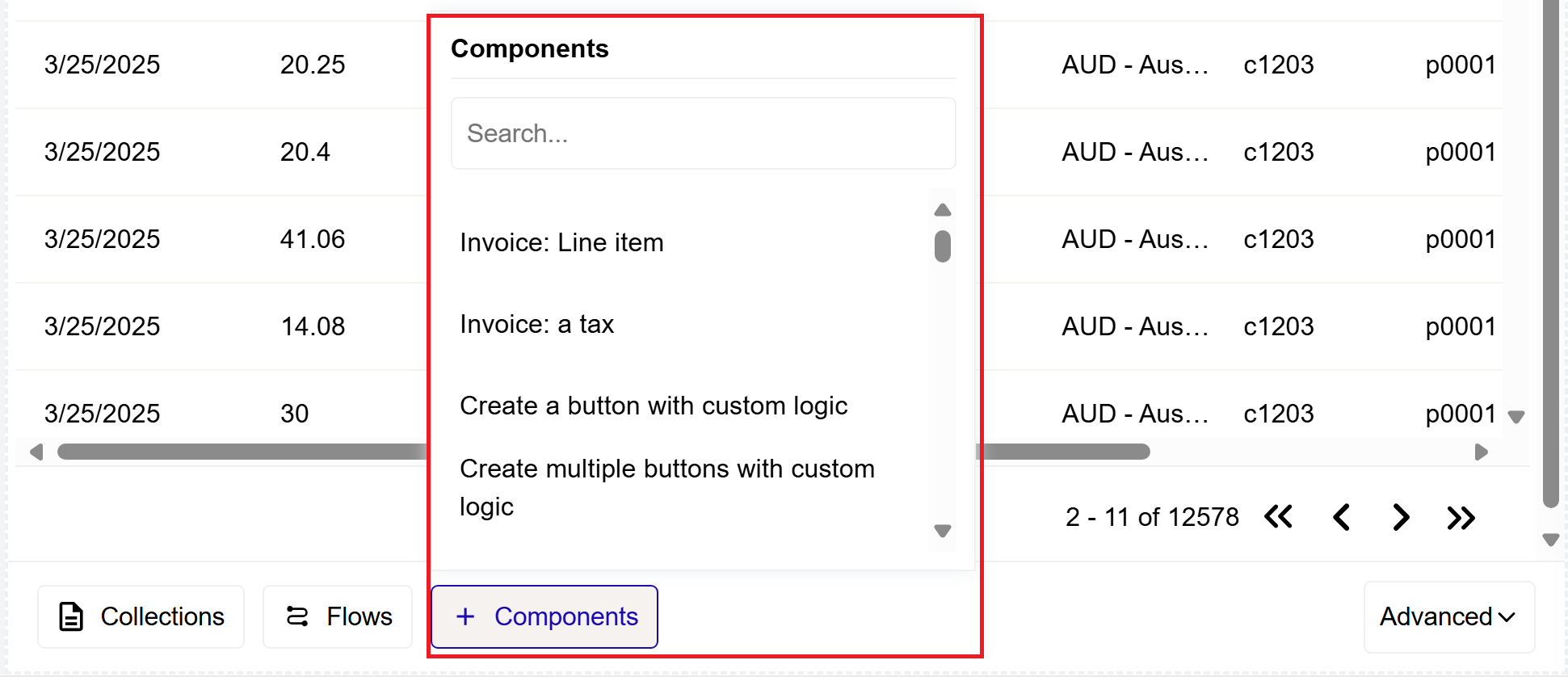
When you click Components, you see the following pop-up menu for adding Components.
Standard and Advanced Options
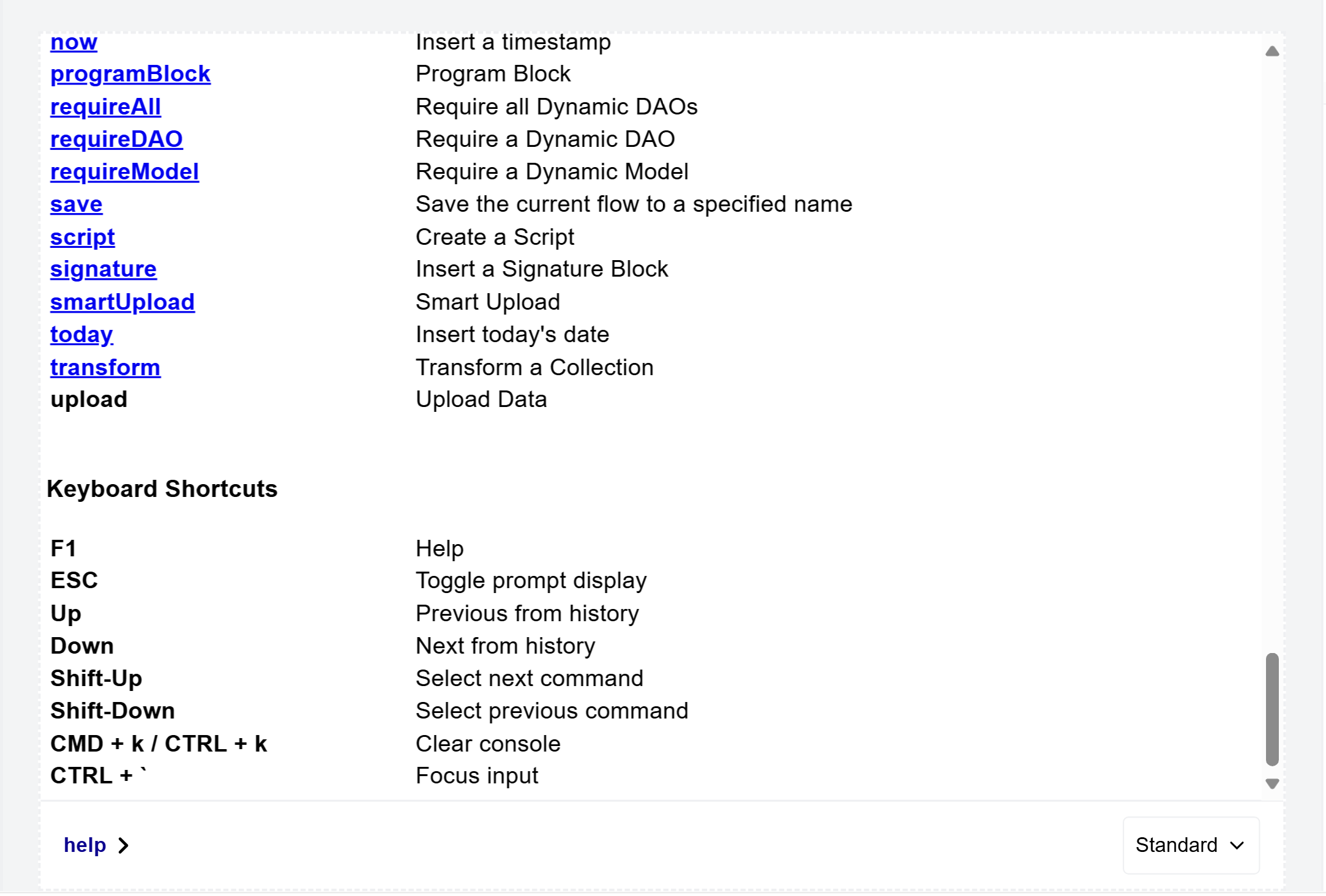
The bottom menu also lets you select Standard and Advanced options. By default, Standard is selected for choosing a help option through a list of commands and keyboard shortcuts.
When you select Advanced, the Collections, Flow and Component buttons appear in the Bottom Menu.
F: Object Tree
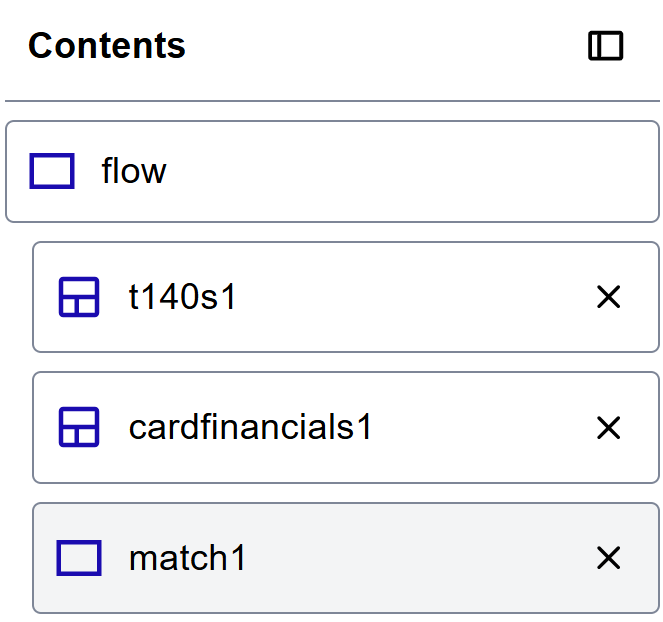
The object tree is the left-hand menu, which includes objects for Collections and Flows, and tasks that you perform in Reflow. The following example shows the match1 object for a match function, which appears below cardfinancials1 (the Collection object).
The parent object is always denoted as flow.
Creating a Flow Document
You can create a Flow document by adding any of the existing Collections in Automated Back Office, and entering generic details for the document.
Opening a Blank Reflow Document
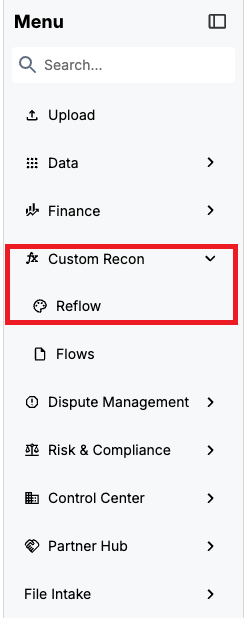
From the left-hand menu, choose Custom Recon > Reflow.
A blank document appears.
Populating a Flow Document
You can populate a Flow document by adding Collections or other Flow documents.
- To add a Collection:
- Click on the Collections tab from the bottom menu.
- Select a Collection that you want to include in the Flow document. This example shows cardFinancial.
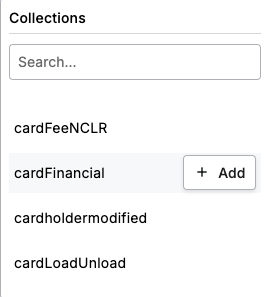
- Repeat step 2b for any other Collection that you want to add to your Flow document.
- To add a Flow Document:
- Click the Flows tab from the bottom menu.
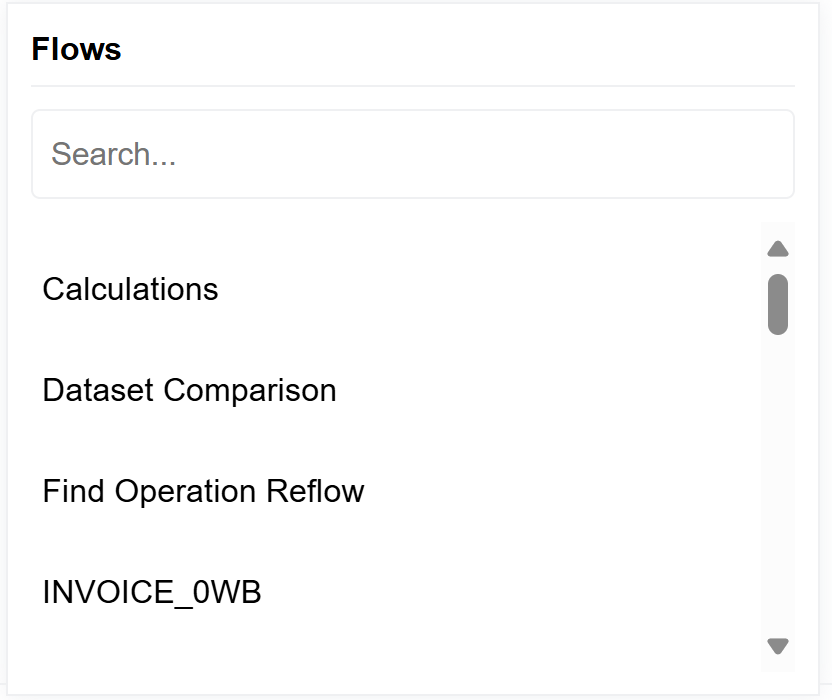
- Select an item and click Add. The Flow document opens in Edit mode.
- Repeat step b for any other Flow document that you want to add.
To help in your search, you can also enter a word in the Search field of the pop-up menu.
- Click the Flows tab from the bottom menu.
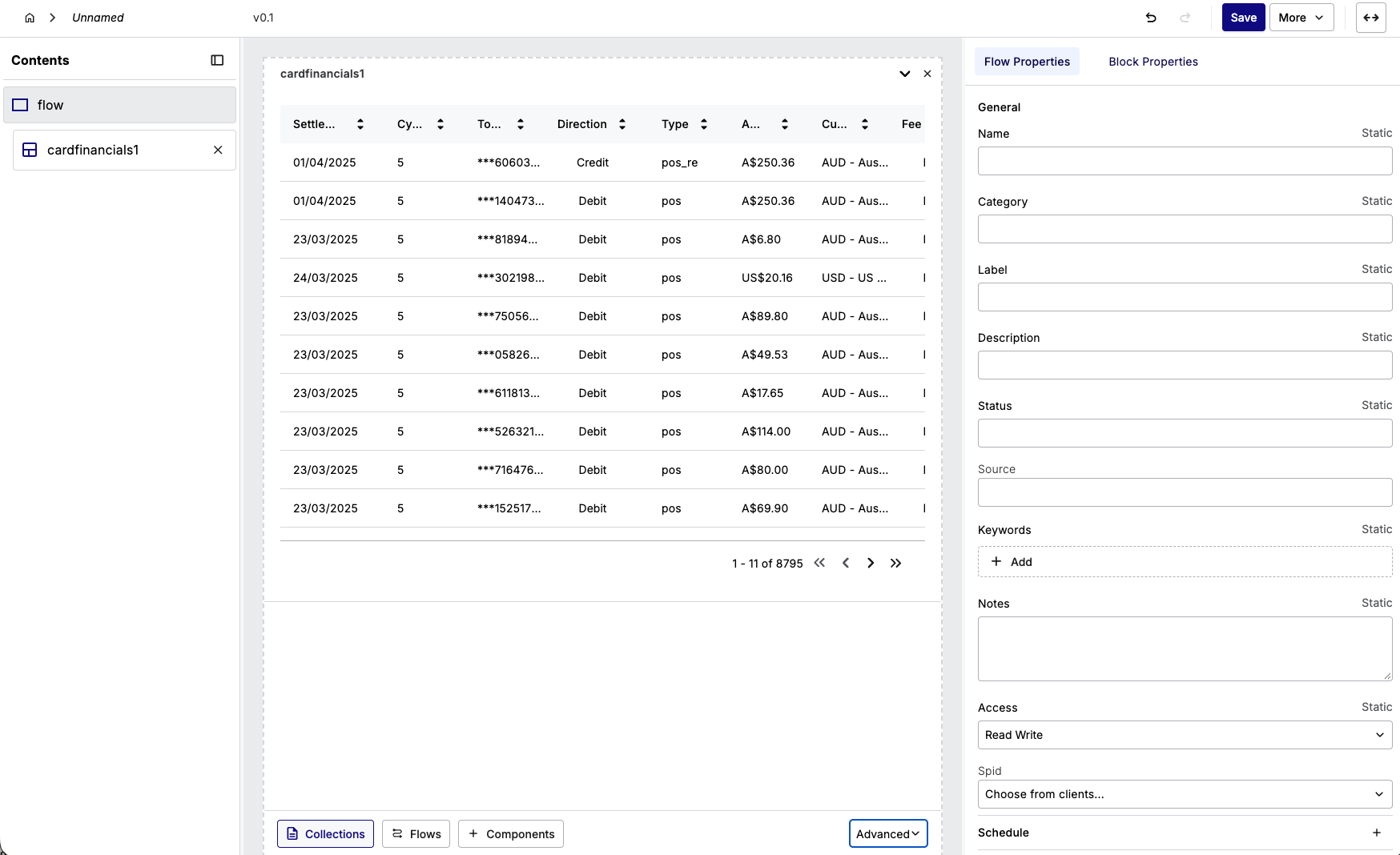
The Flow document appears as follows where the Flow Properties tab to the right lets you include generic settings.
Adding Basic Details to a Flow Document
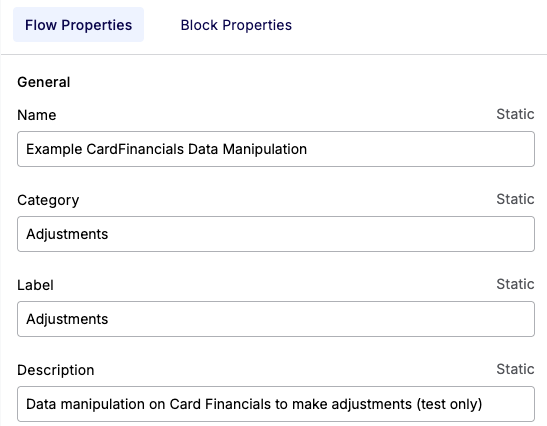
To help you find and identify Flow document, you can enter basic information in the Reflow interface. This is useful as you add more documents. When you enter a name for a Flow document, it appears in the Breadcrumb Trail.
-
Select the parent in the object tree labelled flow.
-
Enter a name in the Name field of the properties menu.
-
Type in a category in the Category field.
-
Enter a name in the Label field.
-
Type in text in the Description field. The following shows an example.
-
Add a description for status in the Status field. For example, you can indicate that the Flow document creation is in progress.
-
To indicate where the Flow document originated from. enter a description in the Source field. For example, you can specify that the Flow document is from a Collection or another Flow.
-
To make the document more findable in searches:
-
Click + Add and enter a keyword in the Keywords field.
-
Repeat step a for multiple keywords. For example, you can enter Card Financials, Collections.
-
Enter any information about the document that is relevant in the Notes field.
Setting Access Options
You can set various access options to the Flow document.
-
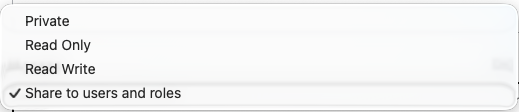
Select an access option from the Access list. These include:
-
Private: — only visible to you, the logged in user.
-
Read Only: — visible to other users in the organisation, but where the document cannot be edited.
-
Read Write: — visible and editable by you and other users in the organisation.
-
Share to users and roles: — visible and/or editable to specific users and roles only (see step 2). You can also share a Flow document with different modules (see step 3).
If you grant access to a user, they must have permissions to Read or Write a Flow document.
-
-
To grant access to a specific user:
-
Select Share to users and roles from the Access list.
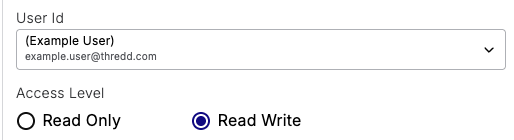
- Click + Add User Flow Access to the Specified User Access section. The User Id list and Access Level options appear.
- Select a user from the User Id list.
- Click Read Only or Read Write from the Access Level section as shown in the following example.
-
Repeat steps a to d for multiple users.
-
-
To provide access to a specific module:
- Click + Add Module Flow Access. The Module Id list and Access Level options appear.
- Select a module from the Module id list. For example, you can reuse a Flow document for the invoicing module.
- Click Read Only or Read Write from the Access Level section.
-
Repeat steps a to c for multiple modules.
Selecting a Spid
Selecting a Spid allows you to share the Flow document with another card program of a particular SPID (Service Provider ID). The SPID identifies a card program within a client hierarchy in your Automated Back Office implementation. For example, if you are a BIN Sponsor, a child SPID represents a card program.
To share your Flow document, select an entry from the Spid list.
Setting a Schedule
You can set a schedule for running a Custom Reconciliation job that executes the changes in the Flow document data within their exact state. To ensure that you are using the latest data, you can set the date and time of a recurring Custom Reconciliation job that takes in to account of the most recent files from the upload. Other factors you can consider include the level of resources available in the organisation for running the jobs. The following schedule options exist:
-
Cron Schedule: The run takes place at a precise time , day, and month on a recurring basis.
-
Interval Schedule: The run happens at an interval specified in hours, minutes, and seconds from an exact start date.
-
Simple Interval: A set frequency in which the run repeats, for example, every week.
-
Time of Day Schedule: The run occurs at the exact time of day on a daily basis.
-
Click
 next to the Schedule section.
 -
Select the Enable Scheduling check box.
-
If you require the Cron schedule, enter details in the fields and use the buttons.
-
If you require the interval schedule, enter the precise hour, minute, and seconds in the fields as well as the Start Day.
-
If you require a simple interval, enter values including the start day and frequency.
-
If you require a time of day schedule, select the timezone and the precise time of day of the run.
The Last Run list indicates the most recent time in which Custom Reconciliation was executed on the Flow document. You can change the time and date if it appears incorrect.
Adding Flow Properties
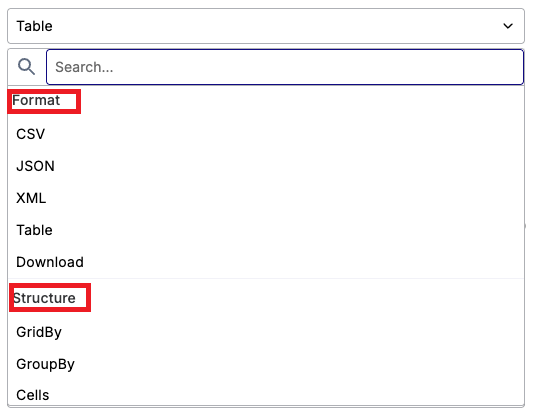
You use Flow Properties in every Custom Reconciliation task, as they specify the exact data manipulation tasks that you need to perform. Flow Properties are grouped in to Format, Structure, Calculation and Chart items. You can also specify filter conditions that apply to the Flow Properties, and use functions such as Transform and Merge. For more details, refer to Basic Operations in Reflow and Advanced Reflow Functions.
-
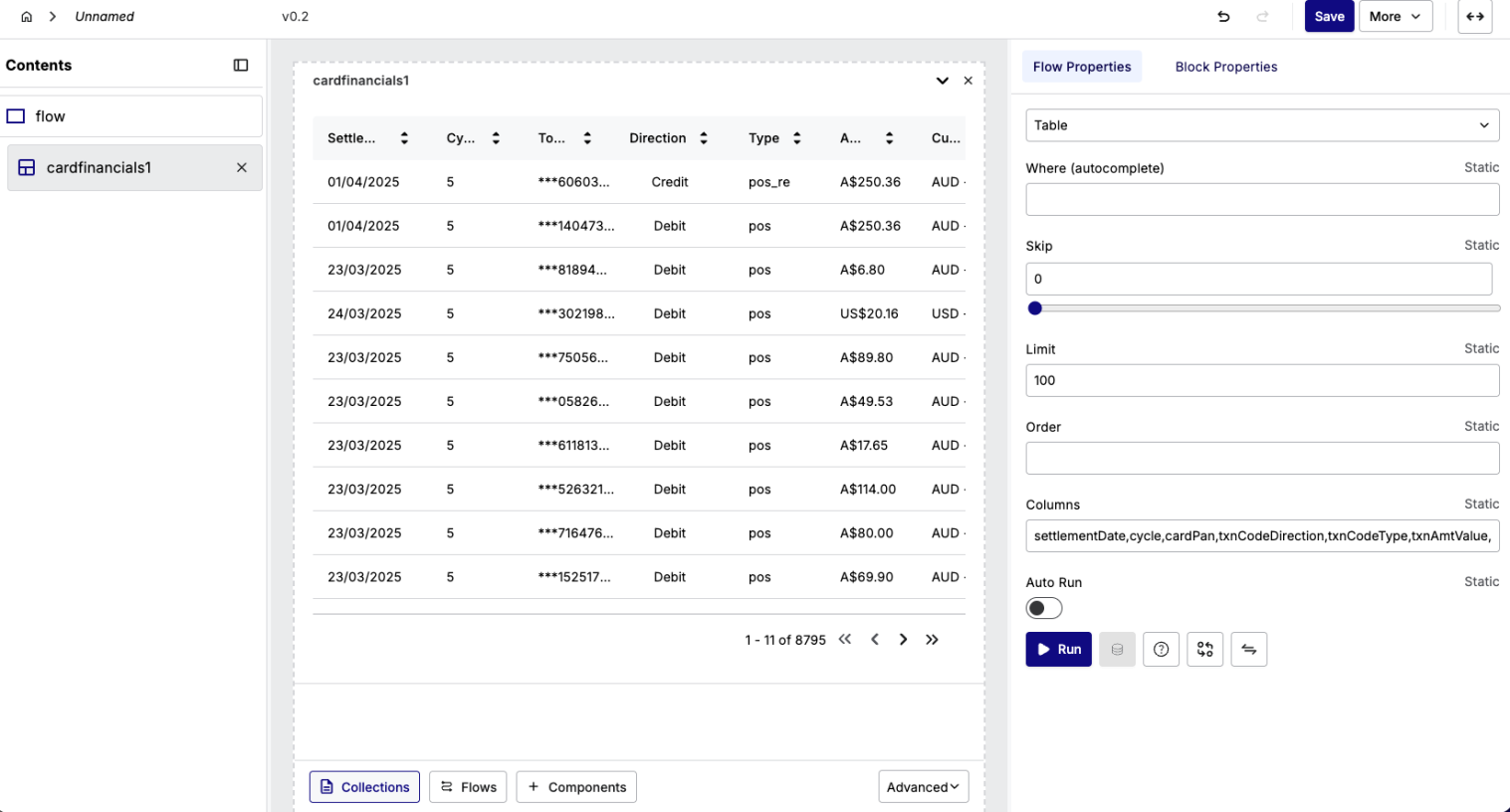
From the Object tree, select the Flow document or Collection that you have added. The Properties Menu changes to show details on Flow Properties, for example, filter settings.
-
Select Flow Property items from the list. The Flow Properties list is divided in to various sections. You can select more than one item in the list in succession to build your properties, for example, Table in Format, followed by GridBy, in Structure and Bar chart in Chart.
For a list of Flow Properties, see Flow Properties List.
-
If required, select a condition using the autocomplete function in the Where (autocomplete)field.
-
If required, use the slider bar to specify the relevant records for the Flow Properties, or enter a number in the Limit and Order fields.
For more details on using Flow Properties, see the examples in Basic Operations in Reflow and Advanced Reflow Functions.
Saving Your Changes
When you first click Save, the version of the Flow document is set to v 1.0. When you make further changes to the Flow document and click Save, the version number increments by 1.0.
When you have entered the settings, click Save.
Any incremental change that you make to the Flow document without saving increases the version number by 0.1.
Flow Properties List
This following list shows the Flow Properties that you can set in a Flow document.
Format
This list allows you to specify the output of Reflow in the interface and the exported files,
|
Format Item |
Description |
|---|---|
|
CSV |
Exports your data as a comma-separated file, making it compatible with Excel and other tools. |
|
JSON |
Displays or exports your output in JSON format. This can be useful for API integrations or technical reviews. |
|
XML |
Produces the output in an XML structure, making it useful for system-to-system data exchanges. |
|
Table |
Renders the data as a table, making it suitable for review and dashboard use. |
Structure
This list allows you to set the way in which the data is organized and displayed.
|
Structure Item |
Description |
|---|---|
|
GridBy |
Organizes results in a grid layout, which is typically used in tabular dashboards. |
|
GroupBy |
Groups records by a specific column (for example, BIN, Currency and Date). This makes it ideal for summaries. |
|
Cells |
Displays raw cell values as they appear in the data model. |
|
Citation |
Outputs structured text or summarized content instead of full tables. |
|
Select |
Allows the selective display of column or values from a table. |
|
Row |
Shows data line by line. This makes it useful for detailed transaction or reconciliation views. |
|
Column |
Displays data in columns. |
|
View |
Uses an existing visualization layout. |
|
Edit |
Allows views where the data can be edited. The user must have correct permissions. |
|
Pivot |
Converts row data in to pivoted summaries. |
|
Labeled |
Adds labels to columns for readability. |
|
Filtered |
Shows data that meets defined filters or conditions. |
|
Controller |
Add interactive controls to your table or view, for example, drop-downs or filters boxes. |
Calculation
This list allows you to specify a calculation.
|
Calculation Item |
Description |
|---|---|
|
AVG |
Calculates the average of selected numeric columns. |
|
COUNT |
Counts the number of records in a table. |
|
Duplicate |
Flags duplicate entries in table fields. |
|
MAX |
Returns the maximum value in a selected column. |
|
MIN |
Returns the minimum value in a selected column. |
|
SUM |
Calculates the total of the selected numeric field |
|
SUM by Currency |
Generates sum values by each currency, where it automatically groups results for multi-currency programs. This makes us useful for reconciliation or fee reports for instantly comparing totals by currency. |
Chart
This list allows you to specify a chart.
|
Calculation Item |
Description |
|---|---|
|
Bar Chart |
Compares quantities across various categories. |
|
Stacked Bar Chart |
Displays different data values in a single bar. |
|
Pie Chart |
Shows data as percentage of a whole in a circular graph. |
|
Line Chart |
Tracks trends over time where data points are connected by straight lines. |
|
Metric |
Highlights a summarized value, for example, total transactions or balance difference. |