Advanced Reflow Interface Functions
You use Advanced Reflow interface functions to perform the following functions: .
-
Merging: Combining two Collection in to a new one.
-
Matching: Finding matched and unmatched records between two datasets.
You perform the functions on more than one Collection.
Prerequisites
Before starting the advanced Reflow operations, you should ensure that you have met the prerequisites for the Collections. You should check that the Collections have all the columns that you require, as results will not show if any of the columns are missing from the dataset. Additionally, you should reduce the size of your Collection to avoid any performance issues.
Using the Reflow interface, perform the following steps:
-
Ensure that you have created a Flow document and have added the Card Authorizations and the Card Financials Collections (refer to Creating a Flow Document for more details).
-
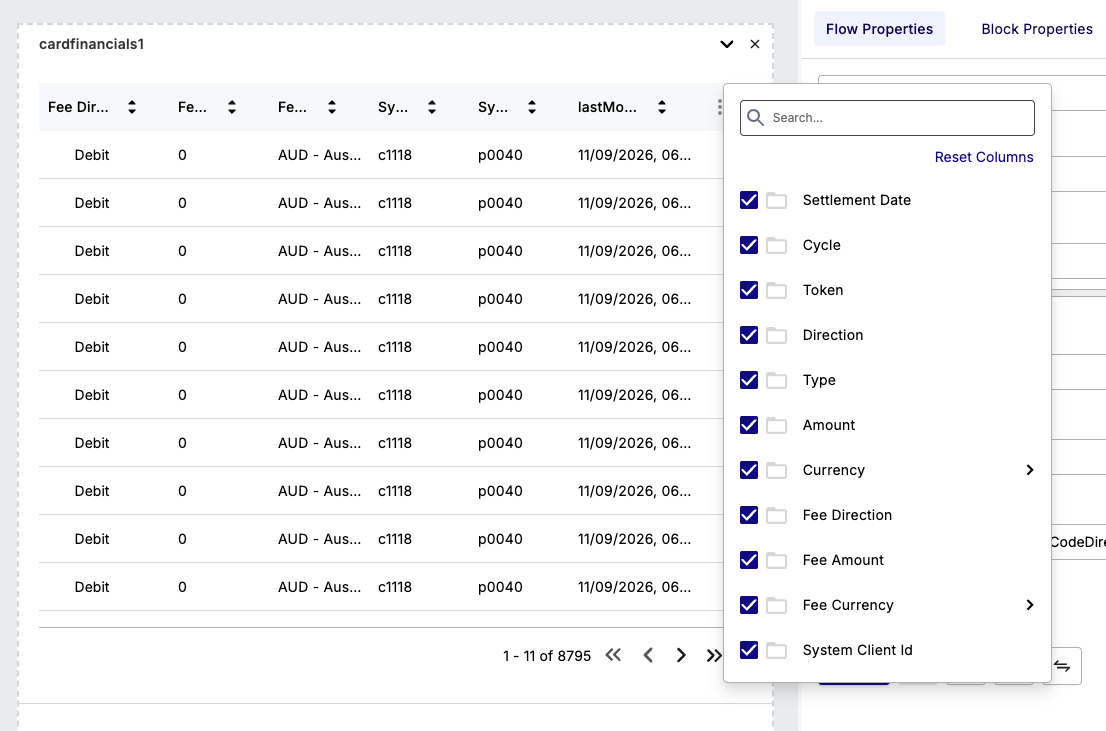
Remove any columns that you do not require from the Collections.
-
Click
 on the right-hand side of a Collection in Reflow. A list of columns appear.
 -
Clear the tick boxes of any columns that you do not require.
-
Merging Data Between Collections
Merging allows you to combine two different Collections based on a common column. This operation is useful if you need to perform gap analysis on the data from he two datasets that you have identified.
Steps
You perform the following set of steps in merging:
-
Create separate data objects for each Collection based on a common column.
-
Perform a merge on the data objects.
Creating Separate Data Objects
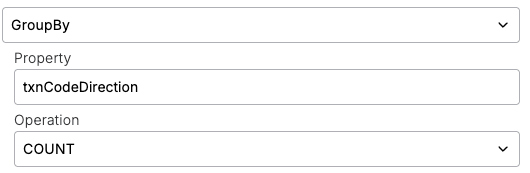
You create separate data objects to obtain the most relevant data for your merge. In this example, you perform a GroupBy and Count on the Direction(txnCodeDirection) data. The Direction data is the common column that is used in both Collections.
- Select the first Collection that contains the column you want to perform a Group By on, for example, Card Financials.
- From the Flow Properties table, ensure that Table is selected in the Format subsection.
- From the Flow Properties table, select GroupBy in the Structure subsection.
- Select Direction from the Property list.
- Select COUNT from the Operation list.
- Click

The following shows an example result.
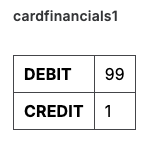
- Repeat step 1 for the second Collection (in this example it is the Card Authorization). The results appear similar to the following, where a GroupBy and Count is added to Cycle.
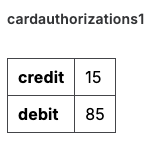 .
.
Performing a Merge
Merging creates a new table that has a count on Direction.
-
From the object tree, click the first table that you created.
-
Click .
 for transforming the dataset
 -
Click the + Add Join button.
-
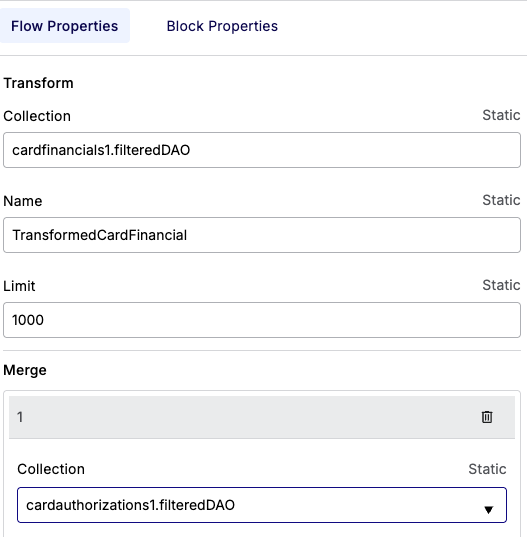
Under the Collection list, select the second table that you created.
-
To ensure that the system is able to identify the unique name, enter a prefix in the Prefix field, for example t_, for the Card Authorization data.
-
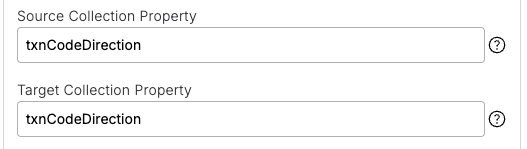
To select the column for the Source Collection (Card Financials), choose txnCodeDirection in the Source Collection Property list.
-
To select the column for the Target Collection (Card Authorization), choose txnCodeDirection in the Target Collection Property list.
-
Click Transform. The results show unique count data (t_count and count) for the transformed table based on where the direction values between the two original Collections match.
Performing Matching Functions
The Custom Reconciliation feature allows you to find data matches between two Collections. When you have found matching data, you can also find the total number of entries that are unmatched in each Collection. This operation is part of a gap analysis between two Collections, where you find unmatched data before taking action to resolve the issue.
Steps
You perform the following set of steps in matching:
-
Specify the match criteria, which are one or more common columns between the two Collections.
-
Perform a Count of the total number of unmatched records in each Collection.
If there are many matching columns between the Collections, you can choose multiple criteria. This enables you to divide the search in to one or more runs for the matching, thus allowing a more granular coverage.
Specifying the Match Criteria
When you have selected a Collection, you choose two sets of match criteria: Direction and Systemclientid, and Direction.
-
Ensure that you have added Card Authorization followed by Card Financials.
-
Select the Card Authorization object from the object tree.
-
Click
 to start the Match function. An object for the match appears in the object tree (for example. match1)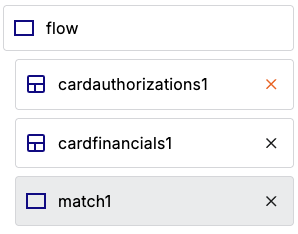
-
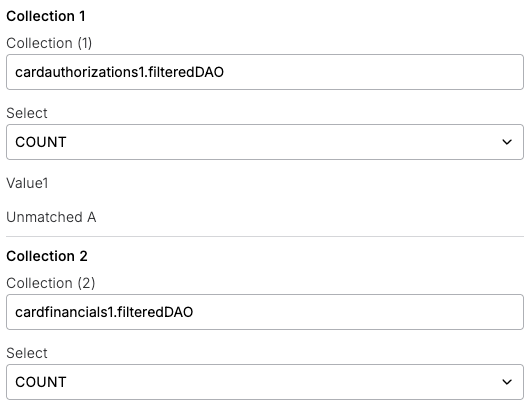
Under the Flow Properties, observe the first collection that is selected, for example, Card Financials.
-
Choose the second Collection from the Collection 2 list. The following shows an example.
-
Select the first match criteria under Match Criterion 1 that appears in the pop-up list. You select each item and include a comma as the separator.
-
Select Direction,SystemclientId from the Columns 1 list.
-
Select Direction,SystemclientId from the Columns 2 list.
-
-
For the second match criteria under Match Criterion 2, select Direction from the Columns 1 list, and Direction from the Columns 2 list.
-
Click Match.
-
From the object tree, click the new match object (for example Match1). The number of unmatched results in the first Collection appear under the Unmatched A label in the properties menu. The number unmatched results in the second Collection appear under the Unmatched B label.
The results can appear similar to the following: