Basic Operations in the Reflow Interface
The examples in this section show you how to operate the Reflow interface for your use cases through the Structure and Calculation Flow properties. You perform these operations on a single Collection. For more advanced steps using multiple Collections, refer to Advanced Reflow Functions.
The steps in this section are based on an example Card Financials Collection. If you are having issues accessing this Collection, speak to your Account or Implementations manager.
Prerequisites
Before starting the Reflow operations, you should ensure that you have met the prerequisites on using the Collection. You should check that the Collection has all the columns that you require, as results will not show if any of the columns are missing.
Using the Reflow interface, perform the following steps:
-
Ensure that you have created a Flow document and have added the Card Financials Collection (refer to Creating a Flow Document for more details).
-
Add any columns that you require.
-
Click
 on the right-hand side of the Collection in the Reflow interface. A list of columns appear.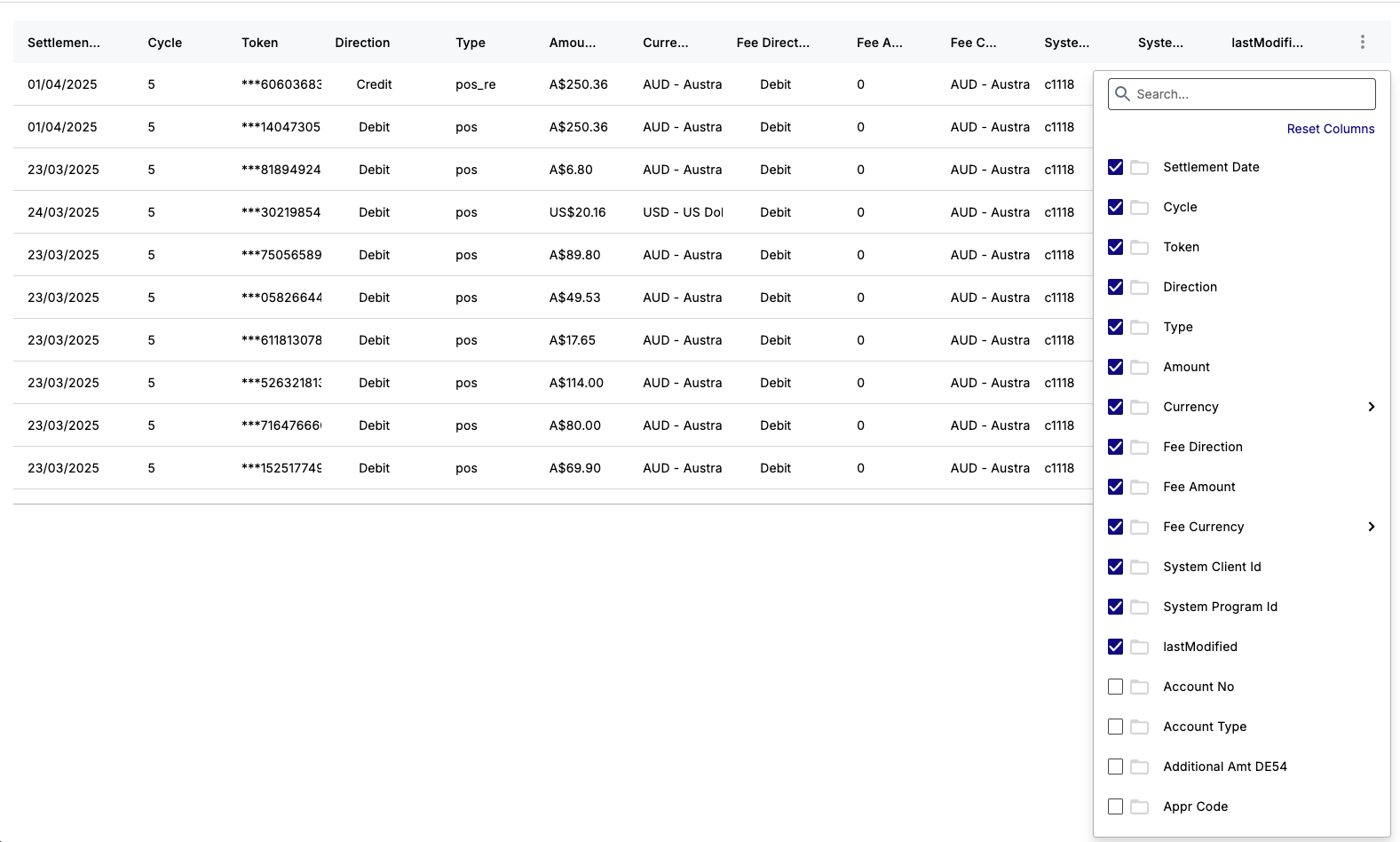
-
Select the tickboxes for any columns that you want to include.
-
Using GroupBy and Count
You can set the following Flow properties for Structure: GroupBy and Count. GroupBy arranges one or more columns by particular parameters or properties, while COUNT calculates the total for the category that it is grouped by. This function is useful for summarising information within a large Collection. For example, you can find the number of entries where the Taxation Code Direction is Credit/Debit from the Card Financials Collection.
Before performing the function, the Collection has the following columns, including Taxation Code Direction. However, the Count column does not exist in the original Collection.
|
Settlement Date |
Amount |
Currency |
Taxation Code Direction |
Fee Amount |
|---|---|---|---|---|
|
03/24/2025 |
14.1 |
AUD |
Debit |
0 |
|
03/24/2025 |
150 |
GBP |
Credit |
0 |
|
03/24/2025 |
77 |
AUD |
Debit |
0 |
|
03/25/2025 |
80.3 |
GBP |
Debit |
0 |
|
03/25/2025 |
56.6 |
GBP |
Credit |
0 |
|
03/25/2025 |
74 |
AUD |
Credit |
0 |
|
03/252025 |
800 |
USD |
Credit |
0 |
After performing the function, the following results appear for Direction and Count.
|
Taxation Code Direction |
Count |
|---|---|
|
Credit |
1 |
|
Debit |
99 |
Steps
The following example steps show the number of occurrences of taxation code direction:
-
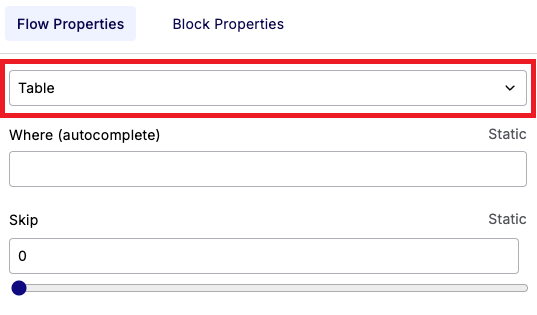
From the Format list in the Flow Properties table, ensure that Table is selected in the Format subsection.
-
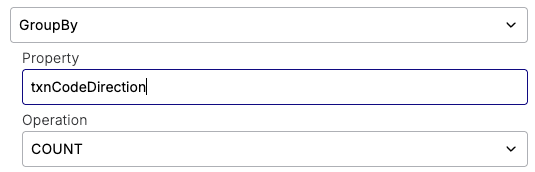
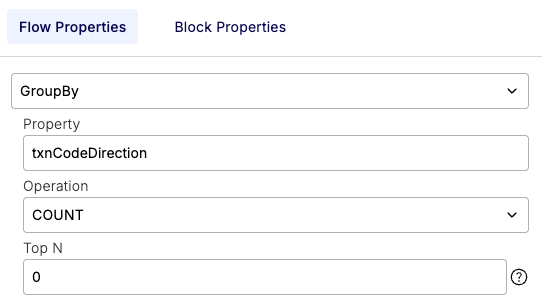
From the same Format list, select GroupBy in the Structure subsection. The Property list, Operation and Top N fields appear.
-
Choose Direction from the Choose Property list.
-
From the list below, choose COUNT.
-
Click

Using GroupBy and Sum
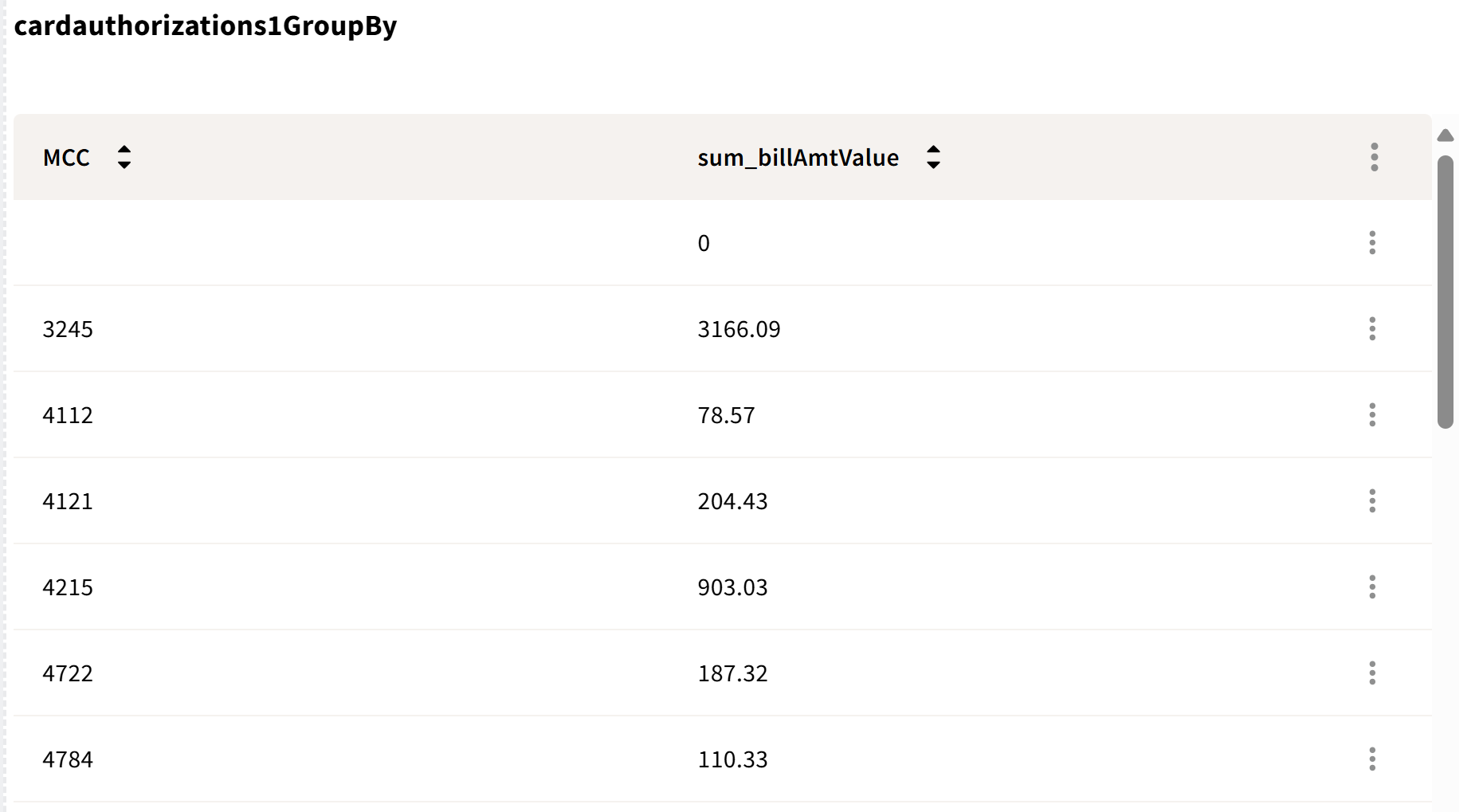
You can generate total values of a particular category of data using the Sum function. For example, you can find out the total billing amount value of Merchant Category Codes (MCC)s within the Card Financials Collection. The resultant table shows a reduced number of rows and columns.
-
From the Output list in the Properties menu, ensure that Table is selected in the Format subsection.
-
From the Output list in the Properties menu, select GroupBy in the Structure subsection.
-
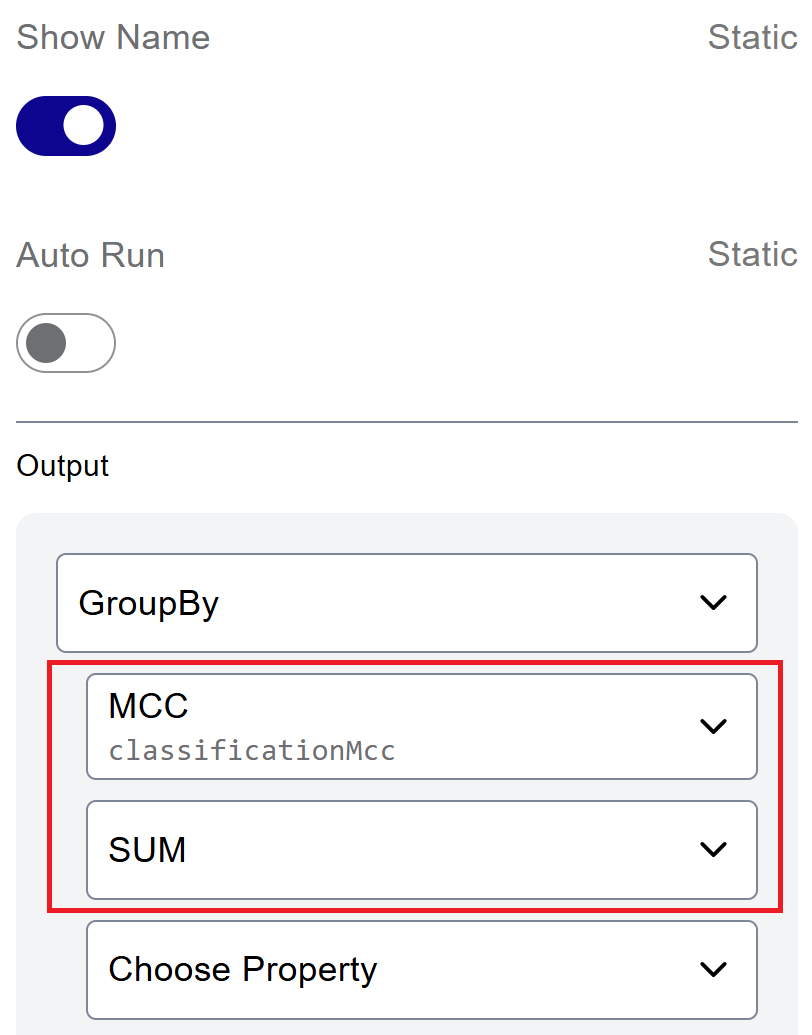
Select MCC from the Choose Property list.
-
From the list below MCC, choose SUM.
-
From the Choose Property list under SUM, select Bill Amount.
-
Click Browse or Run. The results appear similar to below. For details on Browse or Run, see Choosing the Browse or Run Option.
Using GridBy and Count
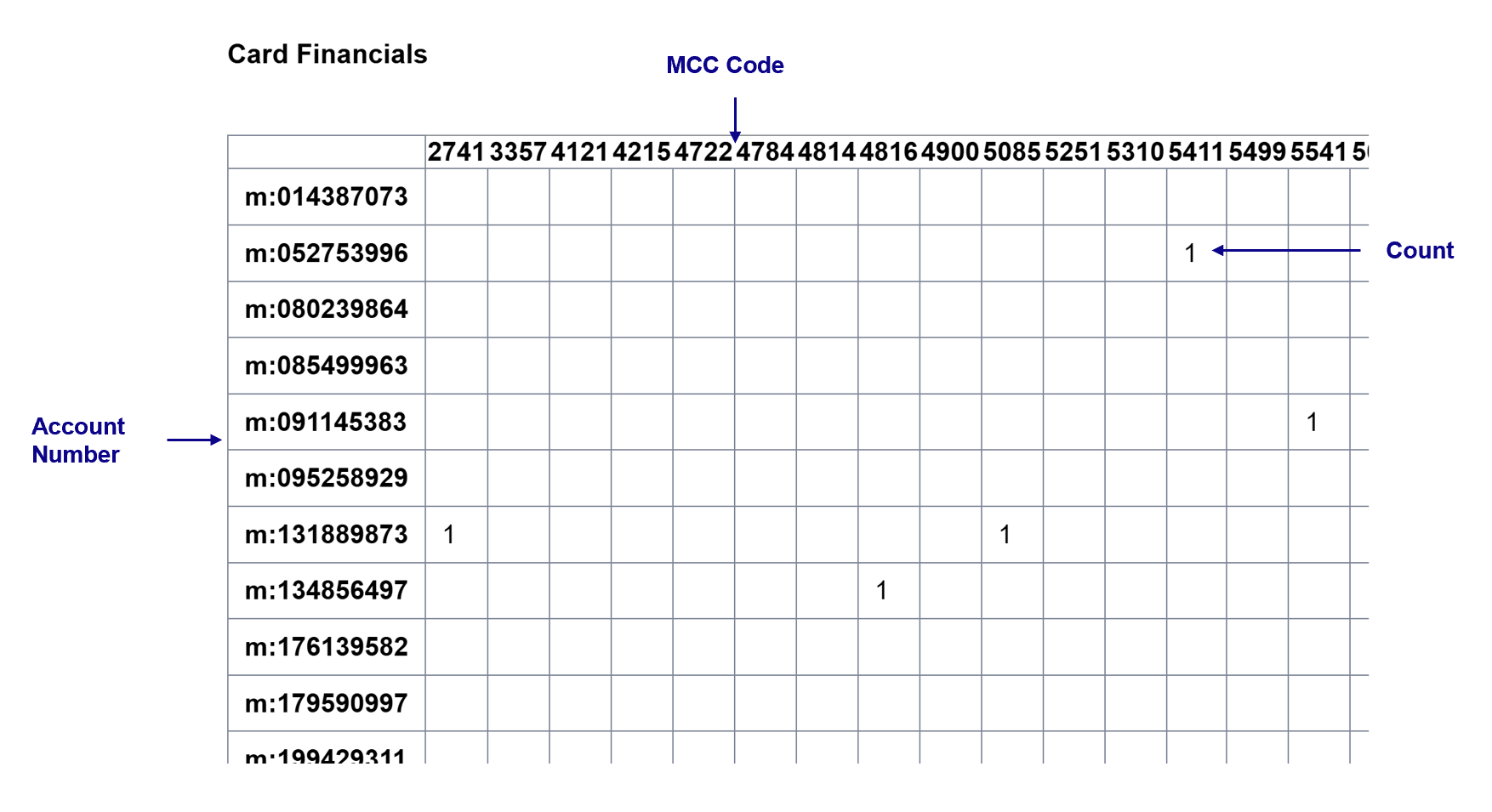
You can set the GridBy structure option on a Collection, and perform the Count operation. GridBy displays the groupings as a grid with column and row headings, while the values in the cells are from a Count. This option enables you to display statistical data according to two sets of variables. This example shows the number of occurrences of an MCC (Merchant Category Codes) of a specific account number.
After performing the steps, the data appears similar to the following:
-
The account number is the row heading.
-
The MCC Code is the column heading.
-
The count of the MCCs of a particular account number appear in the cells.
Steps
The following are the example steps for performing a GridBy and Count.
-
From the Output list in the Properties menu, ensure that Table is selected in the Format subsection.
-
From the Output list in the Properties menu, select GridBy in the Structure subsection.
-
In the first Choose Property list, select Account No for the columns.
-
In the second Choose Property list, select MCC for the rows.
-
Ensure that COUNT is selected from the list below MCC.
-
Click
Using the Transform Function
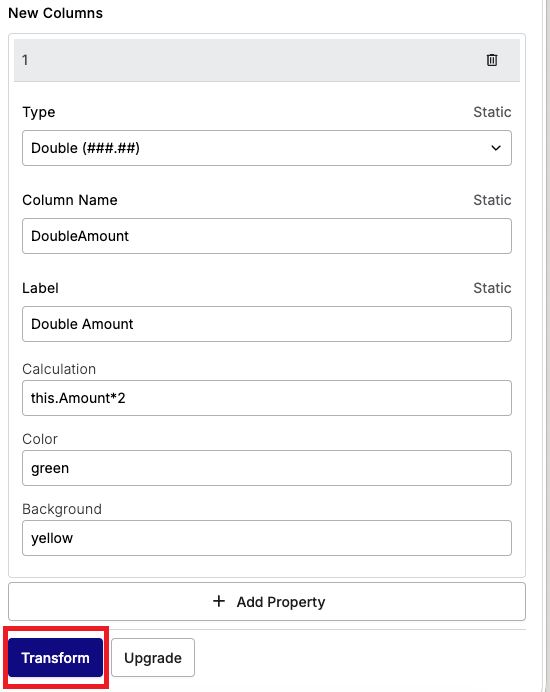
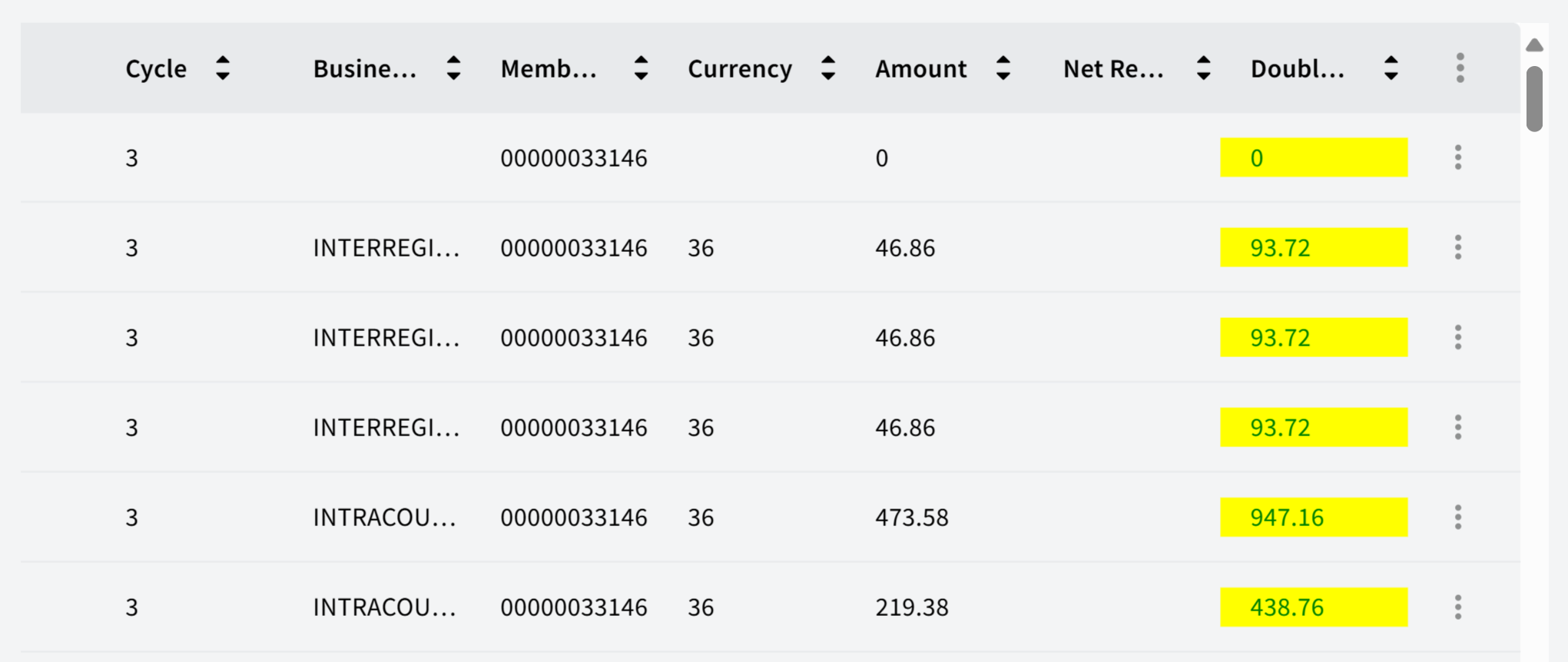
You can use the Transform function to add new columns to your existing Collection. The new columns can include values from calculations. This function is useful for running analytics on your Collection. For example, you create a new column where the values in the Amount column are doubled.
Steps
The following are example steps for the Transform function.
-
Click
 for transforming the Collection. The object tree shows a new object for the transformation.
 -
Click Add + Property under the New Columns section.
-
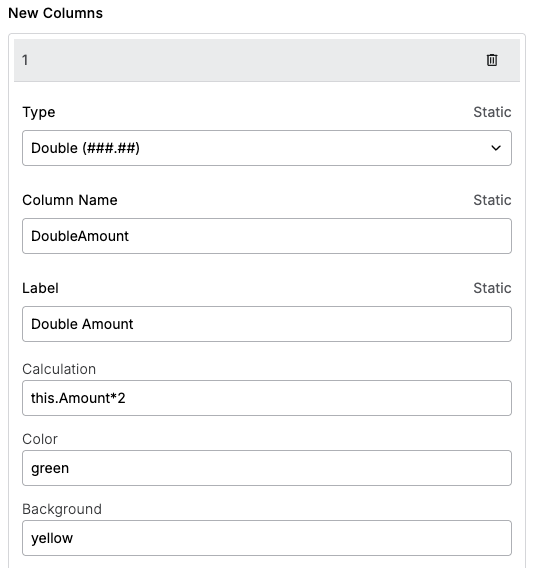
Select the following options:
-
To allow for numbers with decimal places, select Double in the Type list.
-
Enter a name for the amount to be doubled in the Column Name field. The naming should be consistent with the underlying data.
-
Type in a corresponding name for displaying on the interface in the Label field.
-
Enter this.Amount*2 in the Calculation field.
-
For highlighting, enter details for the colour of the text and background in the Color and Background fields, for example, green and yellow.
The entered data may appear similar to the following:
-
-
Click Transform.