Adding Data for Custom Reconciliation
Before using Custom Reconciliation through Reflow, you should first gather the data for your required tasks. Custom Reconciliation allows you to include data from various sources such as Collections, Flows and your own uploaded files.
Ensuring Collection and Flow Data Exists
Although you can select Collection and Flow data when you load the Reflow interface, you can check that this data exists in Automated Back Office by opening the relevant location.
Click the  icon on the left-hand side to bring up the menu, followed by Data > Standard Collections, or Custom Recon > Flows.
For details on loading Collections and Flows into Reflow, see Creating a Flow document.
The Managing Collections and Flows section includes descriptions on accessing all the Collections and Flows that are available to you.
Uploading your Own Files
You can upload XLS, XSLX, CSV, XML, TXT, and JSON files to Automated. Back Office for Custom Reconciliation. During the uploads, the system validates the files against a Model, which contains the definition of the data that you are adding to Automated Back Office. A Model ensures that errors in calculations are minimised once you run Custom Reconciliation.
There are two main ways to upload a file:
- Uploading a file and mapping to an existing Model: You can use this option if a model with similar data has already been created, and where there are likely to be matches.
-
Uploading a file and creating a new Model: You can use this option to generate a Model for validation as you upload a file. This is useful if you are uploading unique data for the first time.
You can also upload multiple files/Models at the same time.
When files are uploaded, these appear in the Custom Collection section, while the uploaded Models appear in the Custom Model section. For more information, see Access Collection Data in Custom Reconciliation.
Uploading a File to Automated Back Office
The following shows the steps for uploading a file to Automated Back Office. This includes:
-
Specifying a file for uploading.
-
Confirming the mapping between a Model and the file.
-
Completing the upload process.
Specifying a File for Uploading
You specify the file that you want to add for uploading from the folders on your own system.
- Click the Upload button from the left-hand menu of the Automated Back Office homepage.
- Read through the disclaimer on PII data and, once understood, select the check box next to it.
- Add the file by doing one of these steps:
- Drag the file from a folder location.
- Click Browse and identify the file from the folders.
- Confirm the mapping. The screen displays Step 2: .Confirm the Data Mapping. The following example shows the options that exist for a CSV file.
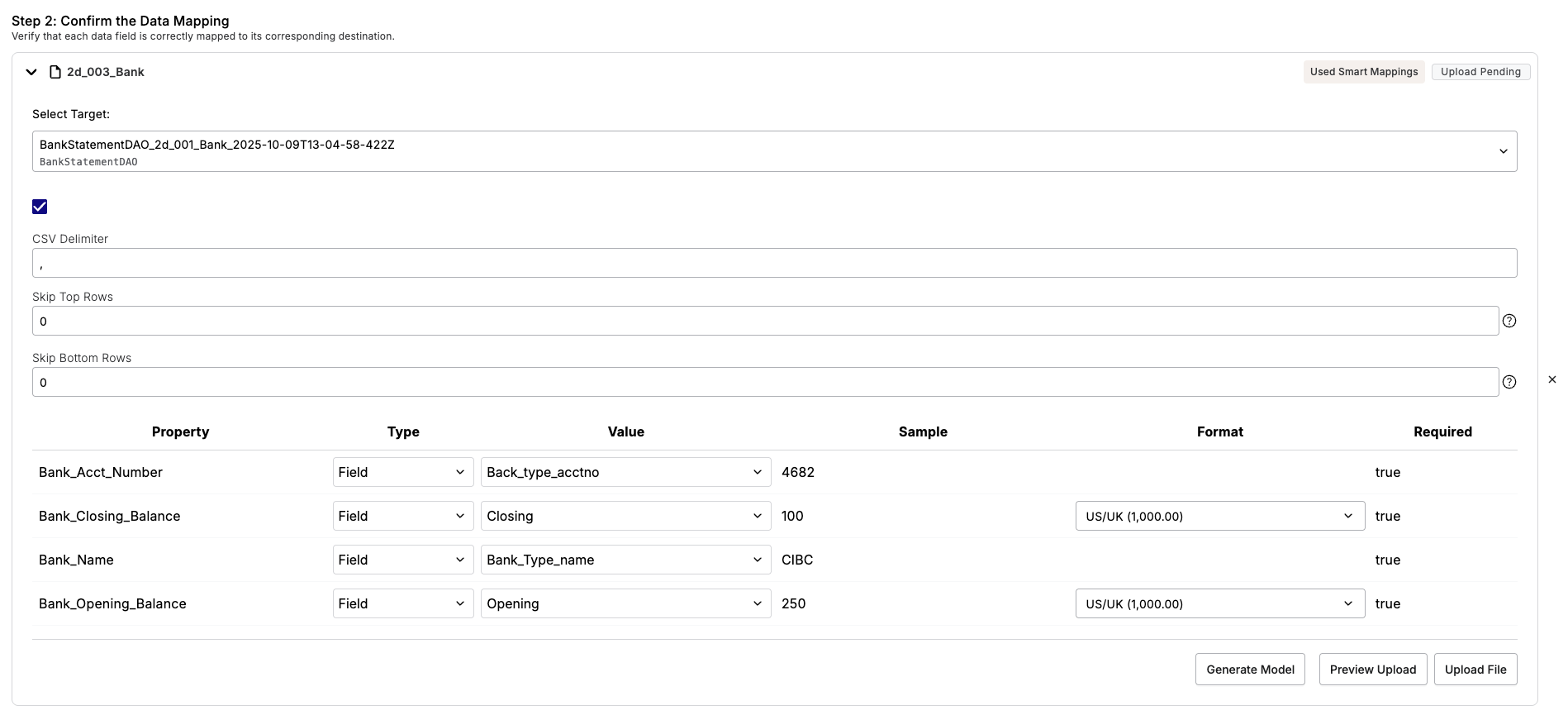
Confirming Mapping
You select the target collection for the model, the CSV settings and the individual fields for the mapping.
If you are uploading a CSV or TXT file, you will see unique options such as CSV delimiter, Skip Top Rows, and Skip Bottom Rows. For all other formats, these options do not appear.
- If you are uploading a CSV or TXT file, do the following:
- Choose a Model from the Select Target list where there is a good match.
- Enter a character in the CSV Delimiter field for the separator.
- If you do not want to include any of the top rows in the mapping, select a number in Skip Top Rows field.
- If you do not want to include any of the bottom rows in the mapping, select a number in Skip Bottom Rows field.
- For each of the property items in the spreadsheet, map the data:
- Select the type of data in the Type field as either Constant if it stays the same; Field if it is the literal name; or Dynamic if the values change.
- Select a matching value in the Model from the Value list.
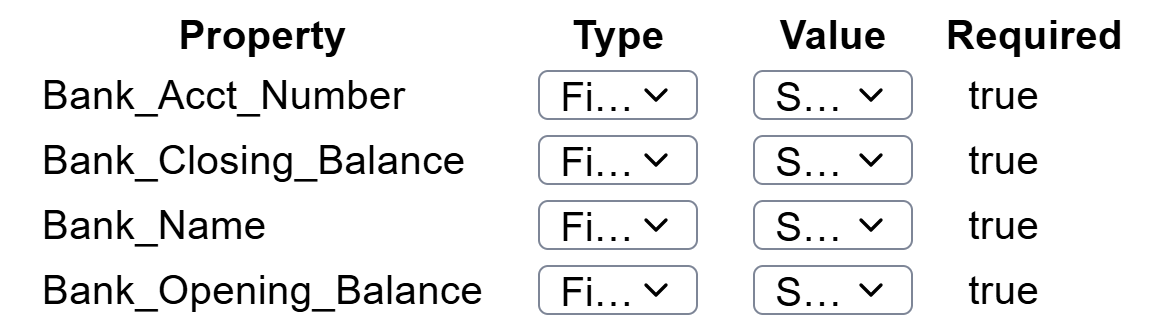
- For any property where you need to specify a format, such as numbers, select an entry in the Format list.
Completing the Upload Process
Once you have set the options, you can preview the file and then upload it. Previewing allows you to view the newly added rows before the processing completes.
- Click Preview Upload. The Processing Notes section indicates the previewing progress and the number of rows successfully added.
- Click Upload File. The Confirm Upload window appears.
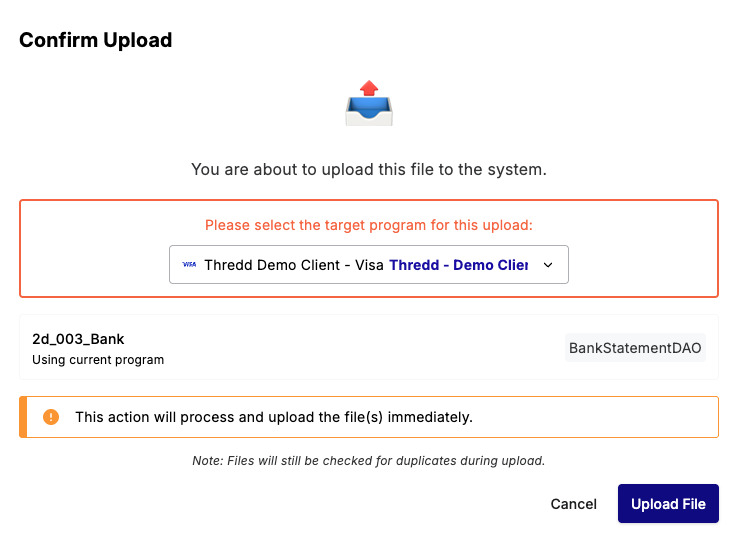
- Follow the instructions by setting a target program for the upload.
- Click Upload File. A message appears indicating that the file was successfully uploaded. The Processing Notes section also shows that the file was successfully uploaded at the indicated date and time.
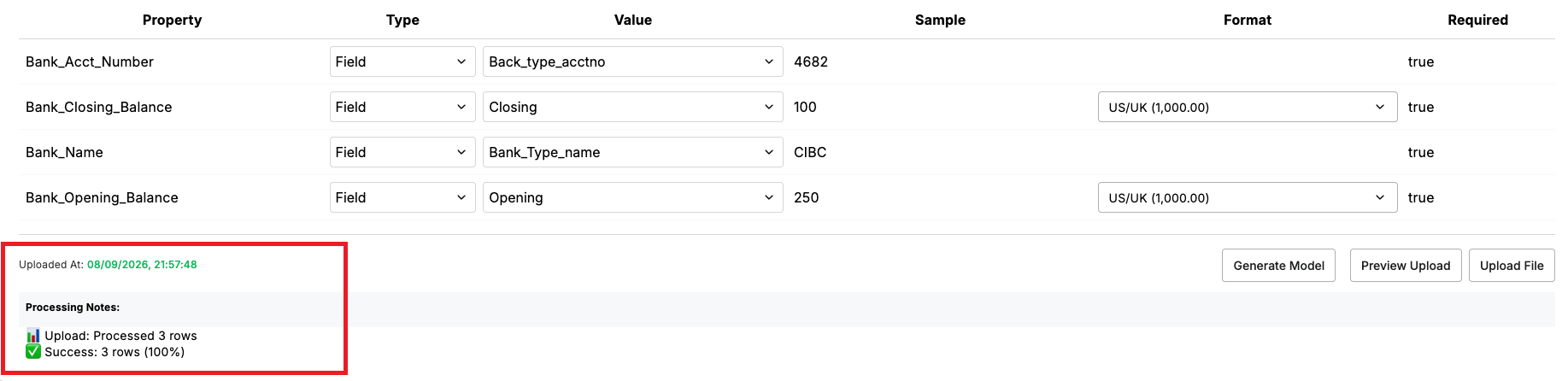
Uploading a File and Creating New Model
You can upload a file and generate a Model for it.
- Perform steps 1 to 3 as in Adding a File for Uploading.
- If you are uploading a CSV or TXT file, perform the following steps under Step 2: Confirm the Data Mapping:
- Ignore the Select Mapping list.
- If the first row contains column headers, select this option: Select if the first row contains column headers.
- Choose a model from the Select Target list.
- If you are adding a CSV file, enter a character in the CSV Delimiter field.
- If you do not want to include any of the top rows in the mapping, select a number in the Skip Top Rows field.
- If you do not want to include any of the bottom rows in the mapping, select a number in the Skip Bottom Rows field
- Click Generate Model. The Validating Model window appears.
Validating a Model
The Validating Model window lets you confirm that the fields in the file are used in the Model as shown in the following example:
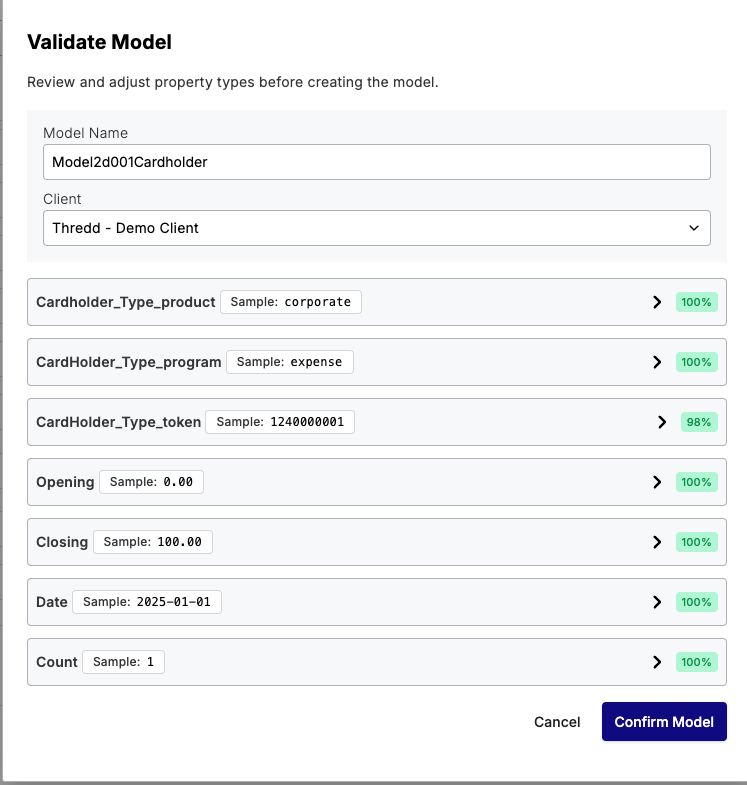
The name of the file is automatically added as the Model name.
-
If required, update the name in the Model Name field.
-
Ensure that the name of your organisation is selected in the Client list.
-
To update details on each of the fields, do the following:
-
Click on the arrow button for a field.
-
Update the values in the Name and Type lists.
-
If the field is required, toggle the Required button.
- To confirm the changes, click Confirm Model. A message appears.
Completing the Upload Process
Once you have set the options, you can preview and upload the file. Previewing allows you to view the newly added rows before the processing completes.
- Click Preview. The Processing Notes section indicates the previewing progress and the number of rows successfully added.
- Click Upload. The Confirm Upload window appears.
- Follow the instructions by selecting a target program for the upload.
- Click Upload File. A message appears indicating that the file was successfully uploaded. The Processing Notes section indicates the date and time that the upload was completed.
Uploading Multiple Files
You can upload multiple files at once, where each file appears as a separate entry in the interface. As the data in the sheets can be different, for example those for cardholder and bank data shown below, you need to select different Types and Values.
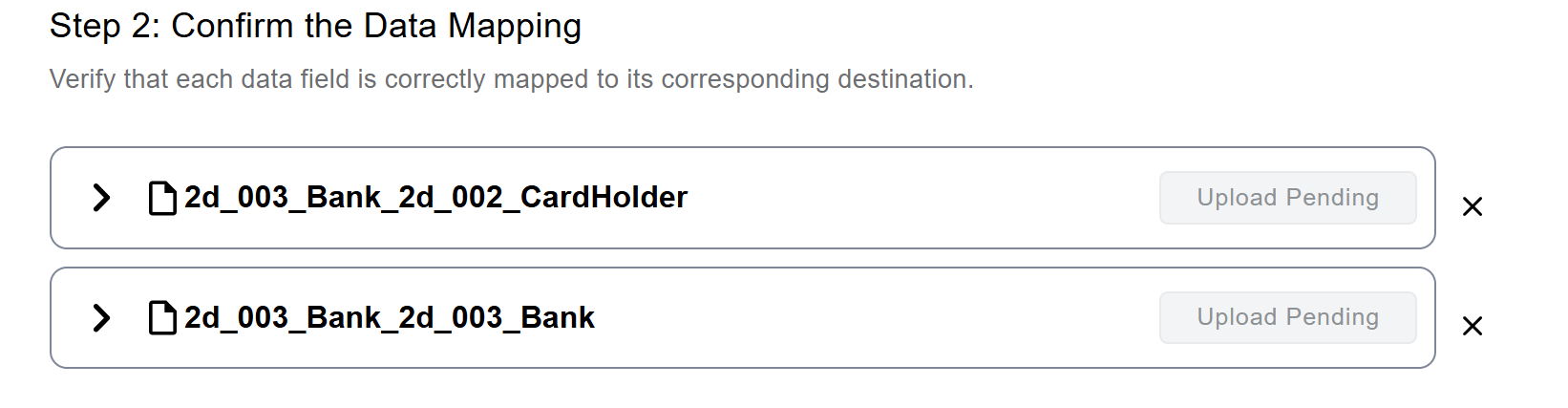
A Duplicate Check allows the system to identify and delete any duplicate fields to ensure more efficient uploads. However, if you know that all fields are unique, you can skip the Duplicate Check option.
-
Perform the steps in Adding a File for multiple files.
-
Perform the steps in Confirming the Mapping for multiple files.
-
Complete the upload options:
-
To skip the Duplicate Check, click Skip Duplicate Check. If this option is cleared, Automated Back Office performs a Duplicate Check.
-
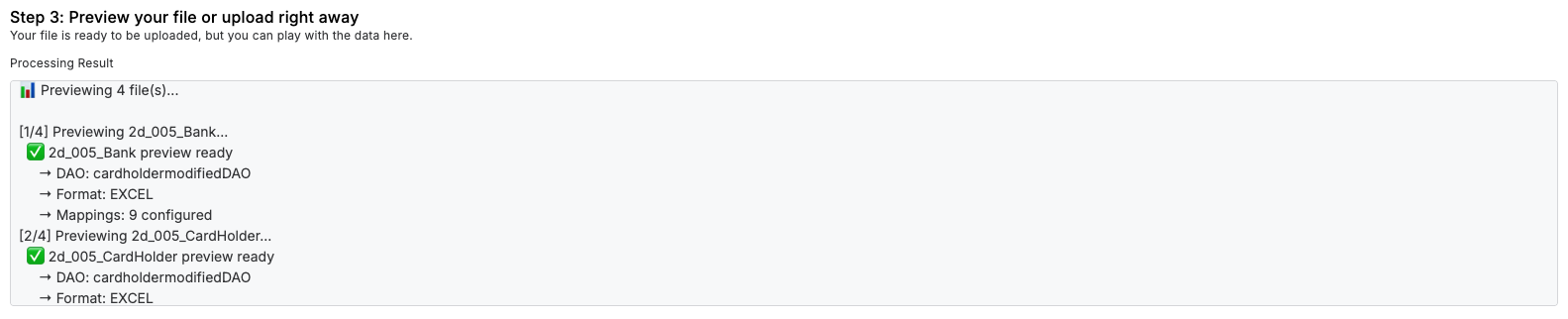
To preview all files, click Preview All. The Processing Notes section shows the previewing process and the number of rows successfully added for each file. Messages appear in the Step 3 section to show the progress of the preview, as indicated in the following example.
-
To upload all files, click Upload All. The Confirm Upload window appears, and indicates that the upload was successful.
- Follow the instructions by setting a target program for the upload.
- Click Upload All Files. A message appears indicating that the files were successfully uploaded. The Processing Notes show the date and time the upload was completed.
Generating Models from Multiple Files
You can upload multiple files, and use the Generate All Models option. The system generates a model for each of the files that are uploaded.
-
Click Generate All Models. The Validate Model window appears, and Automated Back Office assigns a name to the model.
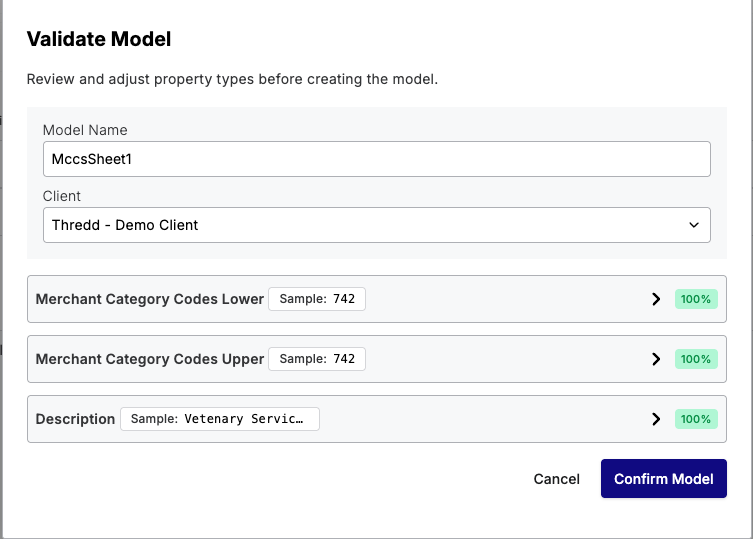
- If required, update the name in the Model Name field.
- To select a different program for the model, choose a client in the Client list.
- Click Confirm Model. A message appears indicating that the model was created. A second screen appears for the other model.
- Click Confirm Model again.
-
To upload all models, click Upload All.
- Follow the instructions by setting a target program for the upload.
- Click Upload All Files. The following message appears on the Upload screen under Step 3.
