Managing Collections and Flows
As an optional task, Custom Reconciliation allows you to manage the Collection data that you want include in the Reflow interface. This is useful for checking your data before you start your Custom Reconciliation tasks. You can:
-
View the list of Standard Collections, Custom Collections and Custom Models.
-
Scan the data in each Collection.
-
Add or remove columns in a Collection.
-
Filter data within a Collection.
-
Export Collection data.
You can also access the Flow documents that you have saved from a Collection, which you may have updated through the Reflow interface.
Accessing Collection Data in Custom Reconciliation
The Collection data appears under the following categories on the left-hand menu in Automated Back Office:
-
Standard Collections: These are based on files that Thredd has uploaded to Automated Back Office, including scheme-specific files (VSS for Visa and T140 for Mastercard). This category also includes specific guides which are published by the Card Scheme (mainly for Network Fees).
-
Custom Collections: These are the files that you have uploaded to Automated Back Office, for example, receipt information in CSV format.
-
Custom Models: These are the Models that you create from uploading files.
-
Click .
 . to display the left-hand menu.
 -
Click the
 .button. The Standard Collections Custom Collections, and Custom Models submenus appear.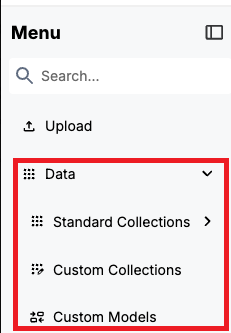
-
For accessing Standard Collections, click the Standard Collections submenu option. See the following table on Standard Collections Items for Visa and Mastercard.
-
For accessing Custom Collections, click the Custom Collections submenu option. The files that you uploaded to Automated Back Office appear with the .DAO (Data Access Object) suffix.
-
For accessing Custom Models, click the Custom Models submenu option. The Models that are included with the file upload are listed with their associated card programs (or clients).
Standard Collection Items for Visa and Mastercard
The following lists the Standard Collection items for Visa and Mastercard. Some Collection items are unique to the Card Schemes, other items are common to both Mastercard and Visa.
|
Mastercard |
Visa |
|---|---|
|
T140s |
Base2, VSS |
|
Scheme guides |
Scheme guides |
|
Fee Files. These include: Mastercard fees Clearing card fees Non-clearing card fees |
Fee Files. These include: Clearing card fees Non-clearing card fees |
|
Files from Thredd's Global Reporting. These include: Non-Clearing files Clearing files Balance files Card Financials Card Authorizations |
Files from Thredd's Global Reporting. These include: Non-Clearing files Clearing files Balance files Card Financials Card Authorizations |
|
IPM files |
Card event files |
Scanning Collection Data
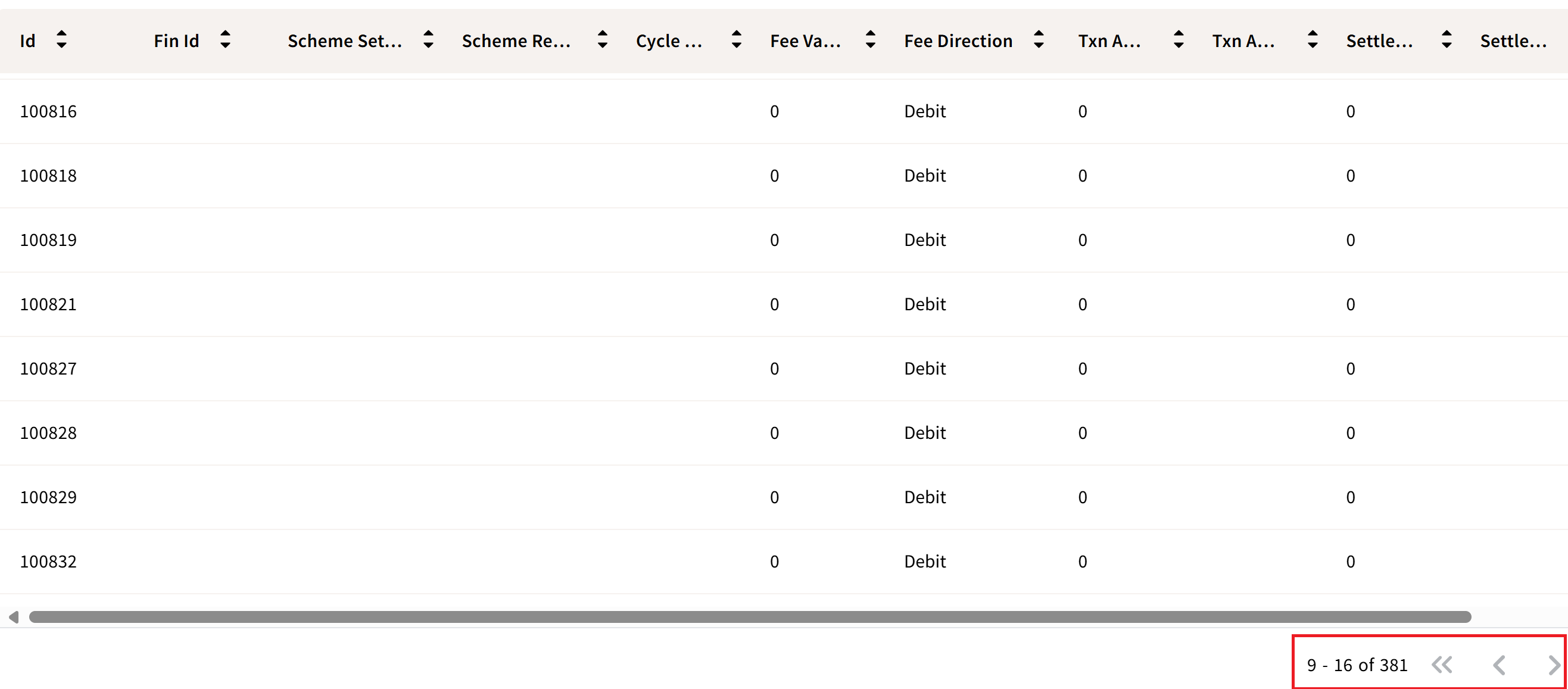
You can scan row items within a Standard Collection or Custom Collection. At the below right of the Collection, is a counter that shows the row range against the total number of rows.
-
Open a Standard Collection or Custom Collection file.
-
To access a set of row items, scroll up or down on the page, or use the arrow keys next to the counter.
Adding Columns to a Collection
As a Collection may be large, some columns do not appear in the tabular view. You can add columns to the tabular view for a selected Collection.
- Click
 on the right side of a Collection. A pop-up windows appears, which shows the columns displayed on the main screen as ticked.
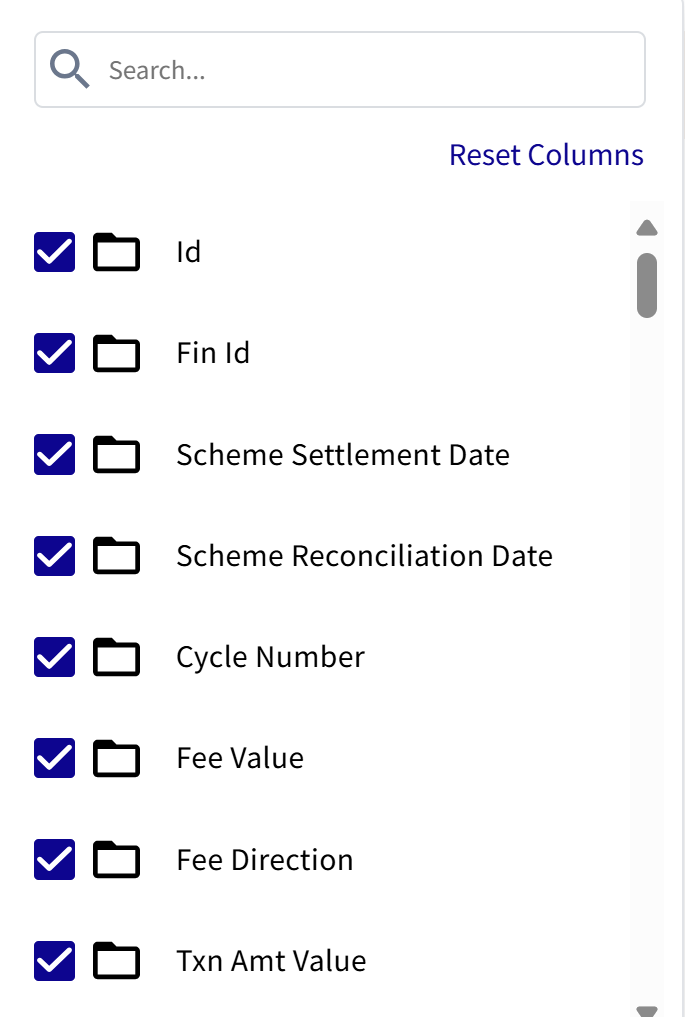
- To display a column in a Collection, select an item that does not appear with a tick.
Filtering Data
You can filter the data by using default or customised filter categories for a Collection. The columns in a Collection are used as filter categories, where you can drill down to the data that you need, such as through a Boolean search. The following are some examples of filter categories for a Card Financials Collection.
Selecting Filters
The filter button reveals a range of filter options for a Collection.

-
Select a Standard Collection from the left-hand menu (for example Card Financials).
-
Click Filter. The filter options for a selected Collection appear.
-
Select one or more filter categories.
-
Choose one or more options in each category, using the drop-downs and fields where applicable.
|
Example Filter Category |
Filter |
|---|---|
|
Amount |
You can set a Boolean filter on the specific amount. This is Equal Not Equal Greater than Less than Greater than or equal Less than or equal Between (exclusive) Between (inclusive) |
|
AuthId |
You can set a Boolean filter on the specific amount. This is Equal Not Equal Greater than Less than Greater than or equal Less than or equal Between (exclusive) Between (inclusive) |
|
Settlement Date |
You can filter before, after or between a specific date. |
|
Cycle |
You can set a Boolean filter on the specific amount. This is Equal Not Equal Greater than Less than Greater than or equal Less than or equal Between (exclusive) Between (inclusive) |
|
Token |
Select an individual token ID. |
|
Amount |
You can set a Boolean filter on the specific amount. This is Equal Not Equal Greater than Less than Greater than or equal Less than or equal Between (exclusive) Between (inclusive) |
|
Currency |
Select an available currency that is configured for implementation. |
|
Fee Amount |
You can set a Boolean filter on the specific amount. This is Equal Not Equal Greater than Less than Greater than or equal Less than or equal Between (exclusive) Between (inclusive) |
|
Fee Currency |
Select an available currency that is configured for fees. |
|
Program Id |
Select an available program ID. |
Remove Filter Categories
If you no longer require filter categories, you can remove them from the screen.
To remove all filter categories for a Collection, click the Clear All link.

Add New Column Filters
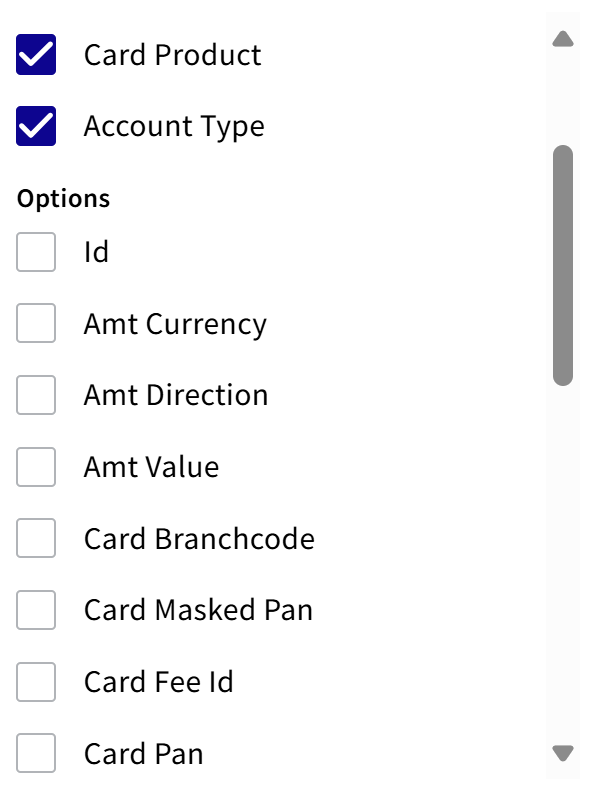
You can add additional column filters to help you search for the required data.
- Click Filters.
- Click

- Under options, select a column item. The existing filters show as selected as in this example.
Remove Column Filters
You can remove column filters that you no longer need.
- Click
- Under options, deselect a column item.
Exporting Collection Data
You can export your Collection data to any of the following formats:
- CSV
- FLOW
- JSON
- XML
- From an existing Collection page, click Export.
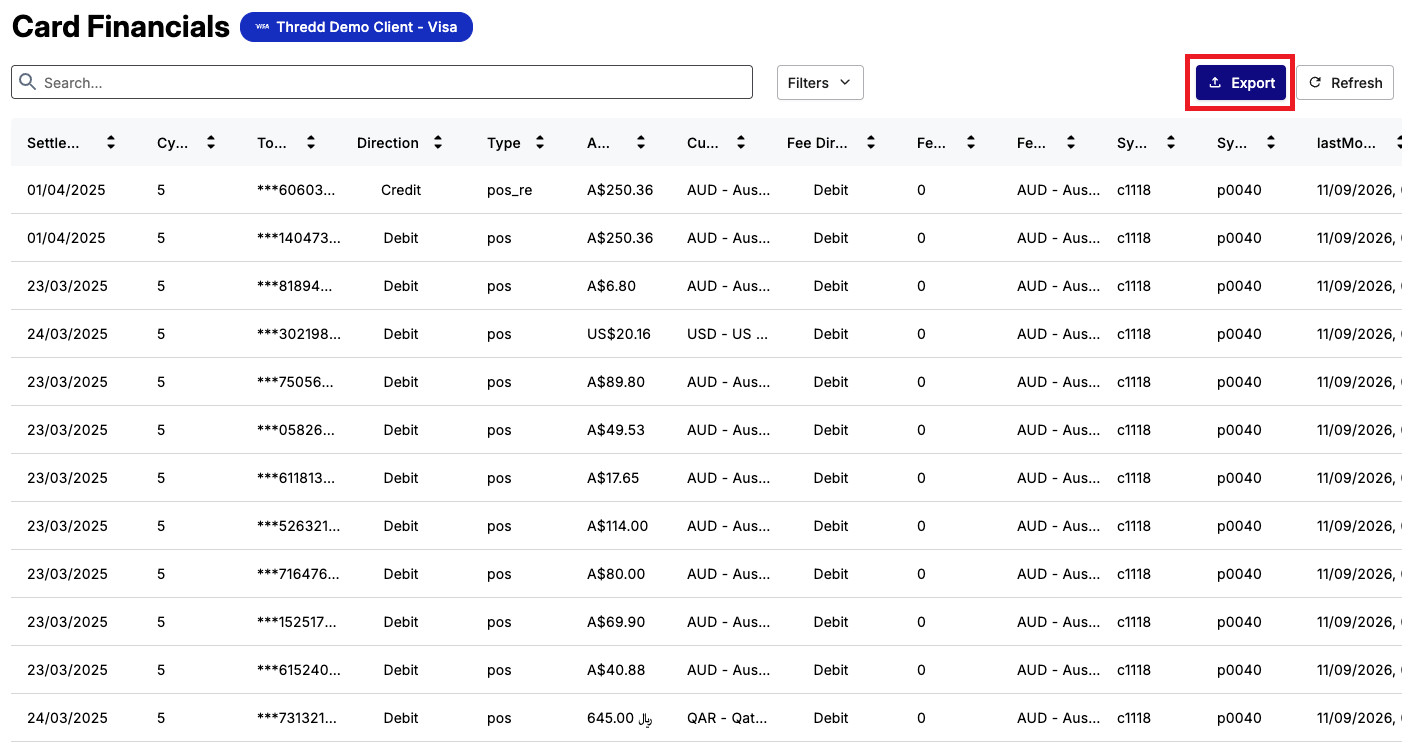
- From the pop-up window, choose an export option from the Select Type list.
Export to CSV
If you selected the CSV option, you can include the date format. You can also select the option for exporting all the columns that exist for a file, and not just those that appear in the Collection view.
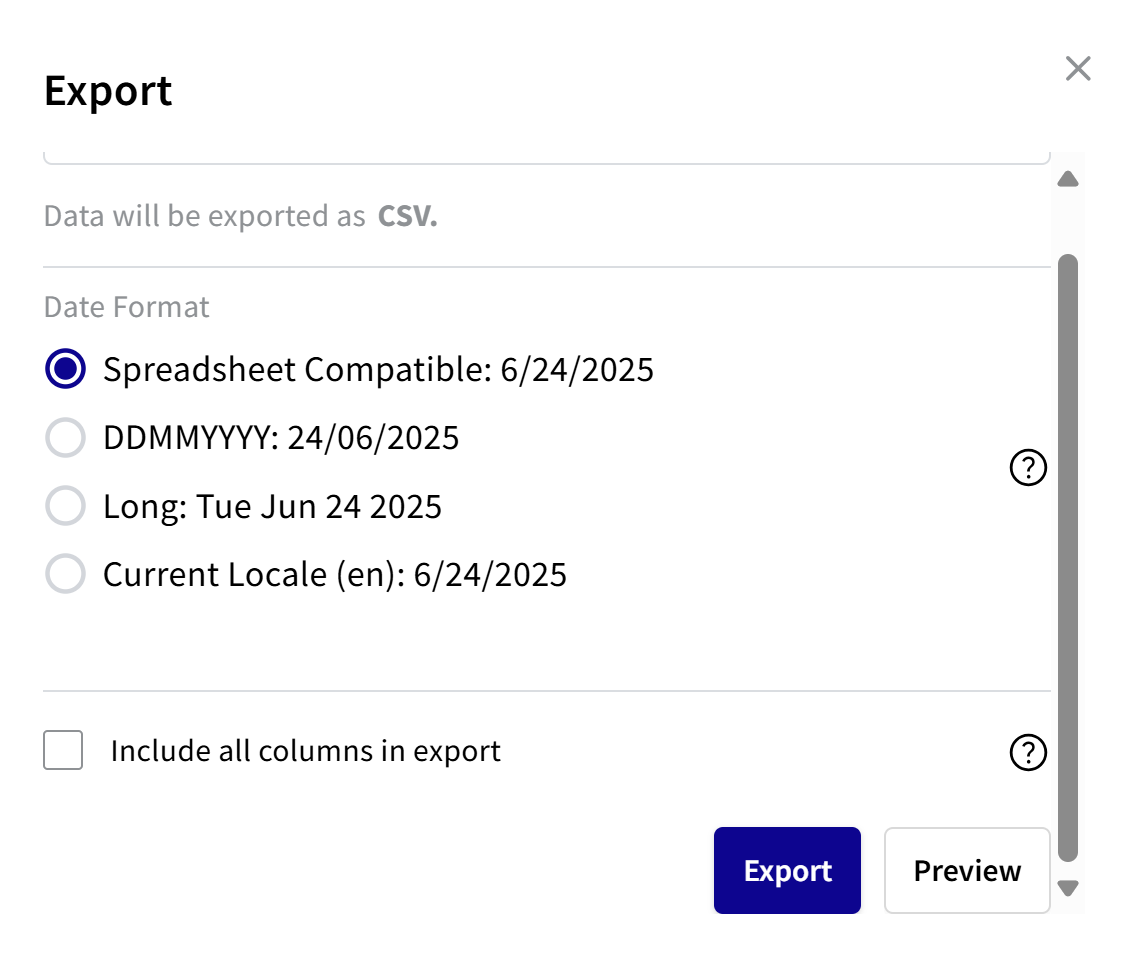
To export to CSV:
- Choose a date format:
- For spreadsheet compatible, select Spreadsheet Compatible. See the note after step 4.
- For DDMMYYYY, select DDMMYYYY.
- For a long date format, select Long.
- For current locale, select Current Locale.
- To export all the columns in the file, select the Include all columns in export check box.
If you do not select the check box, you only export those columns that appear in the Transaction Matching view.
- To preview, click Preview. The Response box shows the report in CSV format with the selected date format.
- To export, click Export.
Spreadsheet Compatible is where the date format is recognised by spreadsheets such as Excel and Google sheets for calculations, sorting, and formatting.
Export to Flow
If you have selected Export to Flow, you can set the following options.
-
Ensure that FLOW is selected in the drop-down list.
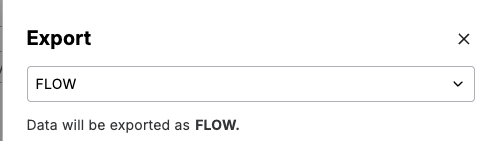
-
If required, update the name of the exported Flow in the Name field.
-
Type in a description for the Flow in the Description field.
-
To open the Flow once created, select the Open on Create option.
-
Click Save.
Export to JSON
If you selected the JSON export option, you can preview the export data.
- To preview the data, click Preview. The JSON response appears.
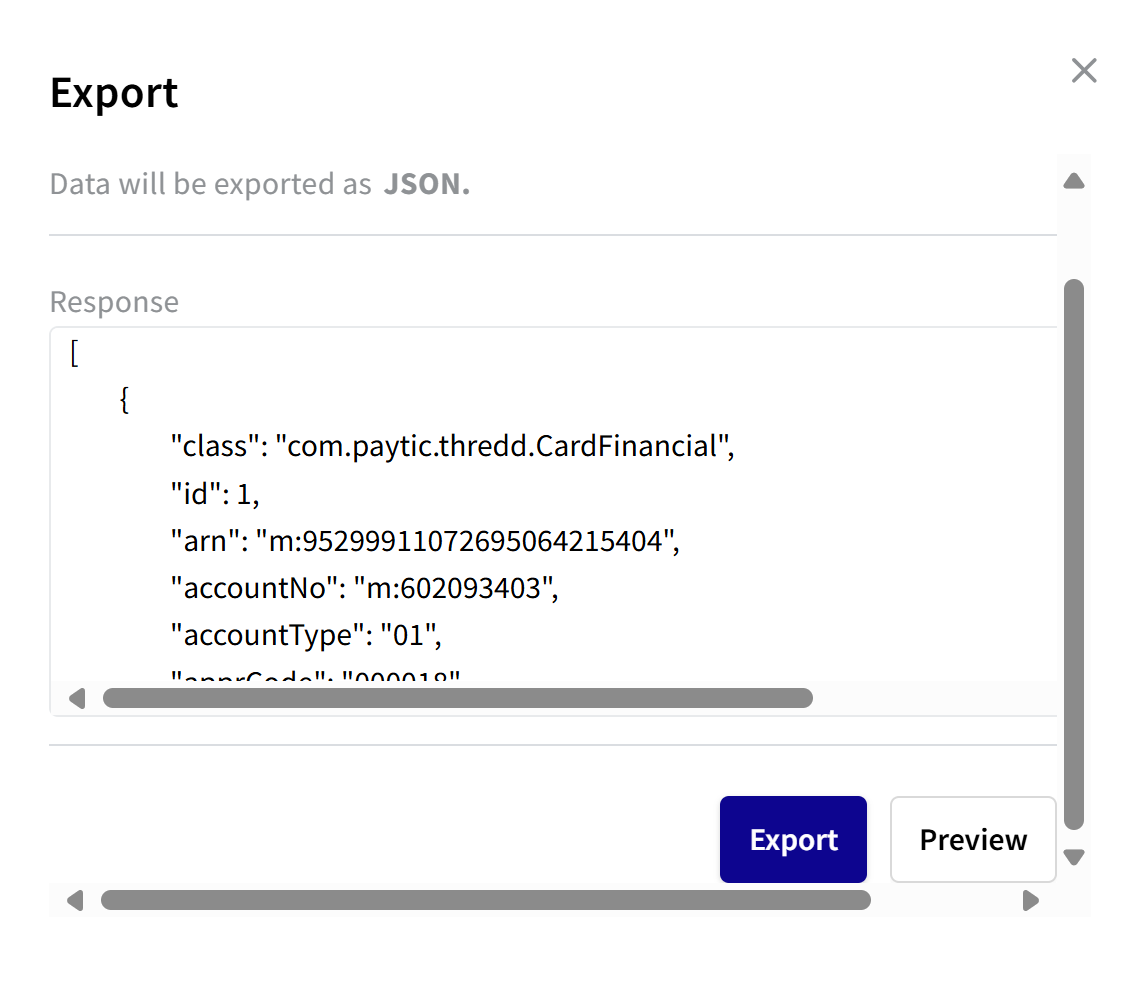
- To export, click Export.
Export to XML
If you selected the XML export option, you can preview the export data. Or, you can just export the data.
- To preview the data, click Preview. The Response box shows the report in XML format.
- To export, click Export.
Accessing Flow Documents
The Flows section in Automated Back Office includes a list of Flows. From the list, you can open the Reflow interface from the associated Flow document.
-
Click .
 . to display the left-hand menu.
 -
Click the Custom Recon .option. The Reflow and Flows items appear.
-
Click the Flows menu item. A list of Flow documents appear.

-
For a Flow item, click the Reflow button to access the Reflow interface.