Using the Fee Explorer
This section describes how to use the Fee Explorer to review individual fees. It also shows you how to find out summary information on fees.
Opening the Fee Explorer
To open the Fee Explorer:
-
Click the Network Fees Quick Actions button from the main Automated Back Office dashboard. Alternatively, click
 on the left-hand side to bring up the menu, followed by Finance > Network Fees. The Network Fees screen appears.
 -
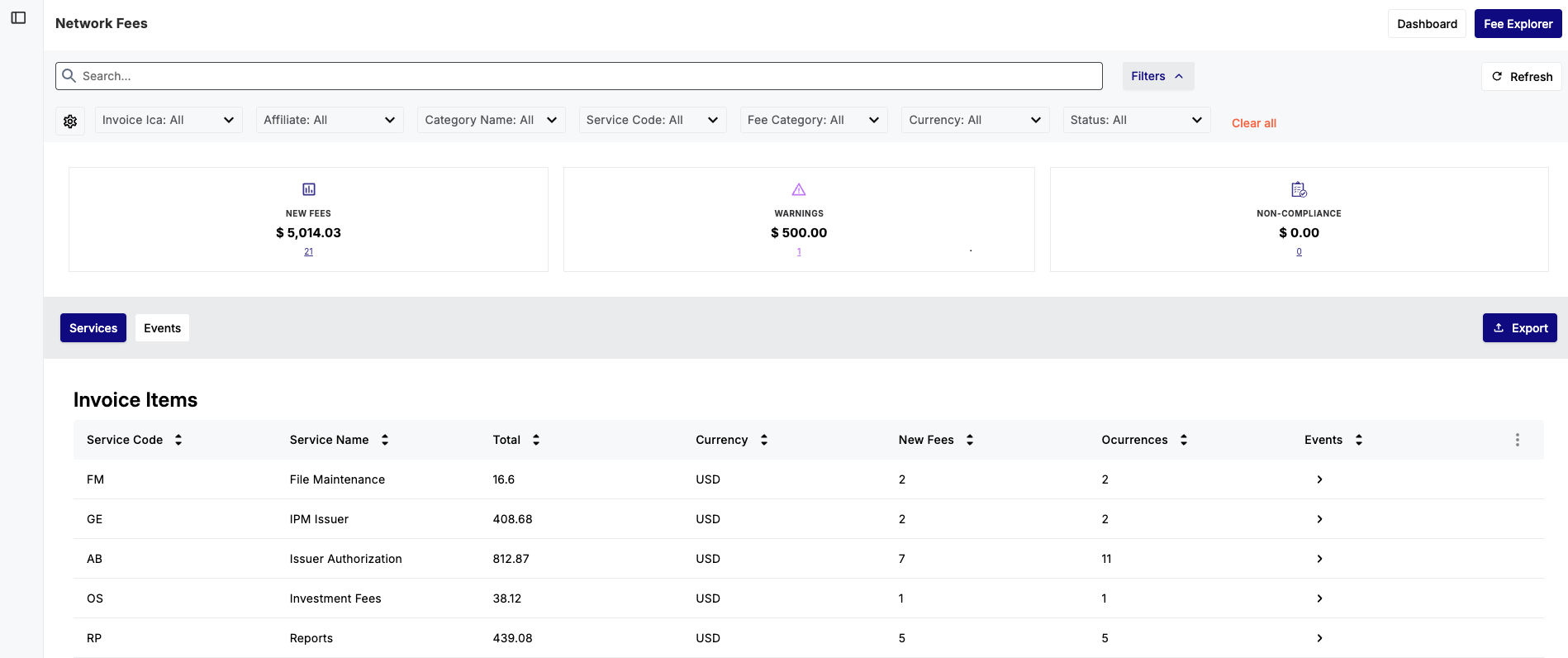
Click the Fee Explorer button. The Fee Explorer page is displayed.
Viewing Fee Summary Information
The Fee Explorer displays data boxes that show summary fee information based on statuses. The statuses can be any of the following:
-
New Fees — the fees that are new to Automated Back Office from the latest uploaded invoice, which do not have any issues. This includes the sum total of amounts and the respective number of occurrences. New Fees also includes those that are optional, which are services that you may not need and could opt out of.
-
New with Warnings — the fees that are new to Automated Back Office from the latest uploaded invoice but contain warnings.
- Warnings — the fees from new and previous invoices that were irregular or could not be classified. A fee classified as a Warning must be in any of the following statuses:
-
Suspicious — the system could not match the entity to a known program, or find a matching fee definition in its reference data.
-
Unusual — uses an event code that has not appeared in a previous invoice.
-
Unknown — these fees are not classified.
-
Non-Compliance — the number of fees and totals that haven't complied with Visa or Mastercard's policies.
-
Total Fees — the total amount of the fees regardless of status or warnings.
Clicking on the hyperlink for each data box shows a pre-filtered list for the categories.
When you first upload an invoice to Automated Back Office, all charges are new. However, the system adapts to your actions as you upload and reconcile more invoice files. For example, it will flag and approve recurring charges.
Viewing Items in Event and Service View
For analysing fees, Fee Explorer consists of the following views:
-
Services View: — This shows a list of fees according to the service that they provide. Services are billing categories that are defined by the Card Schemes. Each item is linked to a Service Code, for example, Connectivity Fees are linked to the CF code. Service View is the default view in Fee Explorer.
-
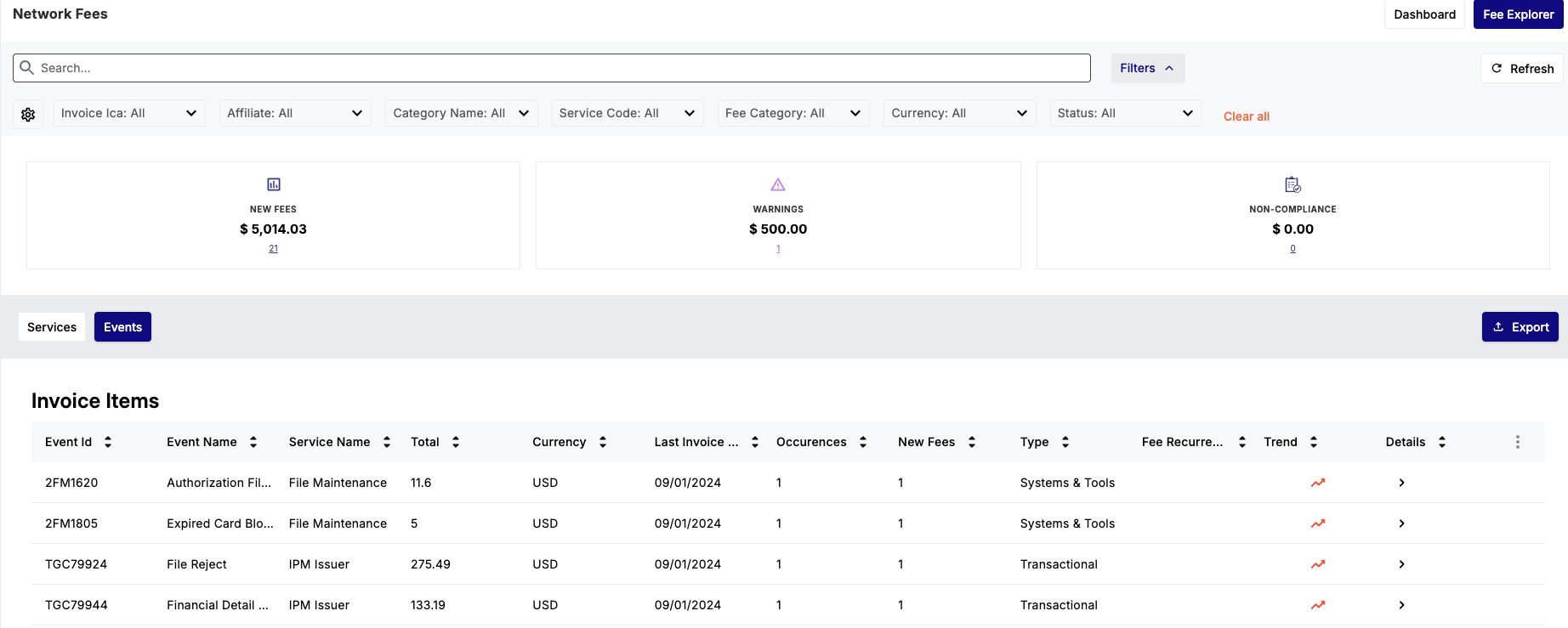
Events View: — This shows a list of fees according to the event that triggered each fee. Events are actions or occurrences defined by the Card Schemes, which can occur in different parts of the payment cycle. For example, a fee can be linked to an authorisation event for a cardholder payment.
To view fees in Events and Services View:
-
Observe the current default view as the Services View.
-
To view invoice items in Event View, click the Events button.
Reordering Column Data
You can reorder data within each of the columns. This is either alphabetically or numerically depending on the data. For example, you can reorder an Id column to present rows from the highest to the lowest value.
- Click the up and down arrows next to a column name.
Adding Columns
As there are a large amount of event and services data, you can add columns that do not appear in the table view.
-
Click
 . A pop-up window appears, which shows the columns displayed on the main screens as ticked.
- Tick any other items for column entries that you want to include.
Searching for Invoice Items
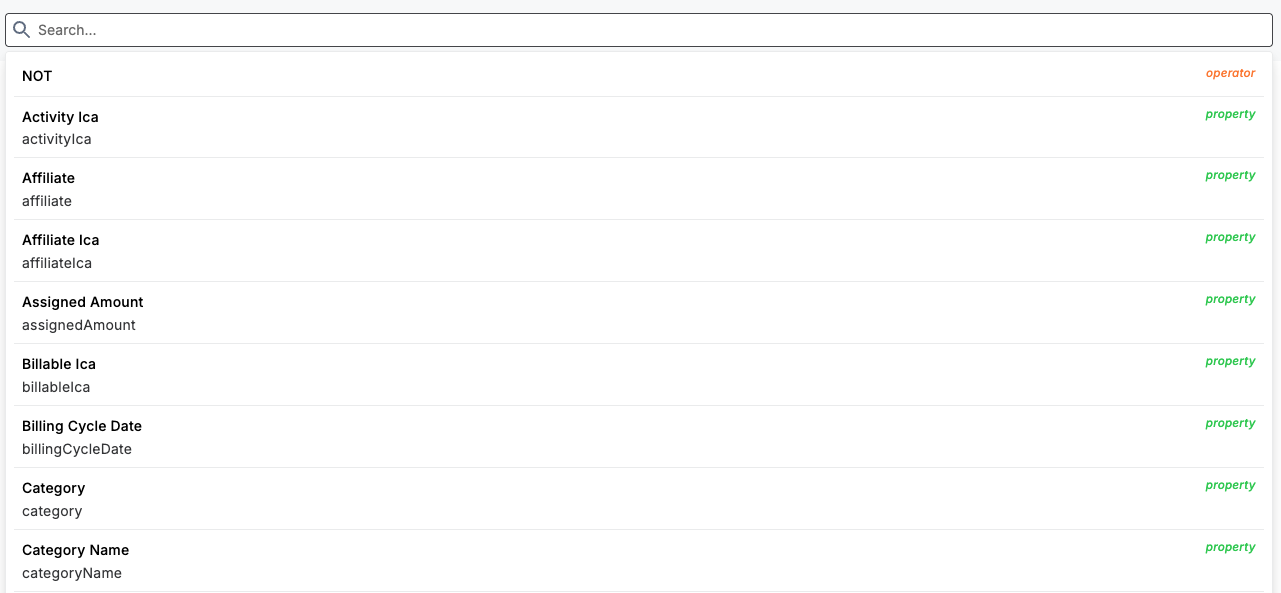
You can enter a search term in the search box. Alternatively, you can click on the search box and use the various properties that appear in a drop-down list.
Filtering Invoice Items
You can filter the list of fee invoice items. By default, the filters that you can set correspond to the available columns in the Service View. These include:
-
Invoice ICA — The unique identifier that is assigned by Mastercard to identify an Issuing bank. ICA means the Interbank Card Association.
-
Extracted Bin — The BIN number of the program. This is used for Visa programs only.
-
Affiliate — The affiliate organisation linking to a BIN Sponsor or BAAS Provider. This filter option only applies to BIN Sponsors or BAAS Providers.
-
Category Name — The category of the fee, such as an adjustment fee.
-
Service Code — The code that describes the type of fee related to the invoice line item.
-
Fee Category — The class of fee relating to how the fee is used or where it appears, for example, Systems & Tools.
-
Currency — The currency that is linked to the fee.
-
Status — The status of the fee.
You can also filter by the columns that appear in Event view by choosing further filter options (see Choosing Further Filter Options).
Choosing the Default Filter Options
To choose the default filter options:
-
Click Filter. The drop-down lists appear for all the filter options.
-
Select individual filter options from the following drop-down lists:
-
Invoice Ica: All (Mastercard only)
-
Extracted Bin: All (Visa only)
-
Affiliate: All
-
Category Name: All
-
Service Code: All
-
Fee Category: All
-
Currency: All
-
Status: All
-
To clear any of the filter options, click Clear All.
Filtering by Invoice Ica/Extracted Bin
From the InvoiceIca: All / Extracted Bin:All drop-down, select an ID from the OPTIONS list or use the search field.
Filtering by Affiliate
From the Affiliate: All drop-down, select an affiliate category from the OPTIONS list or use the search field.
Filtering by Category Name
Select a Category Name from the OPTIONS list or use the Search field. This is based on the uploaded invoice. For example, you may see a choice of ACTIVITY_FEES or ADJUSTMENT_FEES.
Filtering by Service Code
From the Service Code drop-down, select a service codes entry from the OPTIONS list or use the search field. For a list of service codes, see Appendix 1: Service Codes.
Filtering by Fee Category
Select a Fee Category from the OPTIONS list or use the Search field. This is based on the uploaded invoice. For example, you may see a choice of Activity, Reporting, Systems & Tools, and Transactional.
Filtering by Currency
From the Currency drop-down, select a currency entry from the OPTIONS list or use the search field.
Filtering by Status
From the Status drop-down, select a status entry from the OPTIONS list or use the search field.
- Accepted — a fee is approved in Automated Back Office. For more details, see Investigating Fee Invoice Items.
Escalated — a fee that is escalated to the Card Scheme (where an escalation email is sent).
Investigating — a fee is flagged for further investigation. For example, you do not wish to be charged for the fee.
New — Automated Back Office identified that the fee did not exist from previous invoices.
Optional — a fee where you are not required to pay the amount.
Penalty — a fee must be paid in order to abide by a rule or a contractual agreement.
Reopened — a fee that needs to be examined again because it was previously Accepted in error.
Suspicious — a fee does not appear legitimate, for example, the amount is excessively high.
Waived — a fee is no longer required.
Waiver Requested — a request has been given for the fee as it is no longer required.
Choosing Further Filter Options
To select further filter options:
-
Click
 .
. -
Select any of the filter option categories that are unticked.
Fee Invoice Fields
Refer to the table below for a description of the fields provided for each fee item.
The field columns that appear depend on whether or not you are viewing the fields in Service View or Event View.
|
Field |
Description |
In Services View |
In Events View |
|---|---|---|---|
|
Service Code |
The 2-letter Scheme service code. See Appendix 1: Service Codes. |
Y |
N |
|
Service Name |
The name of the Scheme service. |
Y |
Y |
|
Total |
The total fee amount for the invoice item. |
Y |
Y |
|
Currency |
The fee billing currency (e.g., USD). |
Y |
Y |
|
Occurrences |
Occurrence of a particular event or service item. |
Y |
Y |
|
Events |
The link to the invoice list in Event View. |
Y |
N |
|
Event Id |
Event code or ID, indicating the type of event (e.g. TRP2217E). (Mastercard only). |
N |
Y |
|
Event Name |
Name of the event that triggered the fee. |
N |
Y |
|
Last Invoice Date |
The date of the last invoice. |
N |
Y |
|
New Fees |
The number of fee invoices in the New status. |
Y |
Y |
|
Occurrences |
Occurrence of a particular event or service item. |
Y |
Y |
|
Type |
The type of fee in the invoice item. |
N |
Y |
|
Fee Recurrence |
Indicates if the fee occurs repeatedly. |
N |
Y |
|
Trend |
Indicates whether the trend of the invoice amount is upwards or downwards. The system calculates an upward or downward trend by comparing the selected date range with the previous period. |
N |
Y |
|
Details |
This shows a link to Service information on the fee. |
N |
Y |
Exporting Fee Records
You can export fee summary records from either the Services View or the Events View. Exporting allows you to provide the data to systems outside of Automated Back Office, such those used by developers for testing. The data that appears depends on the selected view.
-
To export from the Services View, click Services. Invoice items appear in the Services View.
-
To export from the Event View, click Events. Invoice items appear in the Event View.
-
Click the Export. A list of export options appear.
-
From the Select Type list, choose a format for the export as:
-
CSV
-
JSON
-
XML
See below for the descriptions of export options for each format.
-
Save your data to a suitable location.
Export to CSV
If you selected the CSV option, you can include the date format. You can also select the option for exporting all the columns that exist for a file, and not just those that appear in the Collections view.
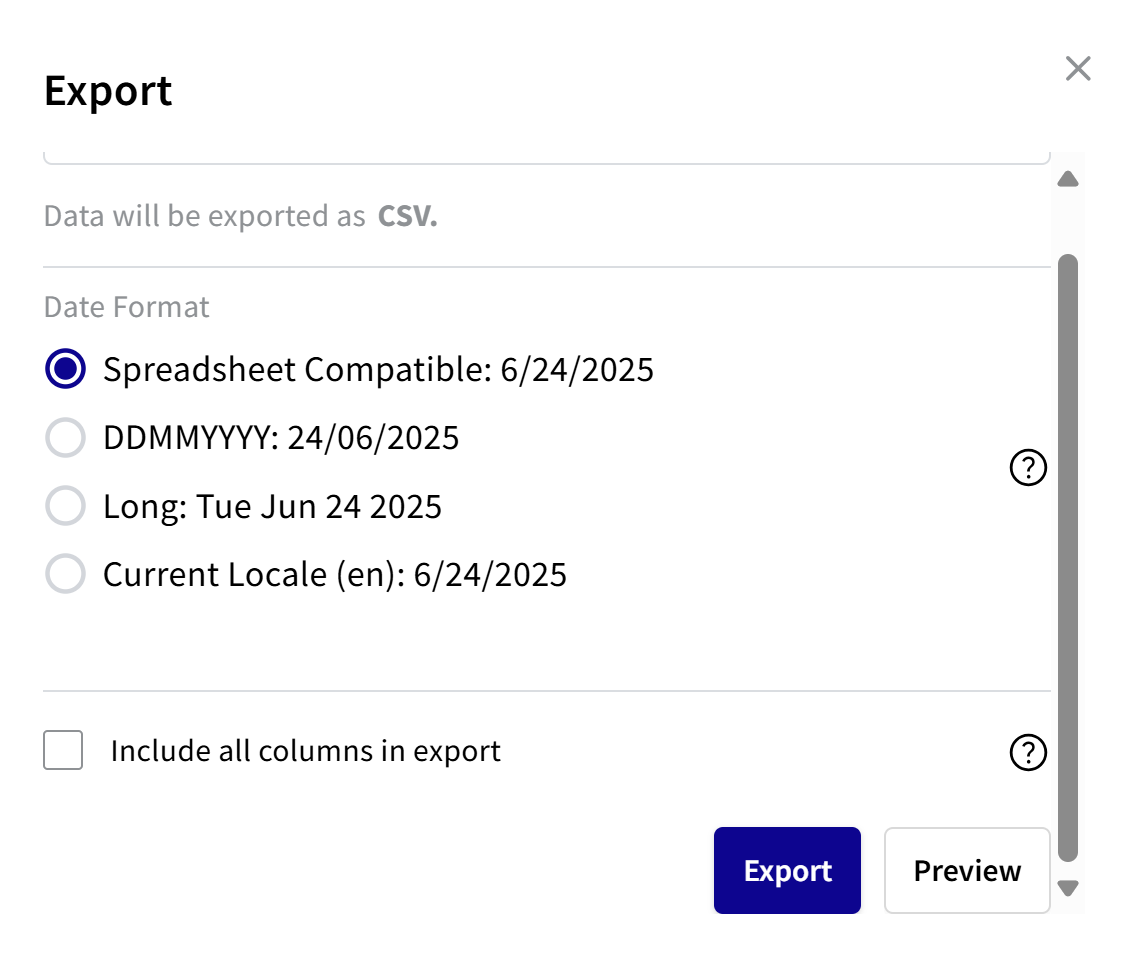
To export to CSV:
- Choose a date format:
- For spreadsheet compatible, select Spreadsheet Compatible. See second note.
- For DDMMYYYY, select DDMMYYYY.
- For a long date format, select Long.
- For current locale, select Current Locale.
- To export all the columns in the file, select the Include all columns in export check box.
If you do not select the check box, you only export those columns that appear in the Collections view.
- To preview, click Preview. The Response box shows how the date appears in the CSV file.
- To export, click Export.
Spreadsheet Compatible is where the date format is recognised by spreadsheets such as Excel and Google sheets for calculations, sorting, and formatting.
Export to JSON
If you selected the JSON export option, you can preview the export data.
- To preview the data, click Preview. The JSON response appears.
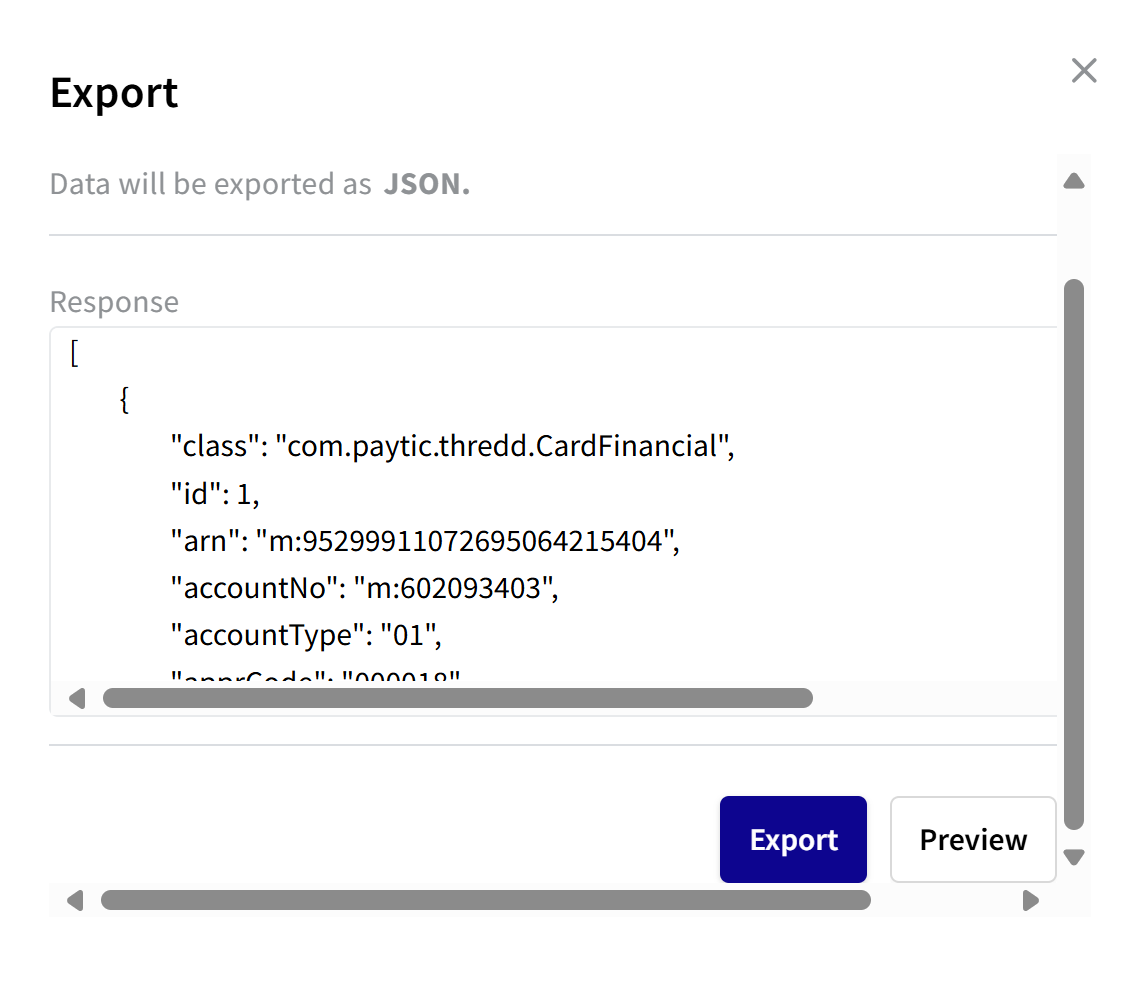
- To export, click Export.
Export to XML
If you selected the XML export option, you can preview the export data. Or, you can just export the data.
- To preview the data, click Preview. The Response box shows the report in XML format.
- To export, click Export.
Export Fields for Services
The following show export fields for Services.
|
Field |
Description |
|---|---|
|
Service Code |
The 2-letter Scheme service code. See Appendix 1: Service Codes. |
|
Service Name |
The name of the Scheme service. |
|
Total |
The total fee amount for the invoice item. |
|
Currency |
The fee billing currency (e.g., USD). |
|
New Fees |
The number of fee invoices in the New status. |
|
Occurrences |
Occurrence of a particular event or service item. |
Export Fields for Events
The following show export fields for Events.
|
Field |
Description |
|---|---|
|
Event Id |
Event code or ID, indicating the type of event (e.g. TRP2217E). (Mastercard only). |
|
Event Name |
Name of the event that triggered the fee. |
|
Service Name |
The name of the Scheme service. |
|
Total |
The total fee amount for the invoice item. |
|
Currency |
The fee billing currency (e.g., USD). |
|
Last Invoice Date |
The date of the last invoice. |
|
Occurrences |
Occurrence of a particular event or service item. |
|
Last Invoice Date |
The date of the last invoice. |
|
Occurrences |
Occurrence of a particular event or service item. |
|
New Fees |
The number of fee invoices in the New status. |
|
Type |
The type of fee or invoice item. |
|
Fee Recurrence |
Indicates if the fee occurs repeatedly. |
Refreshing Fee Data
To clear the screen and receive the most recent fee data, click Refresh. This button is located towards the top of the screen.
