Viewing and Editing Regulatory Reports
This section explains how to view and edit individual regulatory reports. Viewing and editing a regulatory report consists of the following steps:
The regulatory report activities that you can perform depend on your role. For more details, see Roles in Automated Back Office.
Opening a Report
The report screen lists the QOC or QMR report for your program.
-
Click on an entry to view the report. The screen shows the report with tabs for the different sections.
Viewing a Report
Click the tabs to browse the sections of the report.
QMR Sections
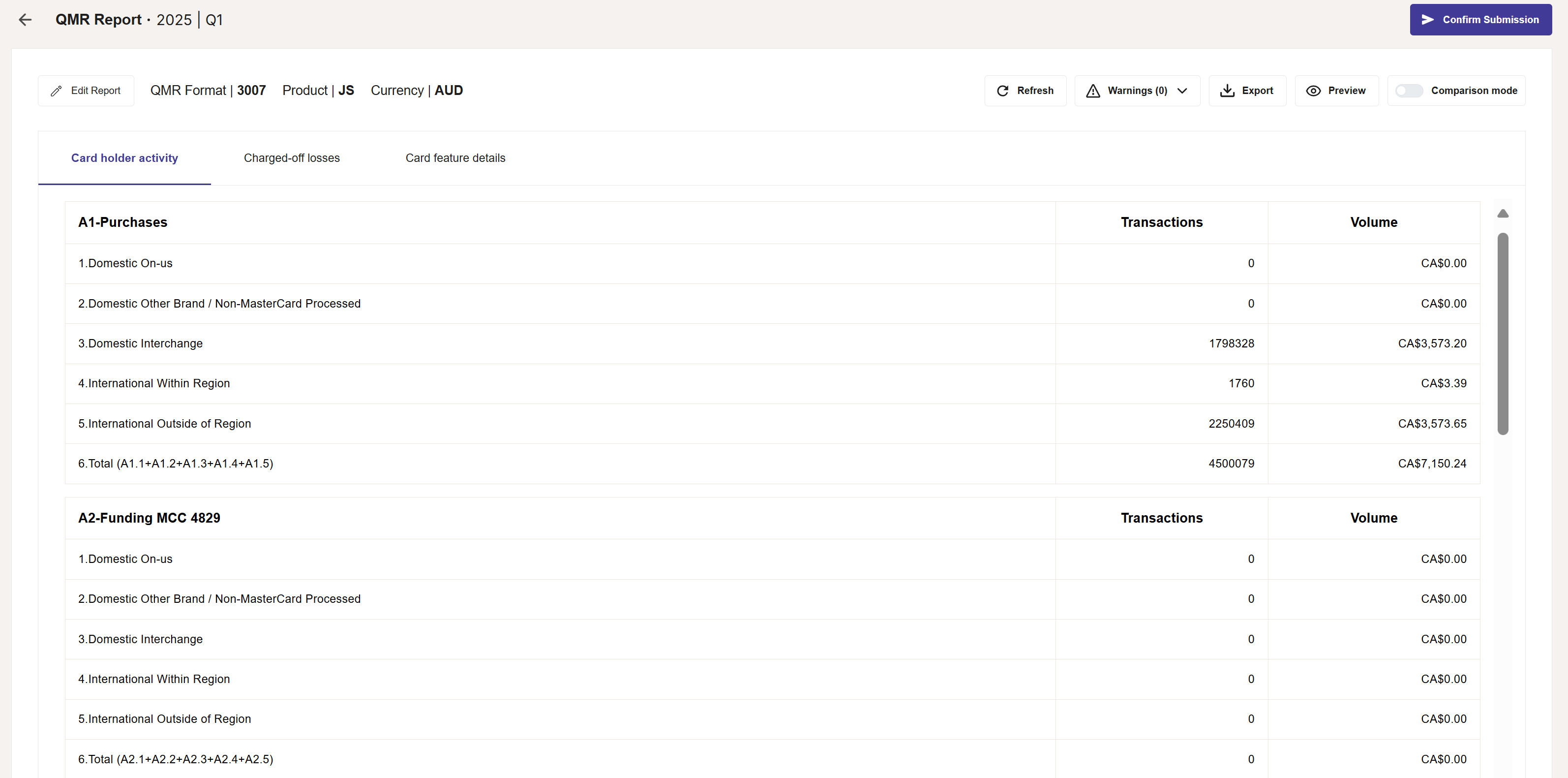
The following is an example of a QMR.
-
Cardholder activity — provides data on transaction activity such as purchases, funding, cash advances and refunds/returns/credits. There are also details on the specific types of payments, as well as data on accounts and cards that have been opened and closed.
-
Charged-off losses — provides data on chargebacks and fraud loss.
-
Card feature details — provides data on card features, such as the number of EMV-enabled chips, contactless and virtual cards. The section also provides data on cards enrolled in the Mastercard Biometric card program.
QOC Sections
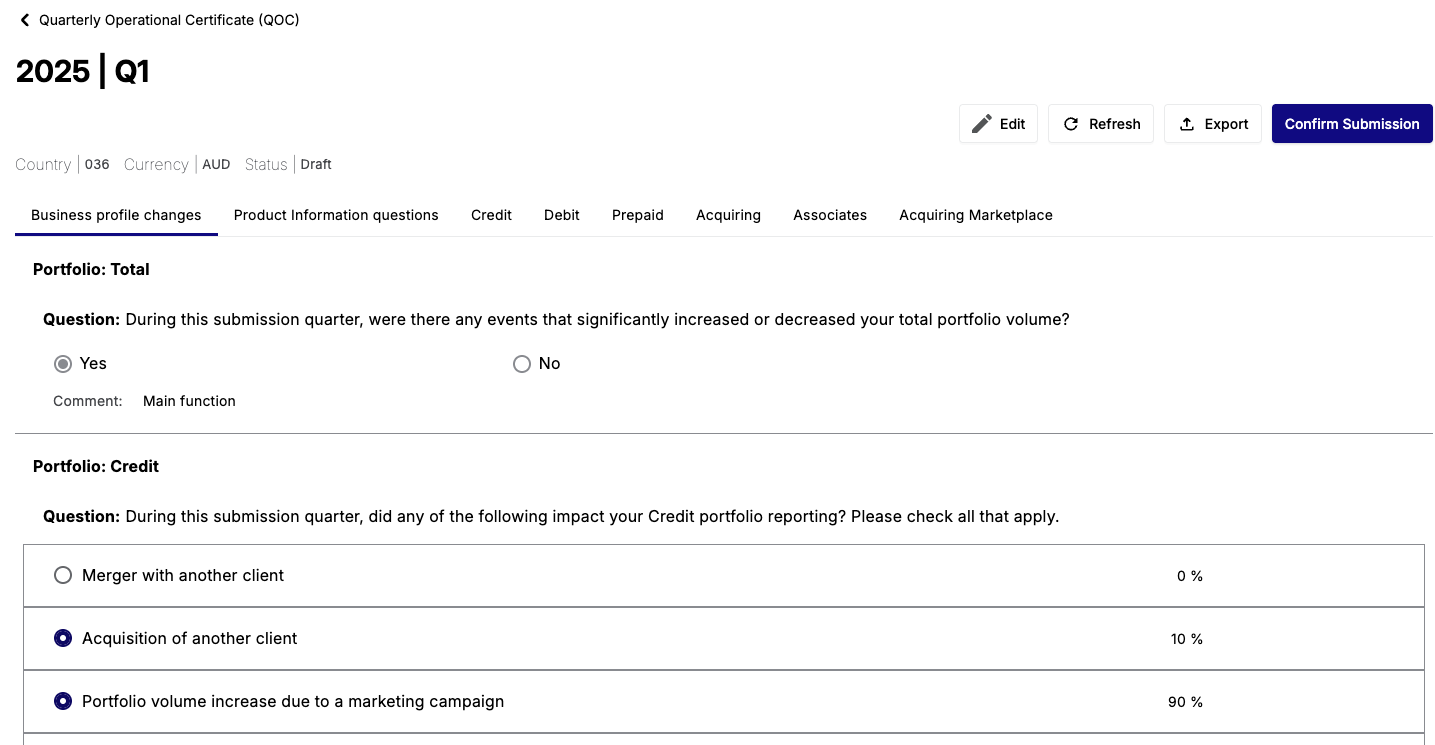
The following is an example of a QOC.
-
Business Profile Changes — provides details of important changes to your credit and debit portfolio volume since the previous reporting period. You are presented with a set of questions.
-
Product Information Questions — provides details of significant changes to your portfolio or your product since the previous reporting period. You are presented with a set of questions.
-
Credit — provides data on monthly credit card volumes, based on the card program category (for example, Business, Classic, Corporate, Gold).
-
Debit — provides data on monthly debit card volumes, based on the card program category (for example, Business, Classic, Corporate, Gold).
-
Prepaid — provides data on monthly prepaid debit card volumes, based on the card program category (for example, Business, Classic, Corporate, Gold).
-
Acquiring — provides data on monthly acquirer payment volumes, based on the card program category (for example, Business, Classic, Corporate, Gold).
-
Associates — provides product and business data for associates.
-
Acquiring Marketplace — provides details on transactions for marketplaces, such as local and domestic.
Editing a Report
This option enables you to update or add missing data to ensure that the report is accurate before submission. The values in many of the fields are calculated automatically based on the daily activity files. However, you may need to adjust the figures to reflect additional data that is not available to Thredd. For example, this is the case if you are both an Issuer and Acquirer, or run other payment programs outside of Thredd.
Thredd only fills in the data for the BINs that are available on your card program, and parts of the data that it receives from the Card Scheme.
-
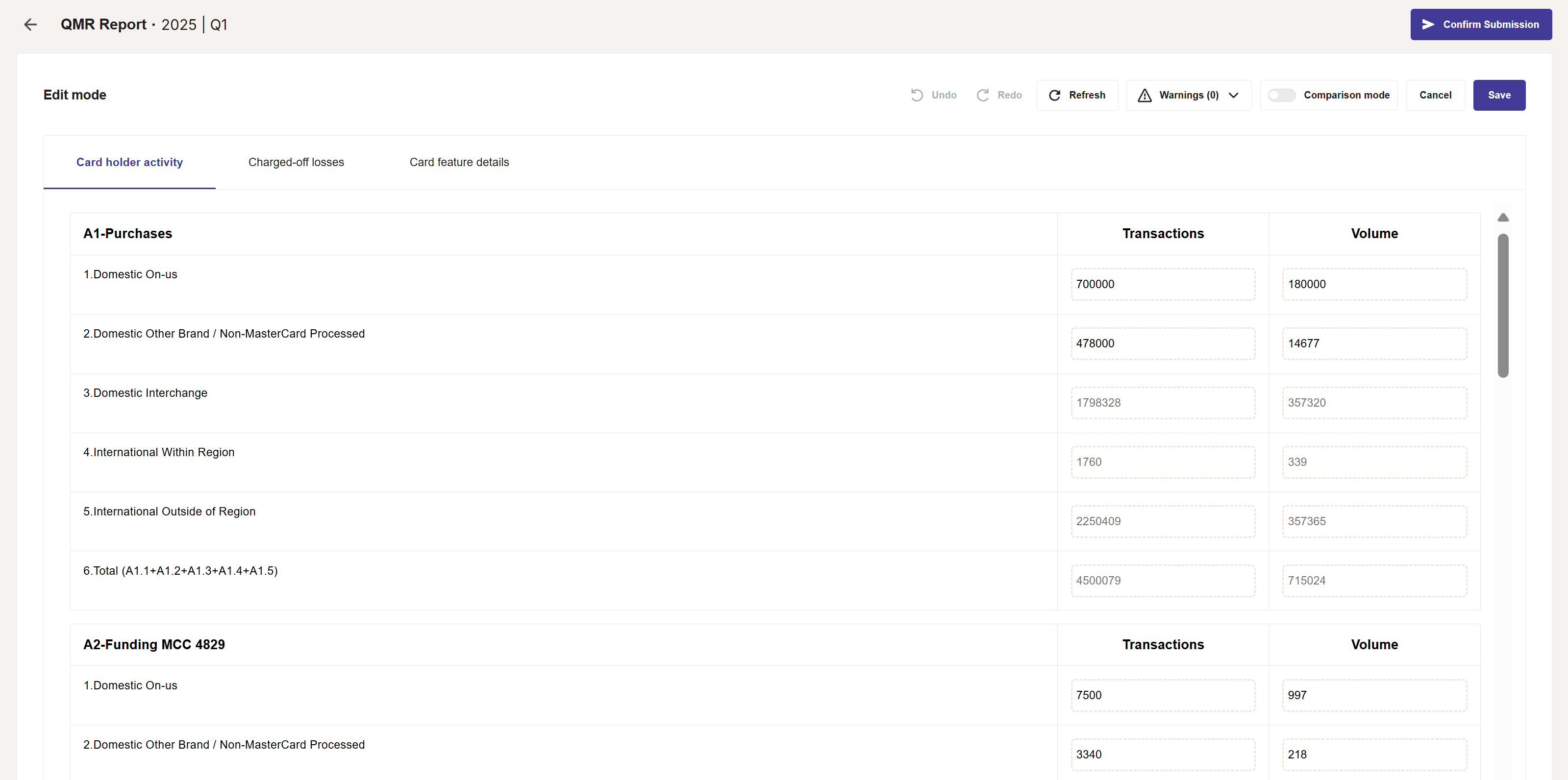
On the page for a scheme report, click the Edit (top right of screen). The report opens in Edit mode. See the example below.
-
Add new figures to empty fields, or update the existing figures in the fields.
-
When finished, click Save.
Questionnaire Sections (QOC-Only)
Editing a QOC also requires you to complete the questionnaires in the following sections of the report:
- Business profile changes
- Product information questions
Data in all other relevant sections are provided by Thredd and are for viewing only.
Warning Information
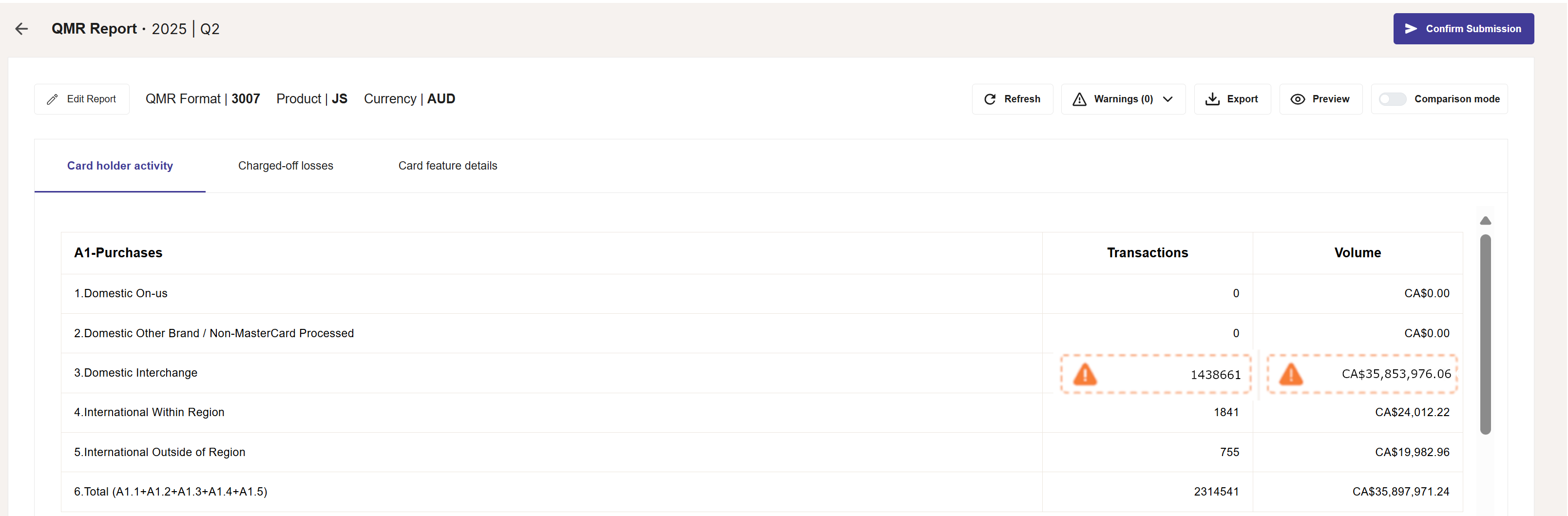
To help you add data to a QMR/QOC, a cell may contain warnings for entries that are incorrect.
Downloading a Report for Card Scheme Submission
When you have created the report in Automated Back Office, you can download it for submitting to the Card Scheme. You can then send an email to the Card Scheme, where you attach the downloaded report. When sent, you can confirm its submission within Automated Back Office.
Exporting a Report
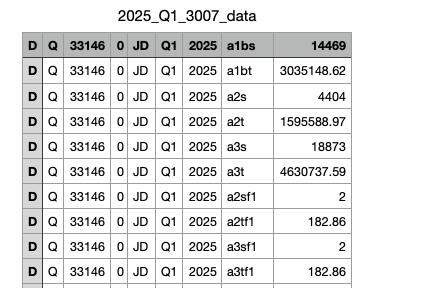
You use the export function to download the report to your system as a CSV file.
This export function is different from the other export functions in Automated Back Office. For Regulatory Reports, you can only export a single report at a time in the CSV format.
-
Click the
 button next to the Cancel button.
 - Select the Export option from the list.
The CSV file shows data similar to the following example:
Confirm Submission
To ensure that Automated Back Office has the most up-to-date report status details, you should confirm in Automated Back Office that you have submitted the report to the Card Scheme.
-
Click the button next to the Cancel button.
- Select the Confirm Submission option from the list.
- Click Confirm Submission in the displayed confirmation box.