Viewing the Visa QOC
Below is an example of the Visa Quarterly Operating Certificate (QOC) report. You can click the tabs to browse through the different sections of the report.
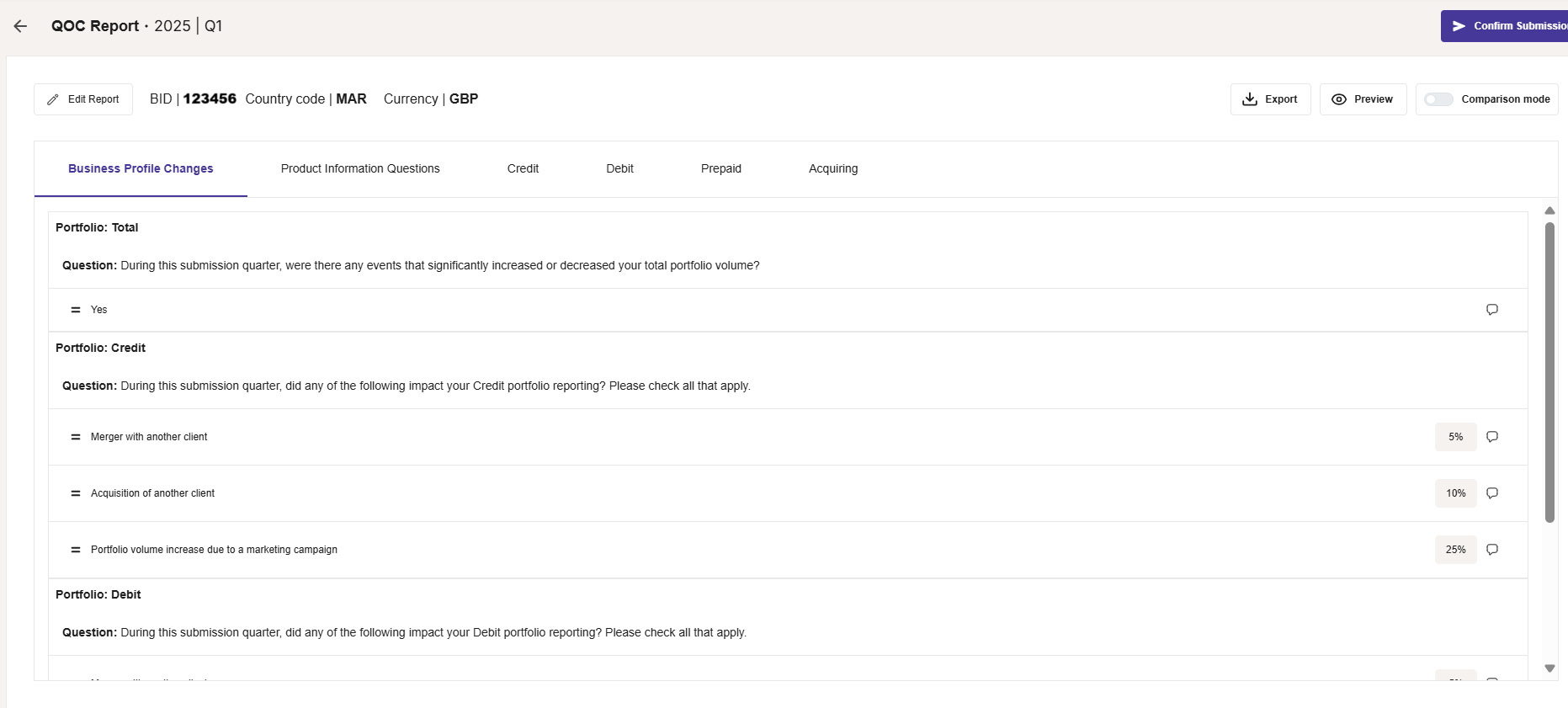
Figure 43: Example of a Quarterly Operating Certificate (QOC) Report for Visa
To help you add data to a Card Scheme report in the correct format, a cell may contain warnings for any entries that are incorrect. See Viewing Report Warnings.
The QOC has the following sections:
-
Business profile changes — provides details of any significant changes to your credit and debit portfolio volume since the previous reporting period.
-
Product information questionnaire — provides details of any significant changes to your total portfolio volume since the previous reporting period.
-
Credit — provides data on monthly credit card volumes, based on the card program category (e.g. Business, Classic, Corporate, Gold).
-
Debit — provides data on monthly debit card volumes, based on the card program category (e.g. Business, Classic, Corporate, Gold).
-
Prepaid — provides data on monthly debit card volumes, based on the card program category (e.g. Business, Classic, Corporate, Gold).
-
Acquiring — provides data on monthly acquirer payment volumes, based on the card program category (e.g. Business, Classic, Corporate, Gold).
Completing your QOC Data
Questions relating to your business profile and products must be manually completed. The transactional component of the QOC (credit, debit, prepaid, acquiring) is generated from the Visa Base 2 files, using a specific mapping of transaction types and meta-data of daily Clearing files to the associated fields required.
To edit the report:
-
On the Report page, click the Edit button (top right of screen) to open the report in Edit mode.
-
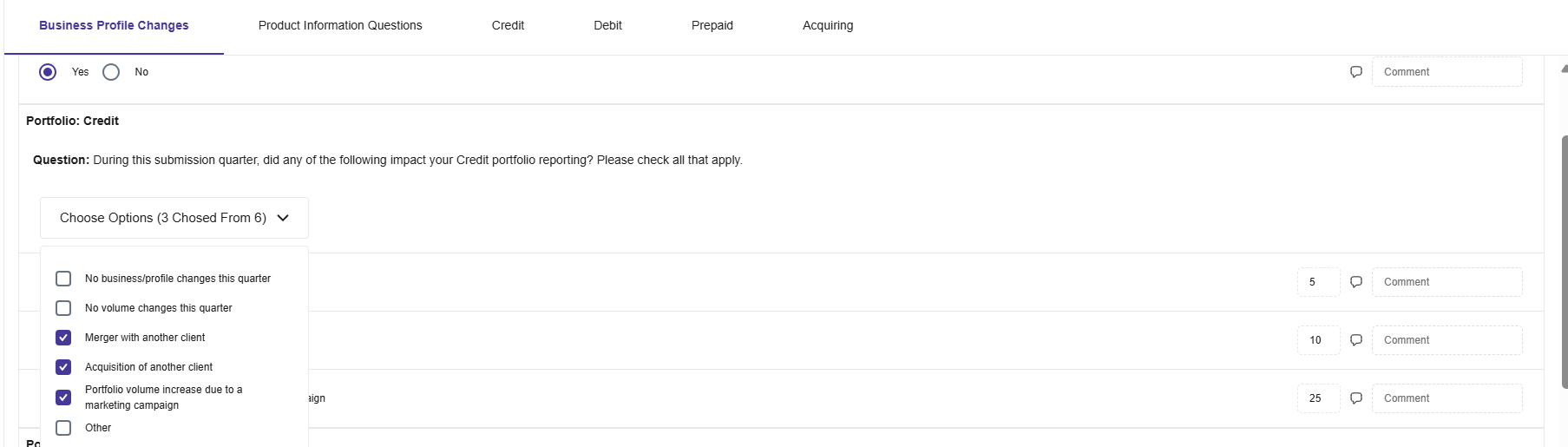
Answer the questions (check Yes or No). Then Use the drop-down menus to select the required information. For example:
-
You can add comments or update any figures in the cells.
-
When you have finished your changes, click Save.
For any missing information, you may need to provide Thredd with data for processing by the system.
Exporting the Report
This option enables you to export the report to a CSV file, formatted for submission to the Card Scheme.
-
On the Report page, click the Export button (top right of screen). See the example below.
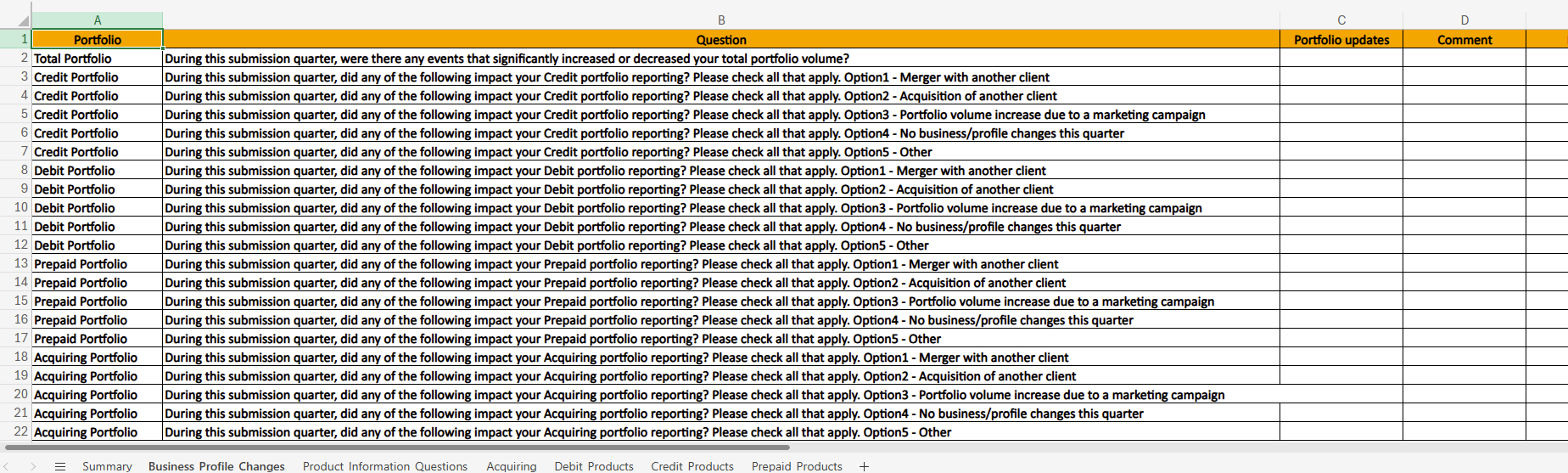
Figure 44: Scheme Report Download to a CSV file - example for the QOC