Viewing Network Fees
This section explains how to view your network fees in the Dashboard. To help in your analysis, you can view data in donut charts, graphs, and data boxes, and drill down on key information through filters.
Opening the Network Fees Dashboard
Click the Network Fees Quick Actions button from the main Automated Back Office dashboard. Or click the  icon on the left-hand side to bring up the menu, followed by Finance > Network Fees. The Dashboard for network fees appears.
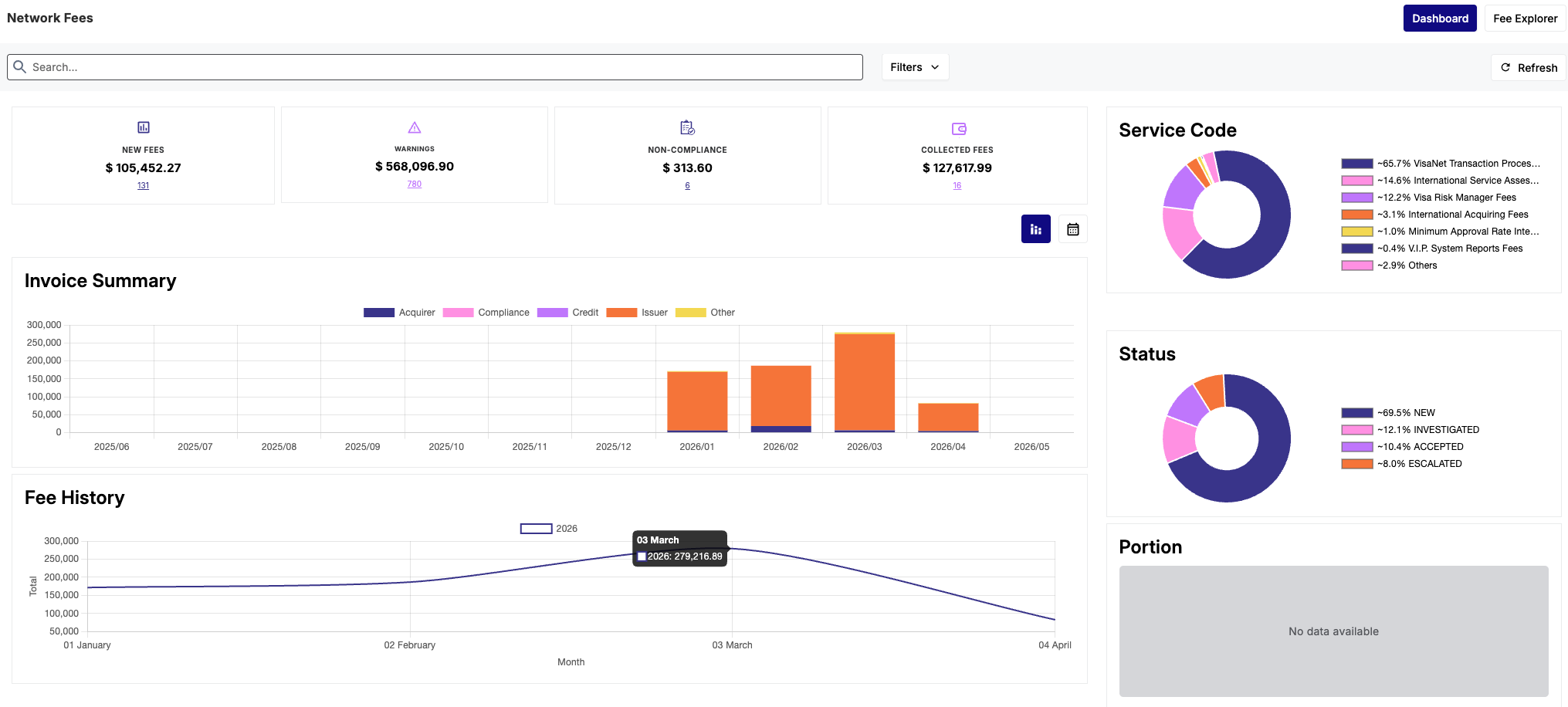
The Dashboard displays a summary of your network fees. See the example below.
Data Boxes
Data boxes provide basic information on the fees, including the amount and occurrences within the invoices. Depending on the underlying data in your program, applied filters, and the uploaded data, the boxes that appear on the Dashboard can vary. For example, the Dashboard can include these data boxes:
- New Fees — new fees and totals that have not been reviewed. These fees are not categorized as a Warning.
- Optional — services that you may not need and can opt out of.
- Warnings — fees from new and previous invoices that were irregular or could not be classified. A fee classified as a Warning must be in one of the following statuses:
-
Suspicious — the system could not match the entity to a known program or couldn't find a matching fee definition in its reference data.
-
Unusual — uses an event code that has not appeared on a previous invoice.
- Non-Compliance — the number of fees and totals that haven't complied with Visa or Mastercard's policies. For example, this can include late fee submissions.
- Collected Fees — fees that have been paid from previous invoices. This is for Visa only.
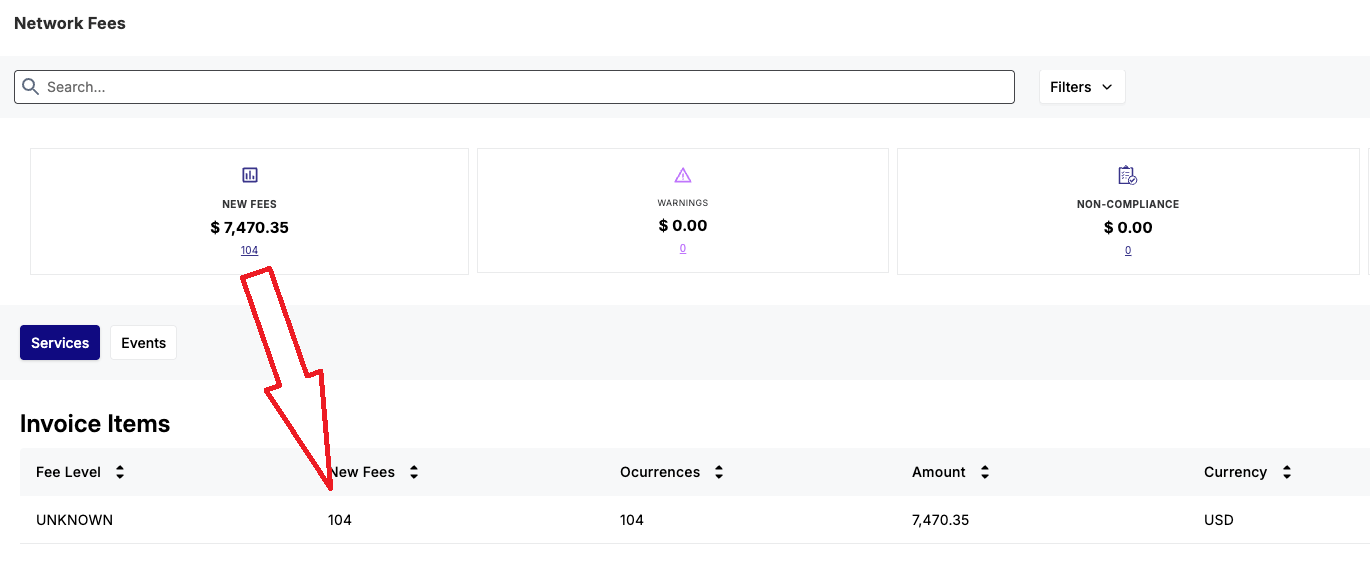
The following example shows the New Fees data box.

The hyperlink shows the number of items for that category in the Invoice Items list. For example, the New fees data box has the figure 104 as a hyperlink.
Donut Charts
A donut chart shows a category of fee data with subcategories of specific percentages. These subcategories appear in the segments of the donut ring.
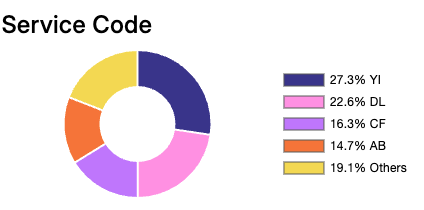
The following categories and subcategories appear.
|
Category |
Description |
Sub-Category |
|---|---|---|
|
Service Code |
|
|
|
Status |
The position of a fee in Automated Back Office. For example, if a fee is in the Escalated status, you can contact the Card Scheme if you want to dispute the charge. |
|
|
Portion |
|
List of affiliates with specific rates. |
Graph and Calendar Views
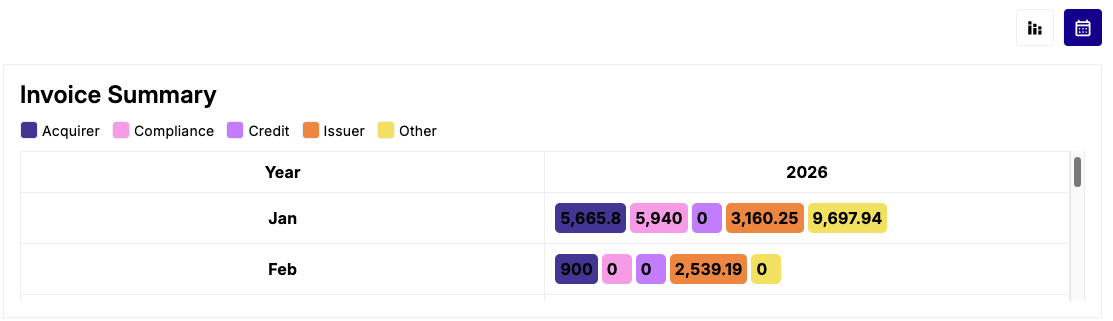
Graph and calendar views display data over previous periods of time. Invoice Summary is presented in graph and calendar views. While, fee history is presented in graph view only.
Invoice Summary include data in the following categories:
-
Issuing
-
Acquiring
-
Compliance
-
Credits & Other
Graph View
The following shows Invoice Summary and Fee History in graph view.
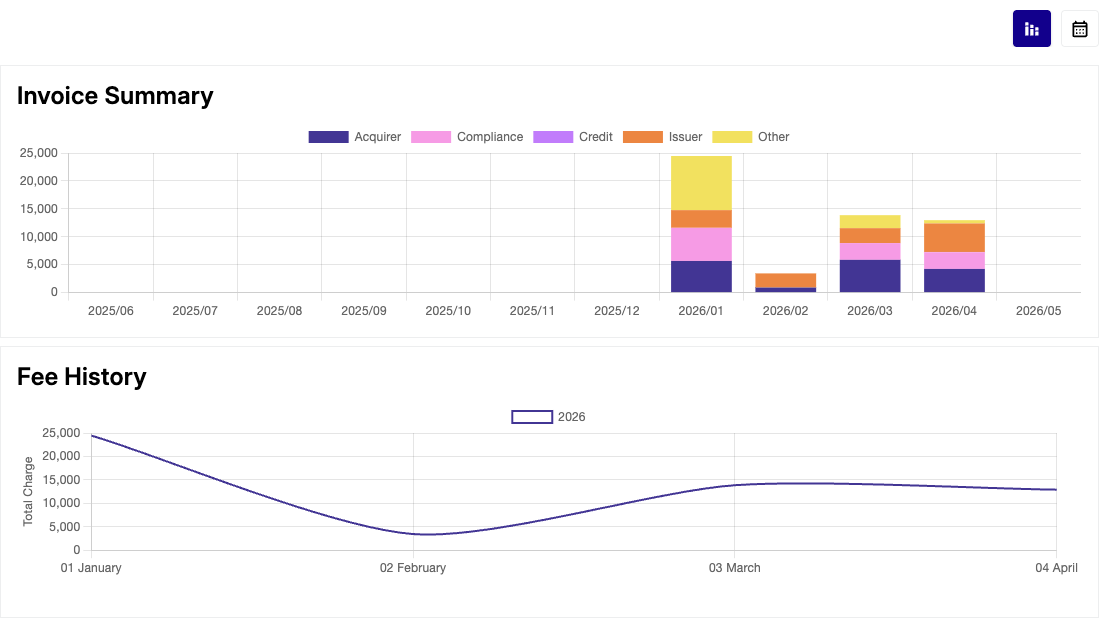
Hovering over a bar in any of the graphs shows a detailed view of the entry including the exact amounts.
Clicking a bar in the Invoice Summary graph shows the invoice list in Fee Explorer.
Calendar View
The following shows Invoice Summary in calendar view.
Searching for an Invoice Item
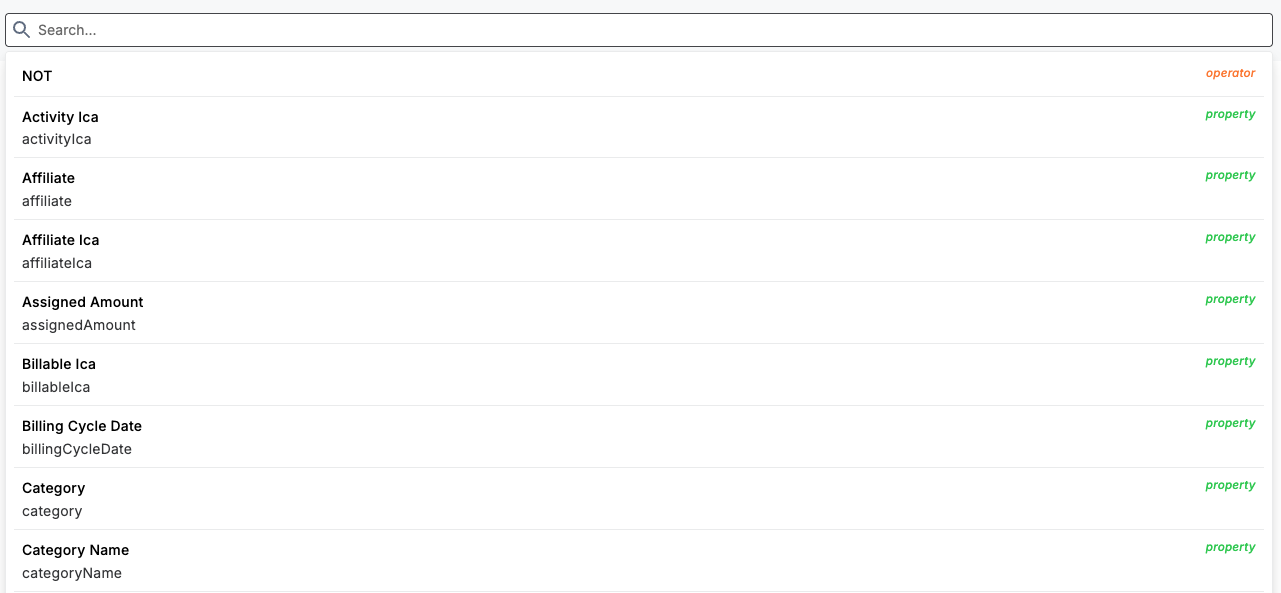
You can enter a search term in the search box. Or you can click on the search box and use the various properties that appear in a drop-down list.
Filtering Records
You can use the following filter options to refine the list of records. These include:
- Invoice Ica — The unique identifier that is assigned by Mastercard to identify an Issuer. ICA means the Interbank Card Association.
-
Extracted Bin — The BIN number of the program. This is used for Visa programs only.
-
Affiliate — The affiliate organisations that are linked to a BIN Sponsor or a BAAS Provider. This filter option only applies to BIN Sponsors or BAAS Providers.
-
Category Name — The category of the fee that is used in the invoice, such as an adjustment fee.
-
Service Code — Code that describes the type of fee related to the invoice line item.
-
Fee Category — The class of fee relating to how the fee is used or where it appears, for example, Systems & Tools.
-
Currency — The currency that is linked to the fee.
-
Status — The status of the fee.
You can also set other filter options on the Dashboard.
Choosing the Default Filter Options
To choose the default filter options:
-
Click Filter. Drop-down lists appear for all the filters.
-
Select individual filter options from the following drop-down lists:
-
Invoice Ica: All (Mastercard only)
-
Extracted Bin: All (Visa only)
-
Affiliate: All
-
Category Name: All
-
Service Code: All
-
Fee Category: All
-
Currency: All
-
Status: All
-
To clear all of the filter options, click Clear All.
Filtering by Invoice Ica/Extracted Bin
From the Invoice Ica:All/ Extracted Bin:All drop-down, select an ID from the OPTIONS list or use the search field.
Filtering by Affiliate
From the Affiliate: All drop-down, select an affiliate category from the OPTIONS list or use the search field.
Filtering by Category Name
Select a Category Name from the OPTIONS list or use the Search field. This is based on the uploaded invoice. For example, you may see a choice of ACTIVITY_FEES or ADJUSTMENT_FEES.
Filtering by Service Code
Select a Service Code from the OPTIONS list or use the Search field. For more details on Service Codes, see Service Codes in the Appendix section.
Filtering by Fee Category
Select a Fee Category from the OPTIONS list or use the Search field. This is based on the uploaded invoice. For example, you may see a choice of Activity, Reporting, Systems & Tools, and Transactional.
Filtering by Currency
Select a Currency from the OPTIONS list or use the Search field.
Filtering by Status
Select a Status from the OPTIONS list or use the Search field. The Status options include:
- Accepted — a fee is approved in Automated Back Office. For more details, see Investigating Fee Invoice Items.
Escalated — a fee that is escalated to the Card Scheme (where an escalation email is sent).
Investigating — a fee is flagged for further investigation. For example, you do not wish to be charged for the fee.
New — new fees and totals that have not been reviewed.
Optional — a fee where you are not required to pay the amount.
Penalty — a fee must be paid in order to abide by a rule or a contractual agreement.
Reopened — a fee that needs to be examined again because it was previously Accepted in error.
Suspicious — a fee does not appear legitimate, for example, the amount is excessively high.
Waived — a fee is no longer charged.
Waiver Requested — a request has been given for a waiver.
Choosing Further Filter Options
To select further filter options:
-
To select further filter options:
-
Click the
 .icon.
 -
Select any of the filter option categories that are unticked.