13 Applications
The Applications page enables you to review and manage organisation applications. From this page you can:
-
Create a new application
-
Review an application
-
Edit an application
When you have successfully created an application, you can create an associated OAuth Client. Successfully creating an OAuth Client for your application generates a Client ID and Client Secret that can be used to use our Postman Collection for our API Hub endpoints.
13.1 Create an Application
To create an application:
-
Click Add Application. The Create New Application screen appears.
-
Enter the basic information, such as a name and description, for the application.
Thredd recommends that you use an application name that you can easily identify for any application management activities. For example, to distinguish it from other applications when you need to obtain credentials, such as a Client ID, access token or certificate.
-
Click Next and review the new application summary; select Back to make changes or click Create Application to save it.
Your new application now appears in the Applications screen. Select the menu (three dots) under Actions and select Review Application.
13.1.1 Review an Application
The Review Application page enables you to view and create OAuth clients for your application. For more information on how to do this, see Create OAuth Client.
13.1.2 Edit an Application
To edit an application:
-
Navigate to the application you want to edit on the Applications page and click the Actions menu button.
-
Select Edit Application.
-
Edit the name and the description of the application in the fields provided.
-
Click Next.
-
Review the changes and click Update Application.
13.2 Create OAuth Client
Creating an OAuth client creates a Client ID and Client Secret that can be used to use Thredd's REST APIs.
To create an OAuth client for an application:
-
On the Review Application page, click Create Client. The Create OAuth Client page opens.
-
Enter the name and a description for the client in the fields provided.
-
Select the specific scopes from the ones available from the Allowed Scopes field. If none selected, all available scopes for the organisation will be granted.
-
Click Next.
-
Review the details of the client and the scopes associated with it. Scopes dictate what APIs you have permissions to use when calling the endpoints.
-
Click Submit.
A new OAuth client is added to your application.
13.2.1 Viewing an OAuth Client
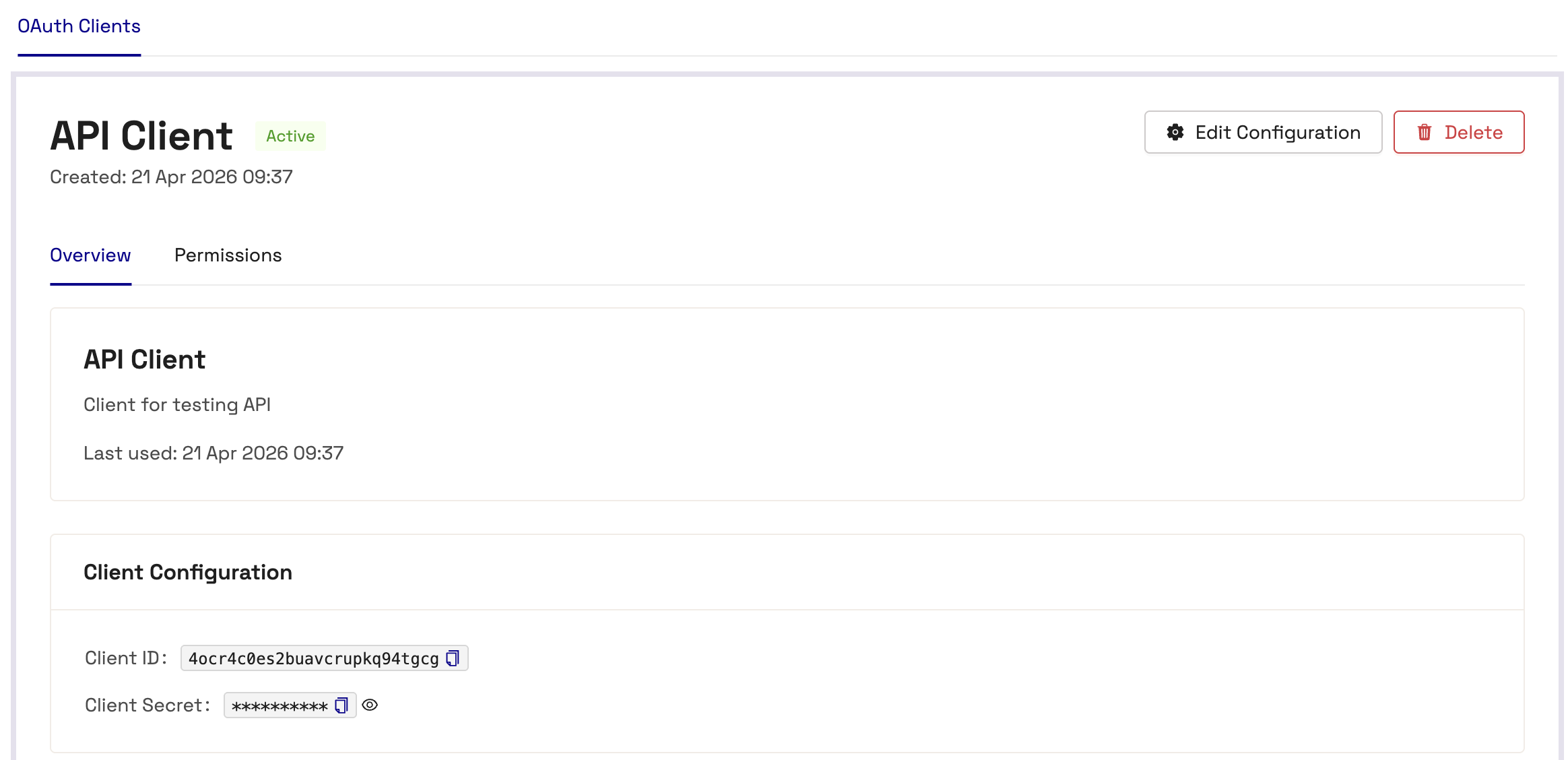
You can view an OAuth Client (including the Client Secret and Client ID for the client) from the Application Details page by clicking the Actions button for the client and select the View Details option. The details of the client display, including when it was last used and the Client ID and Client Secret.
13.2.2 Editing an OAuth Client
To edit an OAuth Client, from the Application Details page:
-
Click the Actions button for the client and selecting the View Details option. The OAuth Client Details page opens.
-
Click Edit Configuration. The Edit Configuration window displays.
-
Edit the Client Name and Description of the configuration.
-
Click OK.
The window closes and the client configuration is amended.
13.2.3 Deleting an OAuth Client
To delete an OAuth Client, from the Application Details page:
-
Click the Actions button for the client you want to delete and select the View Details option. The OAuth Client Details page opens.
-
Click Delete. The Delete OAuth Client window displays.
-
Click Delete.
The window closes and the client is deleted.